Item Mapping
# Administration - Smart Quote / Product / Item Mapping
Item Mapping provides a way for complex Bills of Material to be handled in a simpler way than through a Rule. For one or more Attribute/Value pairs that match, one or more Items are added to the BOM.
Mapping vs. Rules: When to use what?
While both Rules and Item Mappings can add items to a configuration, they serve different purposes.
| Feature | Item Mapping | Rules (config.AddItem) |
|---|---|---|
| Complexity | Static 1:1 or N:1 relationships. | Dynamic logic, math, and conditions. |
| Scalability | High. Best for hundreds of parts. | Lower. Best for specialized logic. |
| Maintenance | Data-driven (Easy to bulk import/edit). | Code-driven (Requires DSL knowledge). |
| Performance | Optimized for volume. | Evaluated sequentially with other logic. |
General Rule of Thumb
Use Item Mapping when the quantity or volume of potential BOM items is significant. If achieving your BOM requirements with Rules would require creating "one rule per item," Item Mapping is significantly more efficient and easier to maintain.
Use Rules when the addition of an item depends on a calculation (e.g., Length / 100) or complex "if/then/else" logic that spans multiple unrelated attributes.
List
The List view of Item Mapping for the Product allows an ADMIN user to filter, select and manage Item Mapping records. Each record has a user defined Category that enables grouping inline with your business.
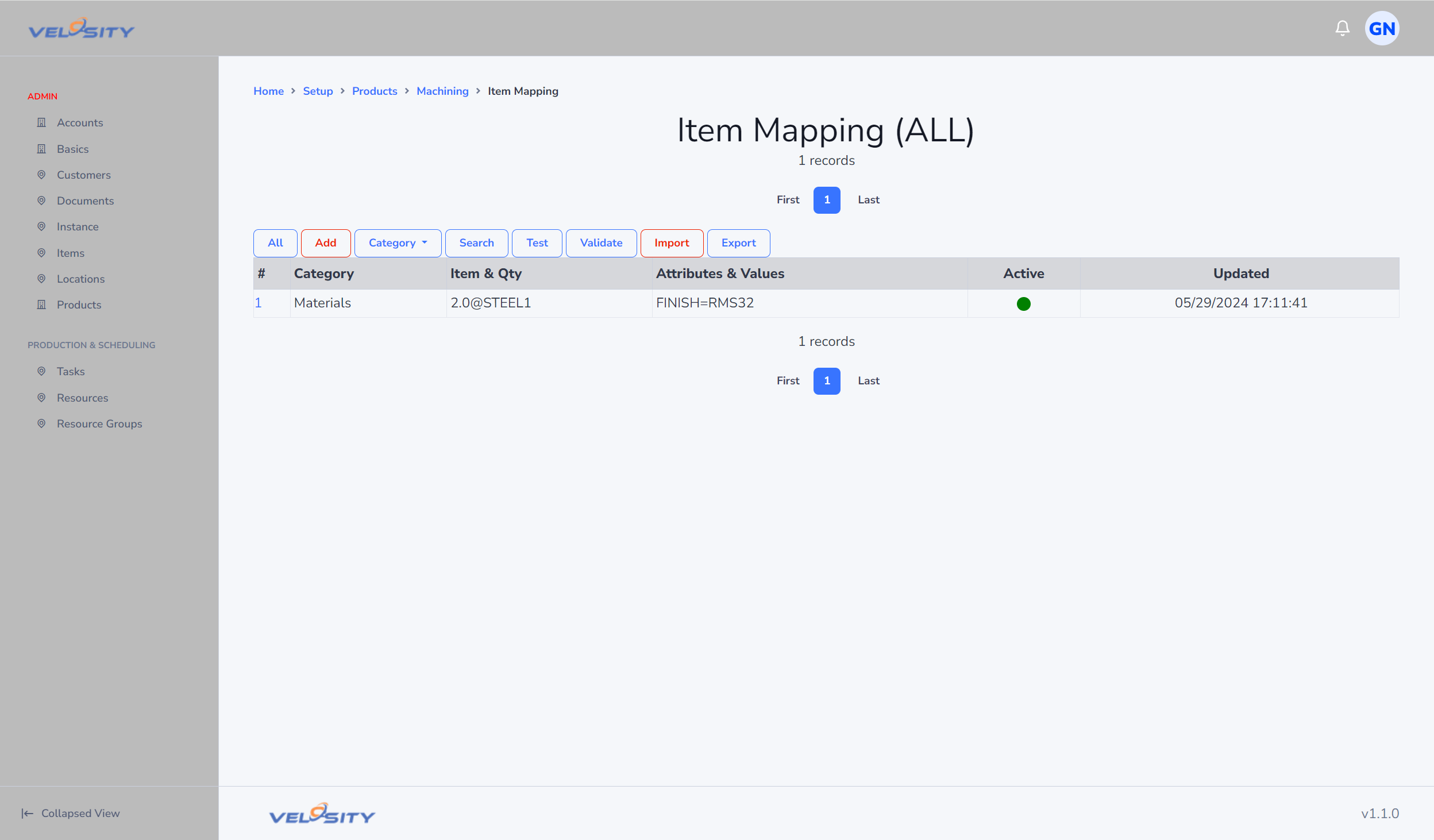
Add
The first step in adding an Item Mapping record is definition of the Category.
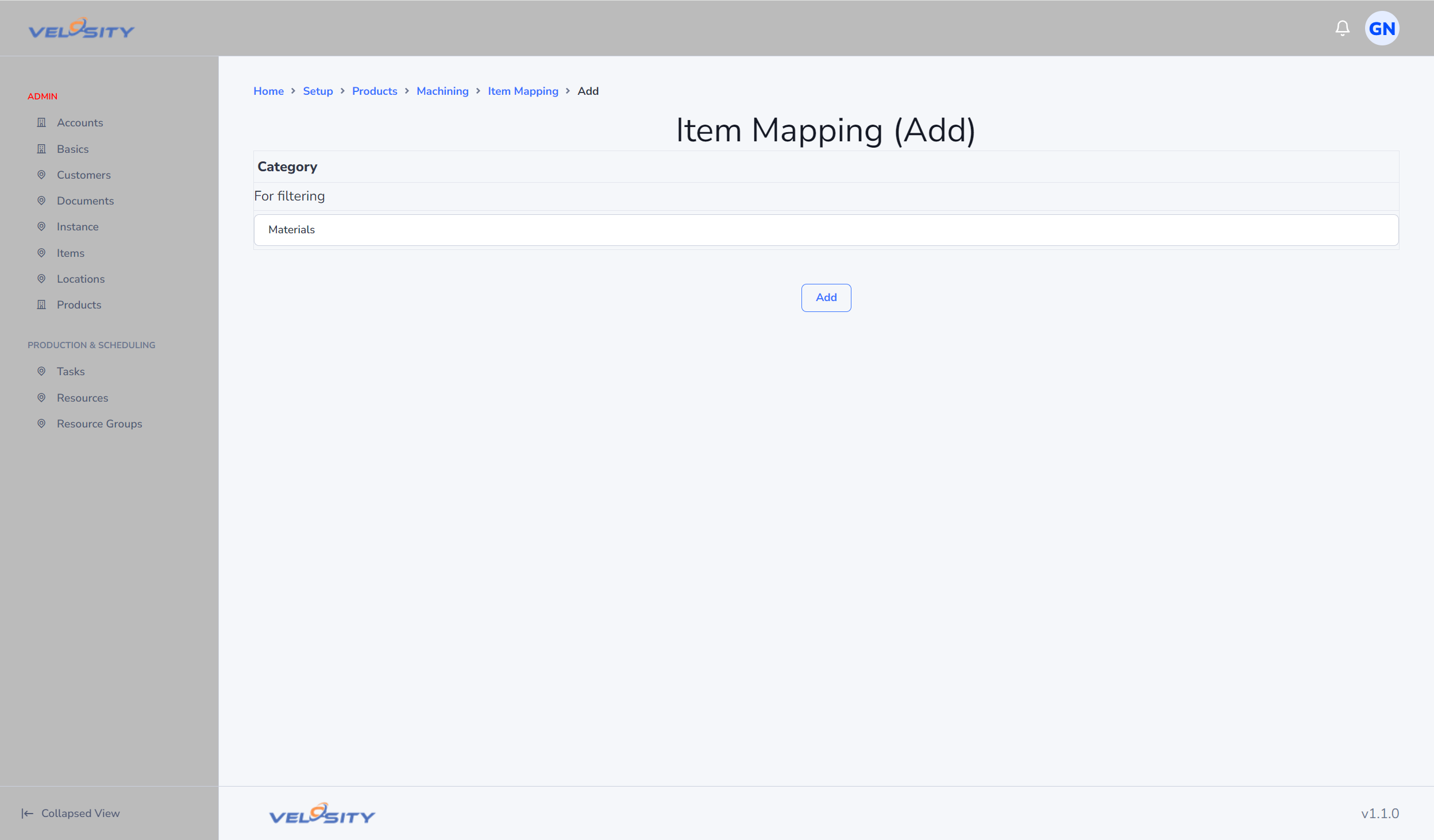
Edit - Add Attribute(s)
Once the record is added the next step is defining one or more attributes that will be evaluated by the Smart Quote engine. All Attributes must match in order for the Items to be added to the BOM.
The Attributes can be added manually or using the Quick Add menus (faster and great for beginners).
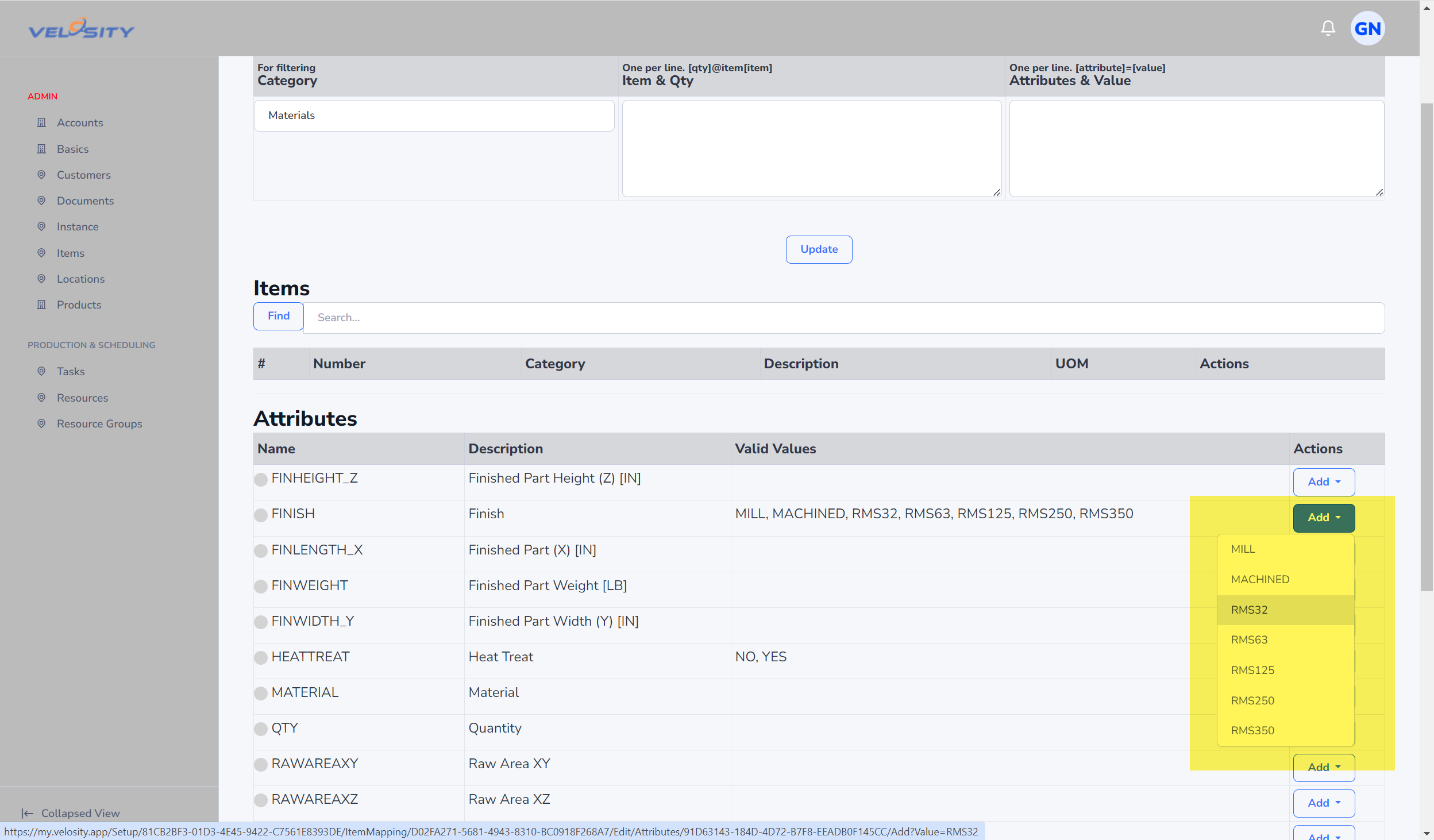
Edit - Add Items(s)
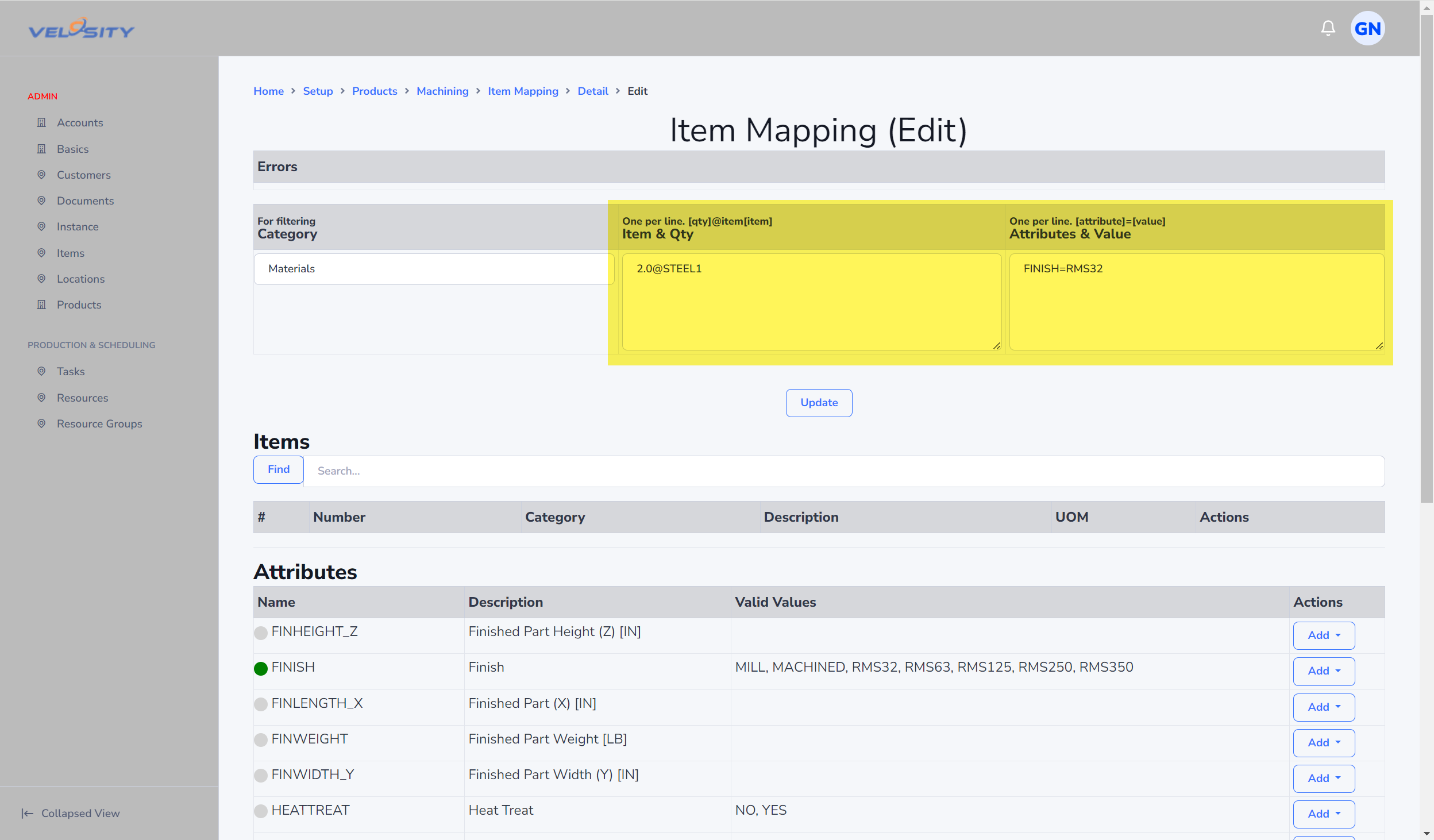
The next step is to add the Items and Quantity that will be added to the BOM (with 100% matching Attributes). The Items can be added manually or using the Quick Add menus (faster and great for beginners).
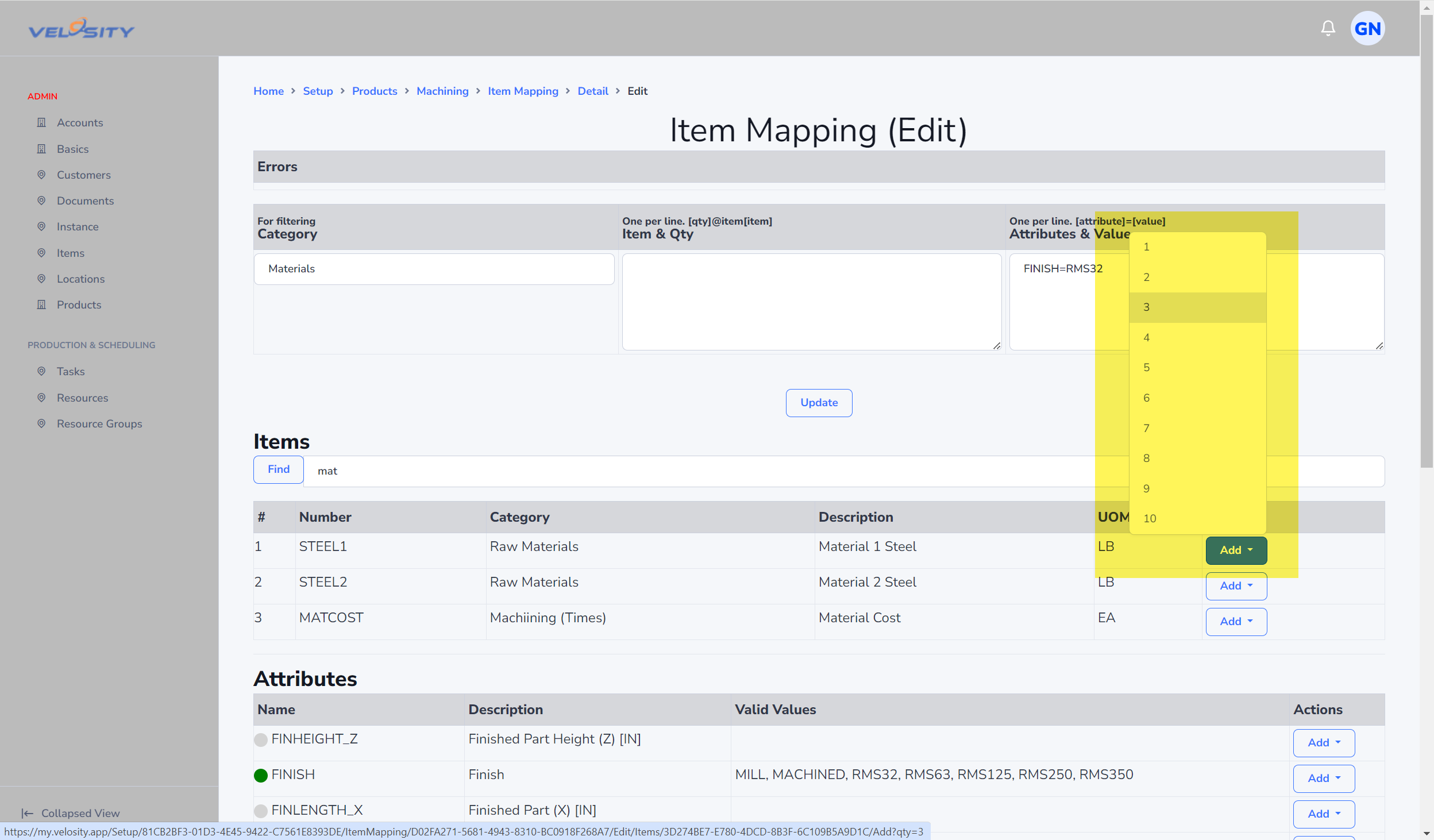
Edit - Complete
The editing of the newly added Item Mapping record is complete.
Detail
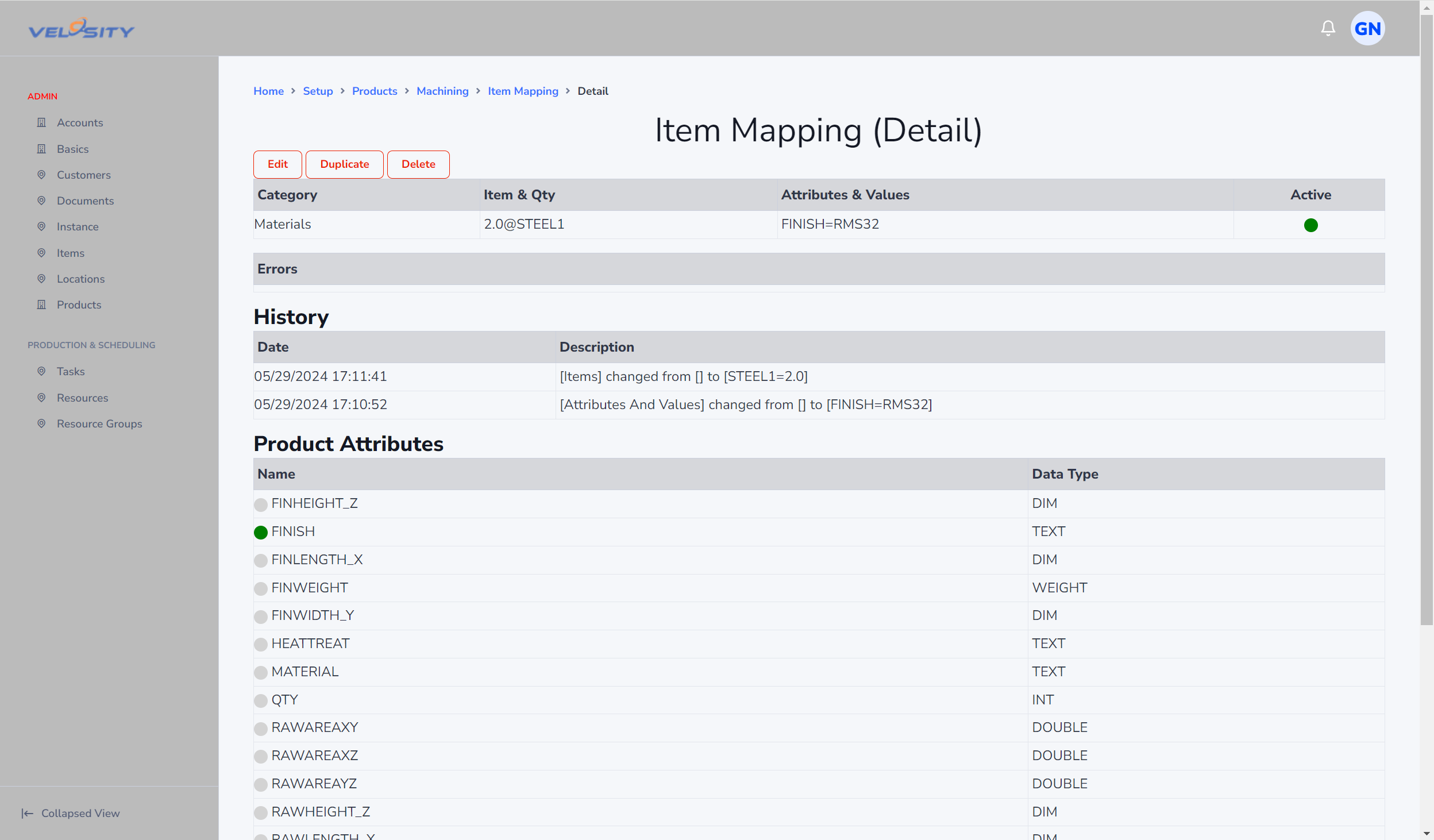
Here you can see the complete definition of this newly added Item Mapping record. When the FINISH Attribute is equal to RMS32, then 2 units of STEEL1 will be added to the BOM. The units for the material are defined on the Item record in the Items catalog.
Conflict Resolution: Multiple Matches
A common question is: What happens if multiple mapping records match the same set of attributes?
The Smart Quote engine is designed to be additive. * Additive Results: If Attribute A=X matches Mapping Record 1, and Attribute B=Y matches Mapping Record 2, both sets of items will be added to the BOM. * Exact Matches: The engine looks for the most specific match first. However, if multiple records have identical attribute requirements but different items, it will simply add all of them. * Duplicate Items: If two different mapping records add the same Item ID, the quantities are summed together on the final Quote/Order line.
Best Practices for Mapping Logic
- Keep it Discrete: Try to organize mappings so they don't overlap unless you explicitly want the items to stack.
- Use Categories: Leverage the "Category" field to group related mappings (e.g., "Fasteners," "Electrical," "Packaging") to make troubleshooting easier.
Lead Time Flow
When an item is mapped to a configuration, its Lead Time (defined in the Items catalog) is automatically carried forward to the Quote or Order line item. This ensures that even complex, configured products have accurate delivery estimates based on the underlying parts.