Application Navigation
Velosity provides a unified interface that allows you to move seamlessly between different modules and applications using the global navigation bar.
Application Launcher (9-Dot Menu)
The Application Launcher, represented by a 9-dot (grid) icon located in the top navigation bar next to your profile icon, is your primary tool for switching between different Velosity applications.
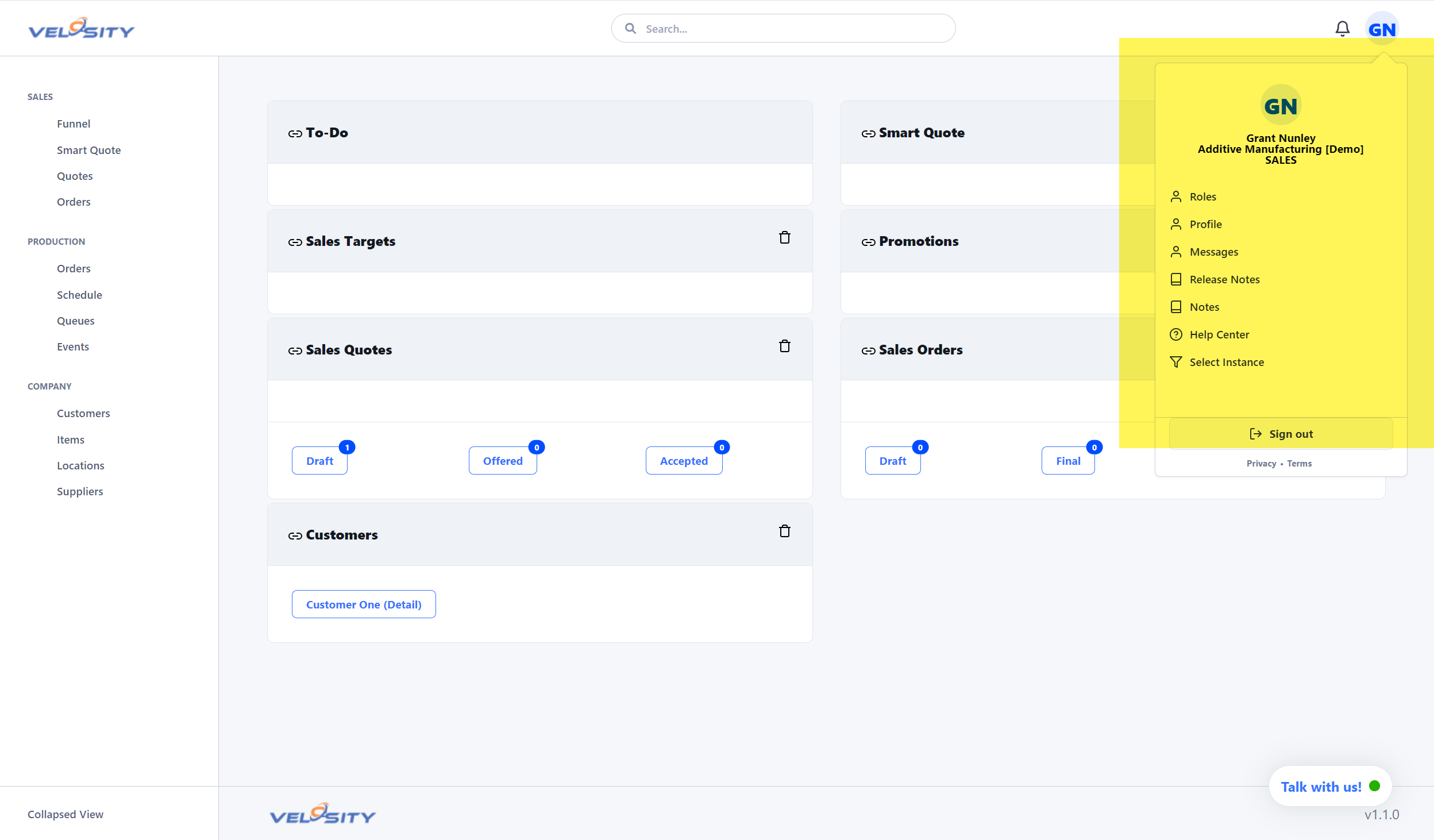 (Note: The launcher icon is located immediately to the left of the user profile icon.)
To switch applications: 1. Click the 9-dot icon in the top-right header. 2. A dropdown menu will appear listing all applications you have permission to access (e.g., HUB, CPQ, OPS, CRM). 3. Select the desired application to navigate to its specific dashboard and tools.
User Profile Menu
The profile icon (displaying your initials or picture) provides access to your personal settings and role management.
- Switching Roles: If your account has multiple roles assigned, you can switch your active perspective from this menu without logging out.
- Account Settings: Access your Profile to update personal information and security settings.
- Logout: Securely end your session.
Search and Collaboration
The header also contains the global search bar and notification center. - Global Search: Quickly find items, customers, or orders across the entire system. - Notifications: The bell icon alerts you to new messages or system updates.
For more details on searching and notifications, see Collaboration & Search.