Workflow Phases
Phases are a customizable way to categorize and track the progress of Production Orders beyond the standard system statuses (Planned, WIP, Completed). By defining your own phases, you can align Velosity with your specific internal workflows, such as "Engineering Review," "Waiting for Material," or "Out for Plating."
How Phases are Assigned
A Production Order's phase can be updated automatically or manually:
1. Automatic Task-Based Updates
When Tasks are defined in a router, each task can be assigned a specific Phase. When a shop floor worker clocks into a task (moves it to WIP), the parent Production Order automatically updates its phase to match that task. This provides an instant, high-level view of where a job is in its lifecycle without needing to open the full router.
2. Manual Overrides
Authorized users can manually change the phase of a Production Order or a specific Task using a dropdown menu in the Detail view. This is useful for handling exceptions, such as moving a job into a "On Hold" phase due to a customer request.
Managing Phase Definitions
Administrators can define the master list of available phases. These phases then appear as options in dropdowns throughout the system.
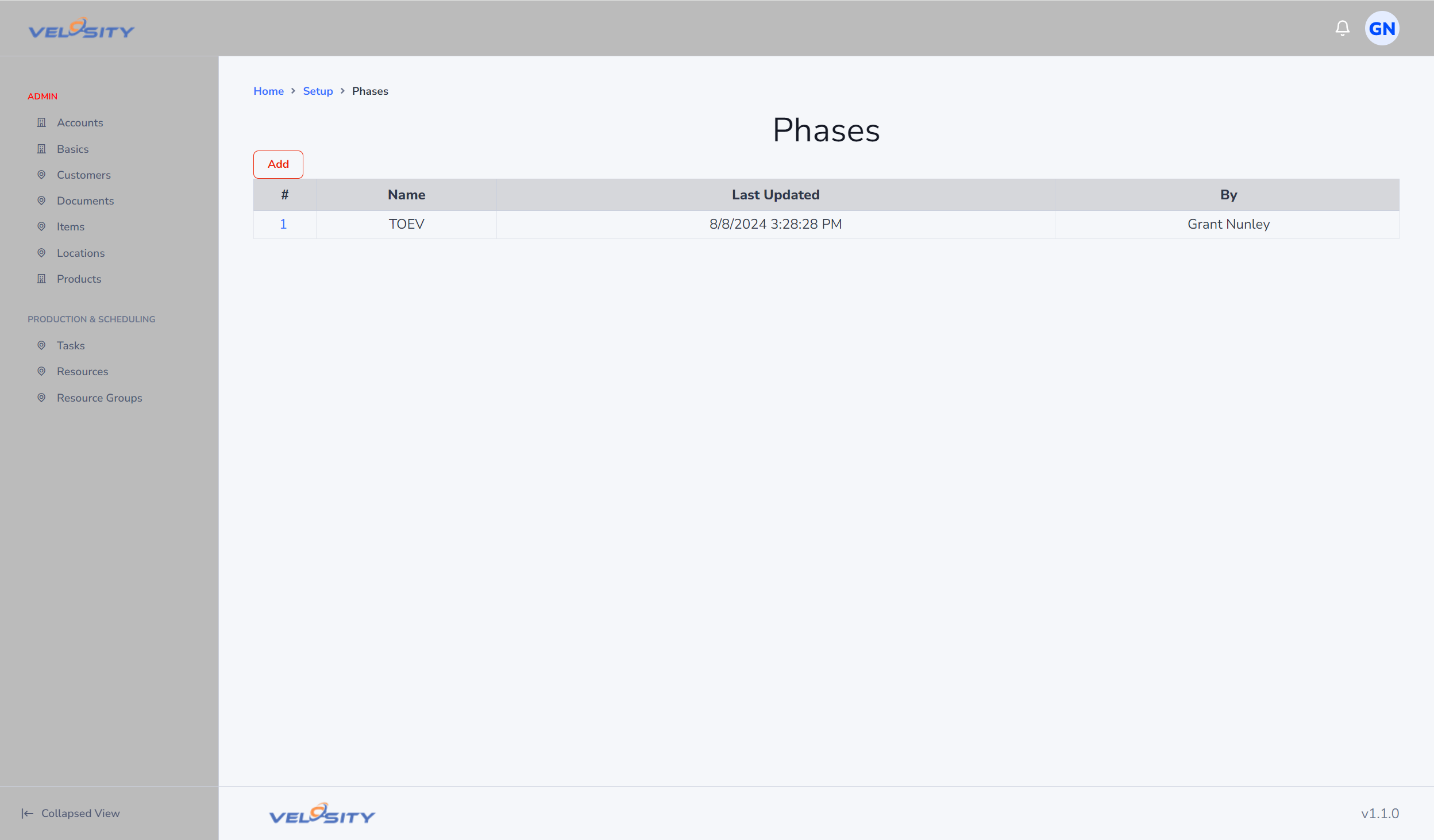
Phase List
The List view shows all active phases and their display order.
Adding and Editing Phases
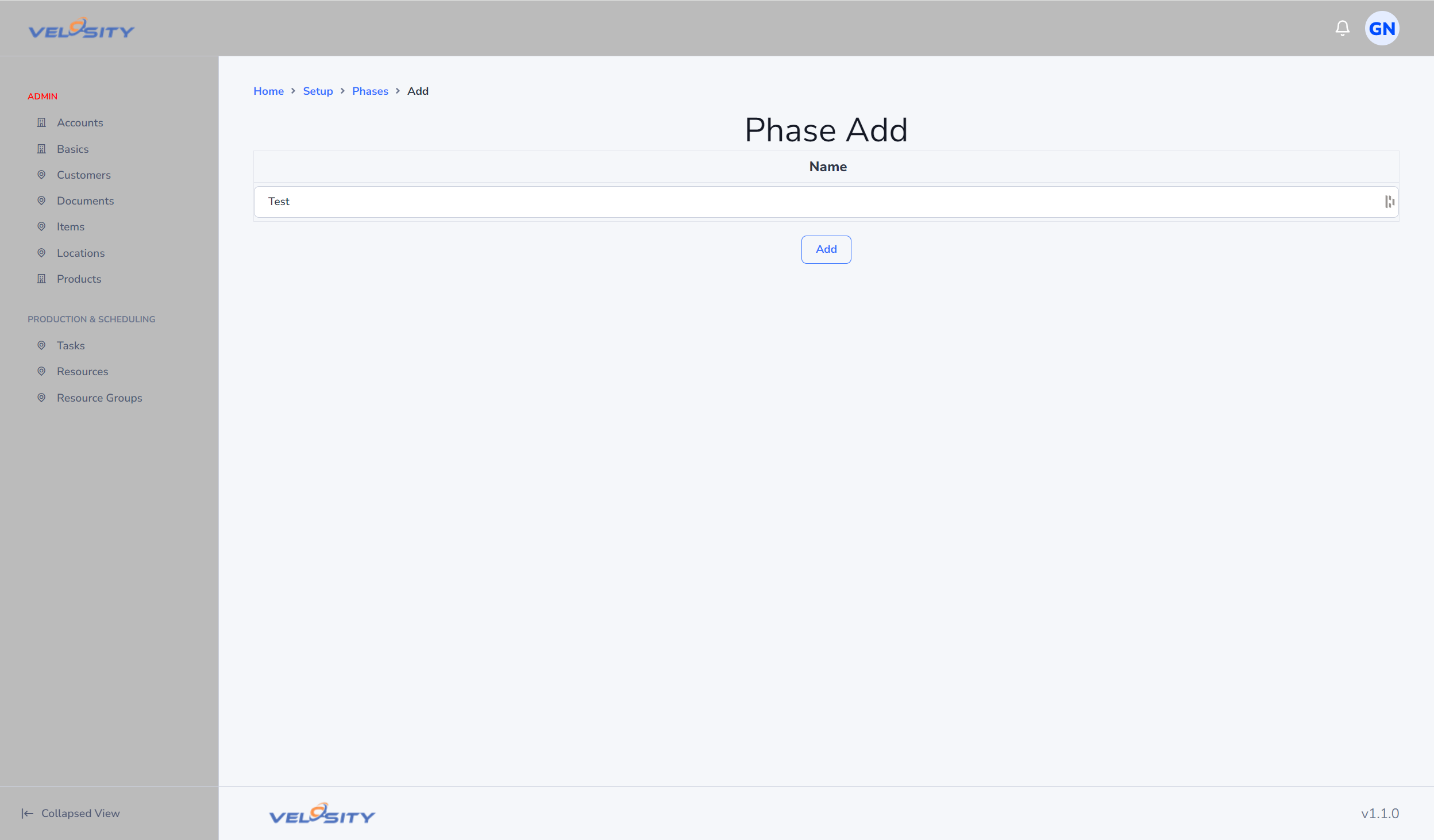
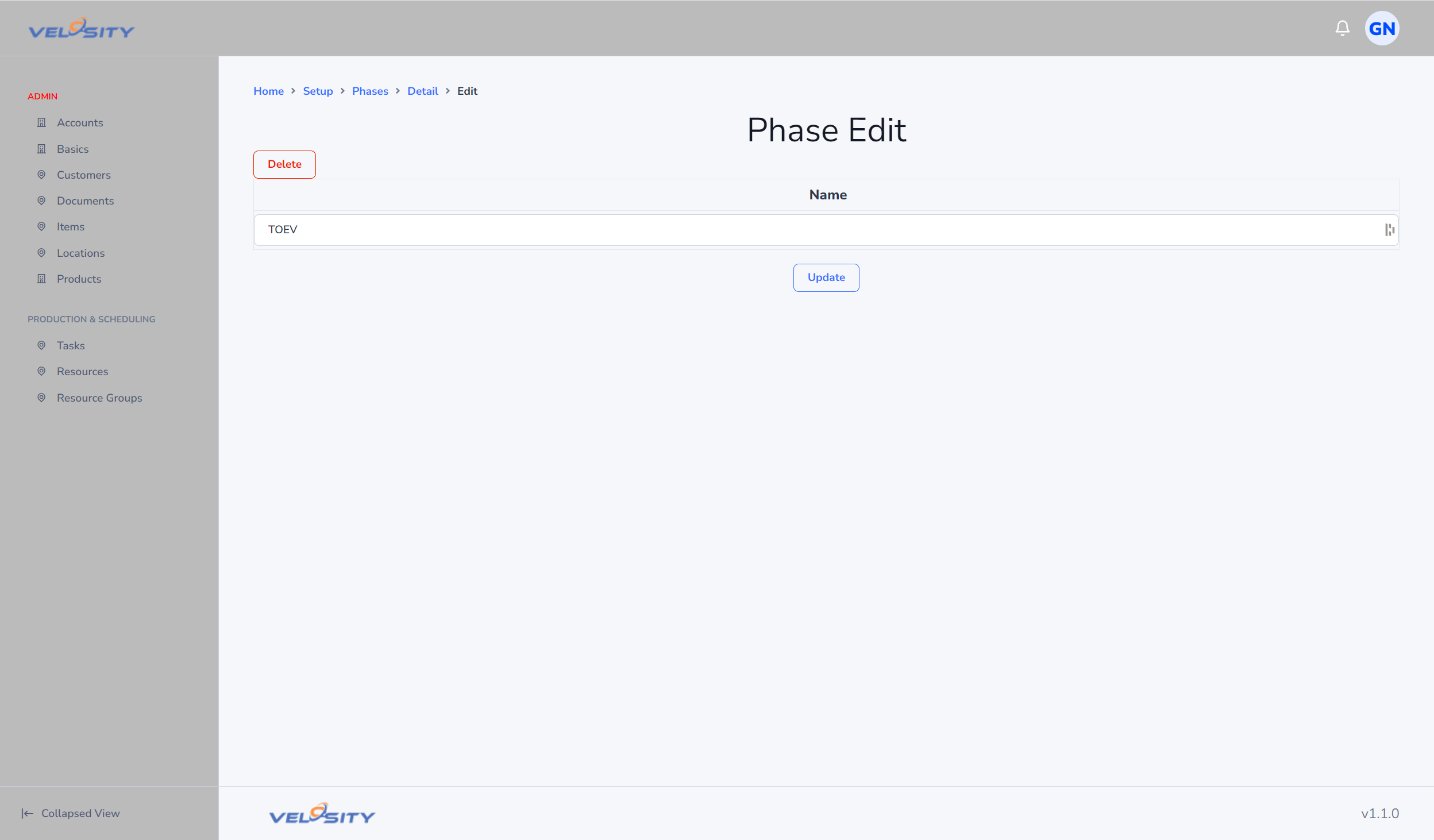
When creating a phase, use clear and concise names. You can also define the "Sequence" to determine the order in which they appear in the UI.
Strategic Use of Phases
- Bottleneck Identification: Use the "Production by Phase" view to see if work is piling up at a specific stage of your process.
- Improved Communication: Sales teams can check the phase of a Production Order to give customers more detailed updates than a simple "In Progress" status.
- Reporting: Group historical production data by phase to identify which stages of your manufacturing process are most prone to delays.