Administration - Smart Quote / Product
List
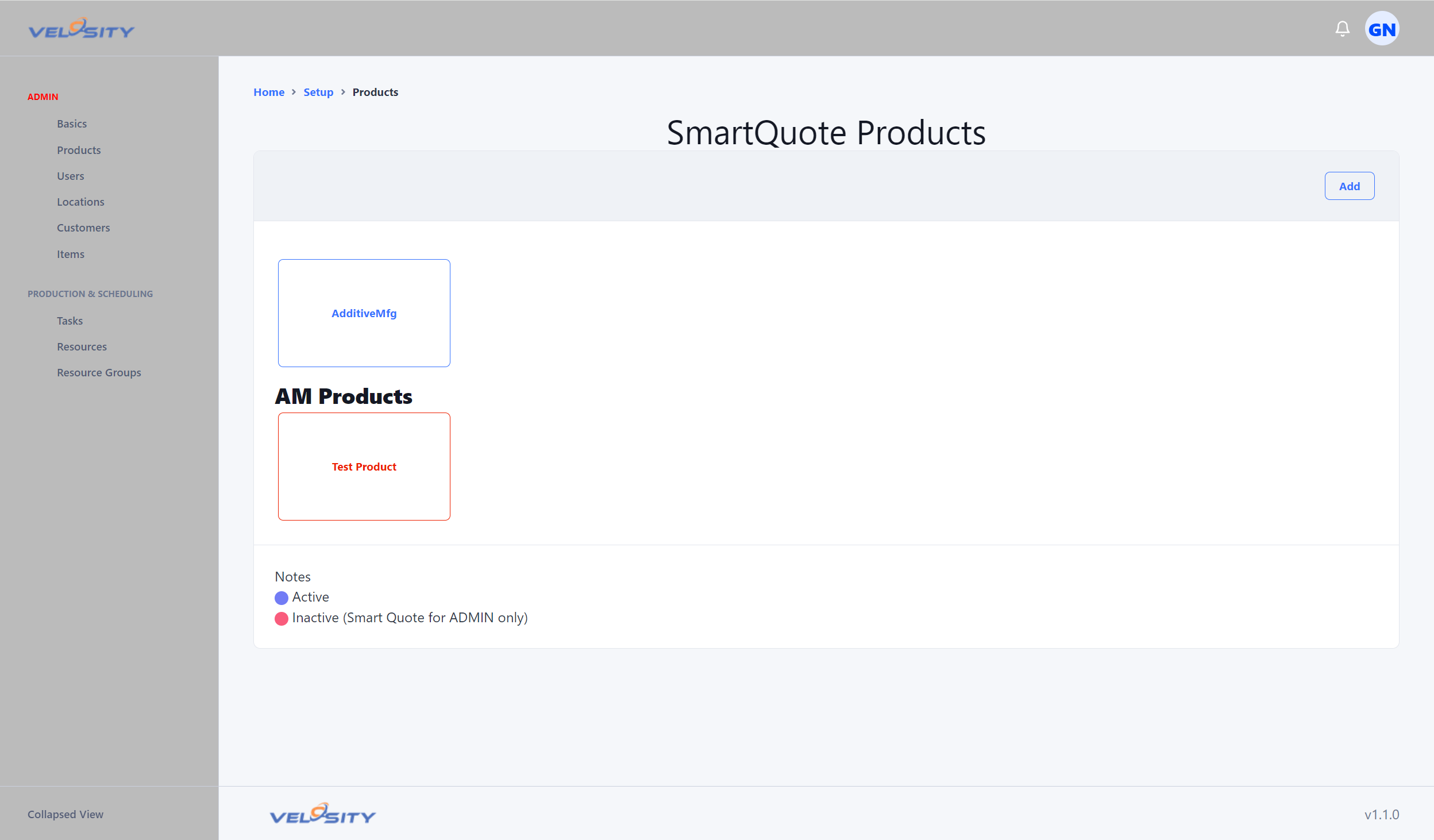
The Products List view provides ADMIN users with a searchable, filterable overview of all Smart Quote products configured in the system. This screen is the primary entry point for managing product definitions. From this view, an ADMIN can: - View all existing products, including Active and Inactive items - Search by product name or code - Sort by name, status, or last‑modified date - Open a product to view or edit its configuration - Create a new product - Duplicate an existing product for faster setup - Access validation results for quick troubleshooting
This list is intentionally compact to support fast navigation, especially in environments with large product catalogs.
Detail
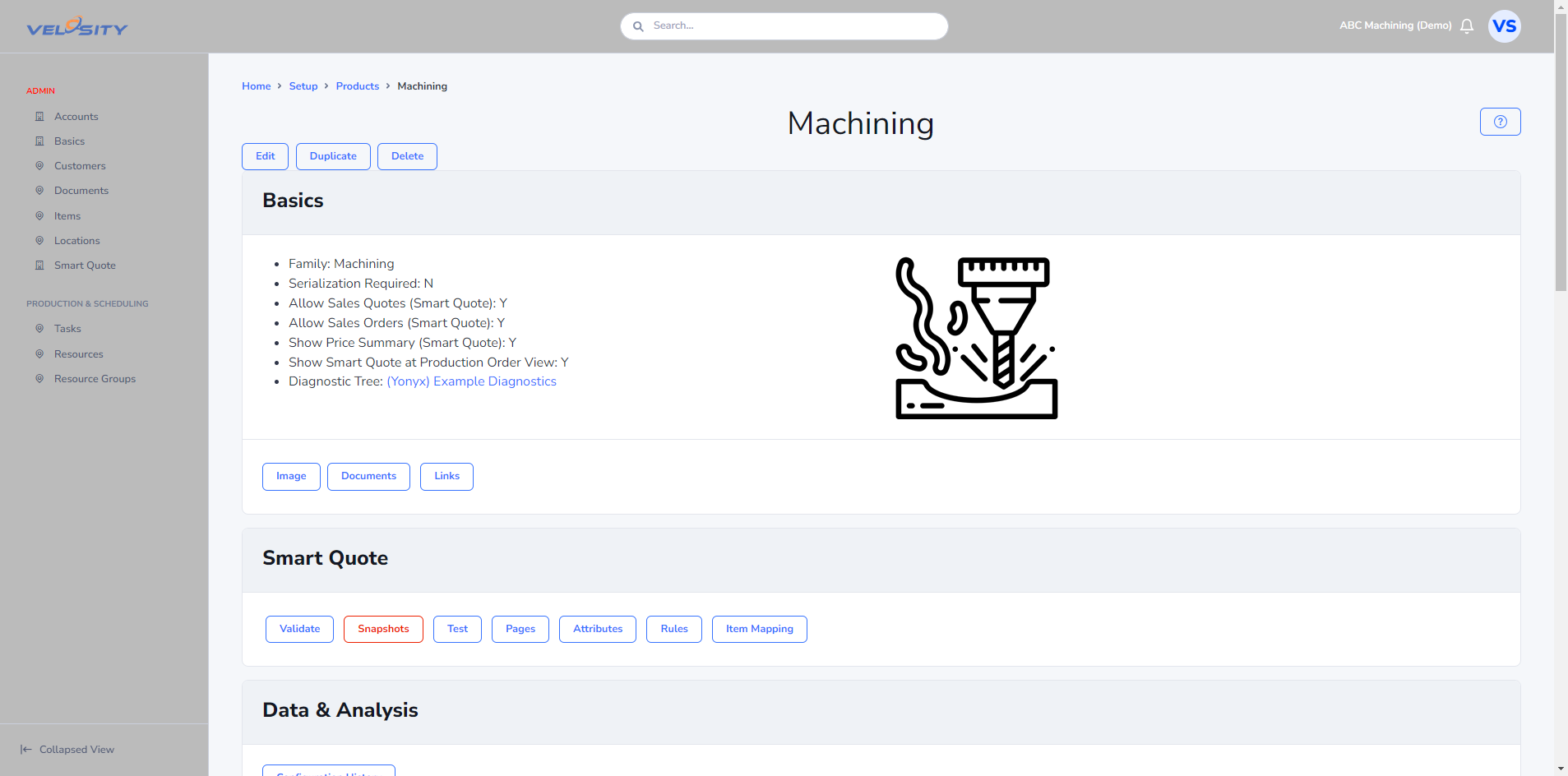
The Product Detail view provides a complete overview of a single Smart Quote product. This is the central hub for managing all configuration aspects of a product.
From this screen, ADMIN users can:
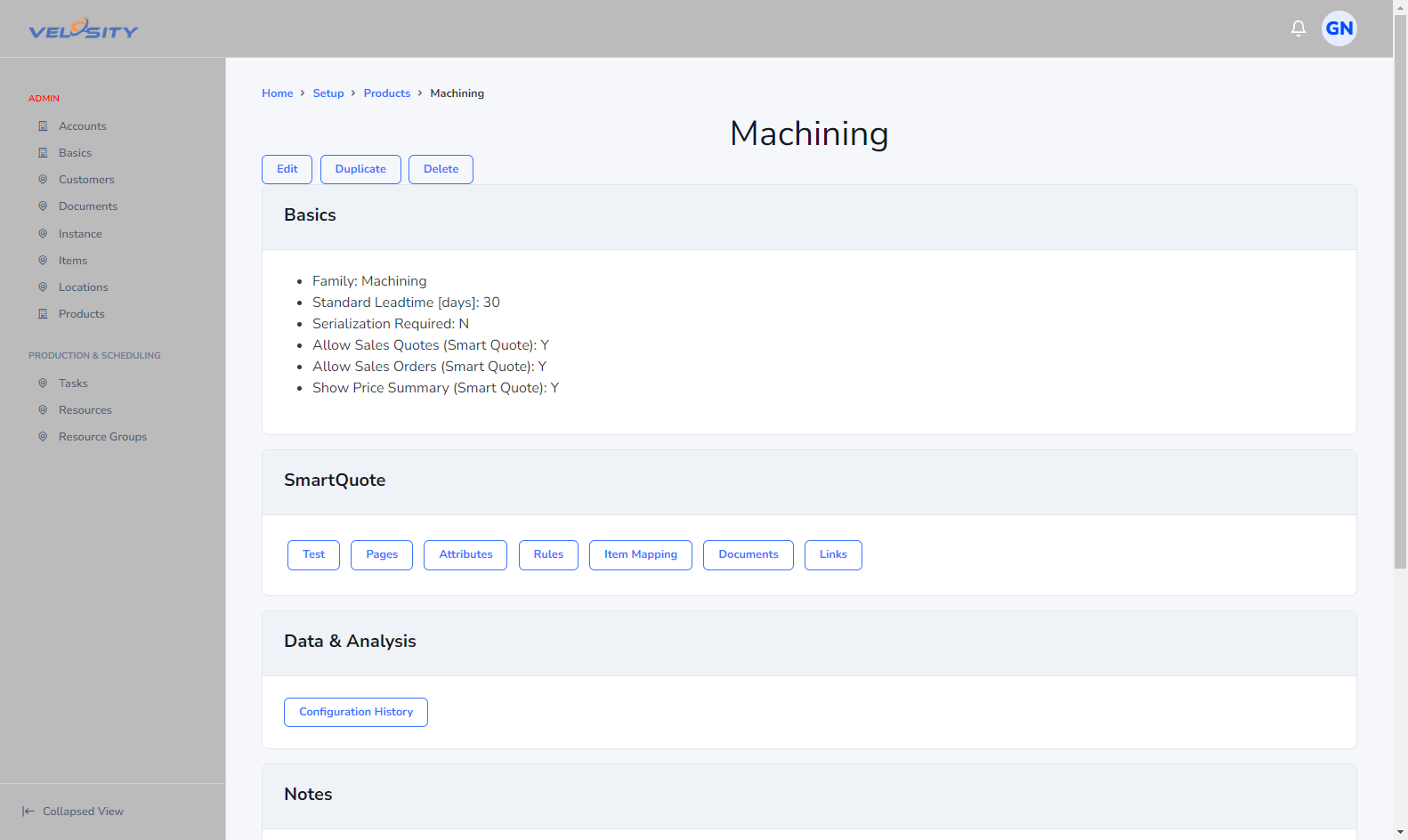
The general flow of setting up a Product is - Attributes - Pages - Rules ** IF-REQUIRED ** - Item Mapping ** IF-REQUIRED ** - Documents
This view ensures that all product‑related configuration is accessible from a single, consistent location.
Update Image
he Update Image section allows an ADMIN user to upload or replace the image associated with a Smart Quote product. This image is not only visible in the administration screens—it is also displayed to end‑users throughout the Smart Quote experience. Because of this, image quality and consistency directly affect the clarity and usability of the Smart Quote interface.
When updating an image: - The file must be a PNG - The image should be 200×200 pixels or smaller - The background must be transparent - A consistent visual style across all products is strongly recommended - After uploading, the preview updates immediately so the ADMIN can verify the appearance before saving
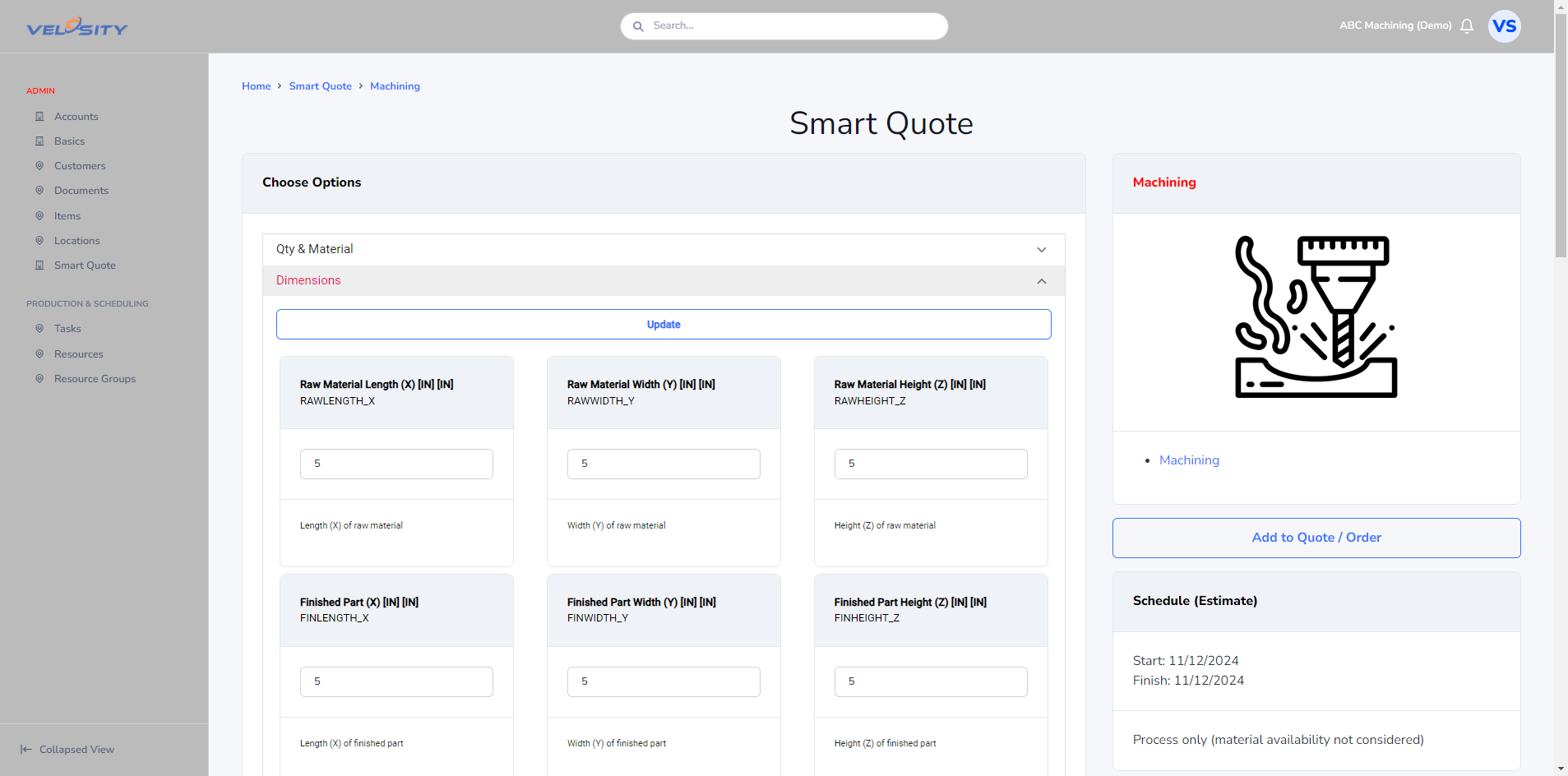
The product image is shown in the Smart Quote view for USER roles, helping users quickly identify products when building quotes. A clean, uniform image set improves scanning, reduces selection errors, and creates a more polished quoting experience. If an image already exists, uploading a new one replaces it. Removing the image reverts the product to the default placeholder icon.
Add
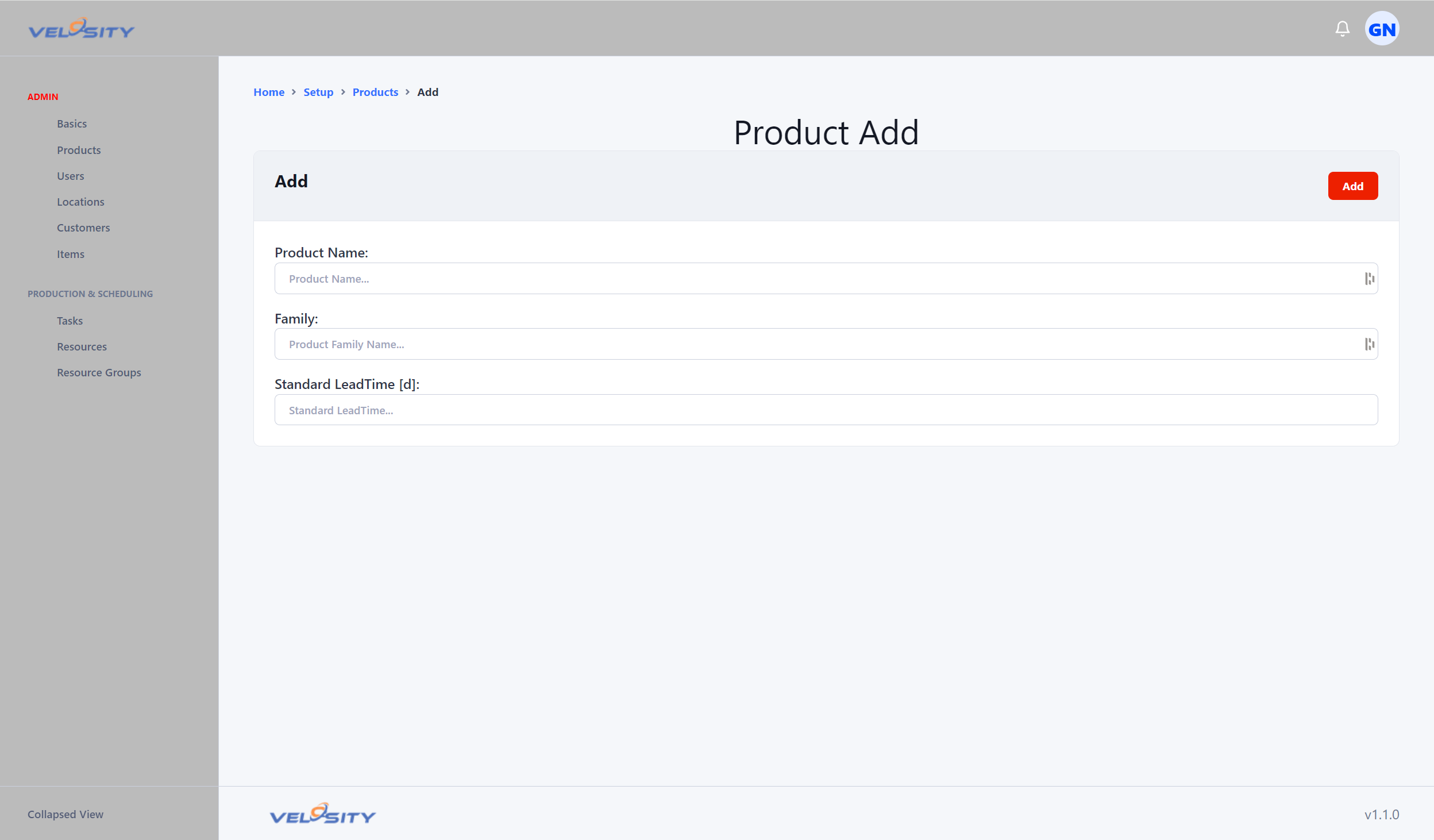
The Add Product view allows ADMIN users to create a new Smart Quote product from scratch.
Key behaviors:
- New products are automatically created with Status = Inactive
- This prevents incomplete or experimental setups from appearing to end‑users
- ADMIN users can define the product’s name, code, and basic metadata
- After creation, the product’s configuration areas (Attributes, Pages, Rules, etc.) become available
This workflow ensures that new products are introduced safely and intentionally
Edit
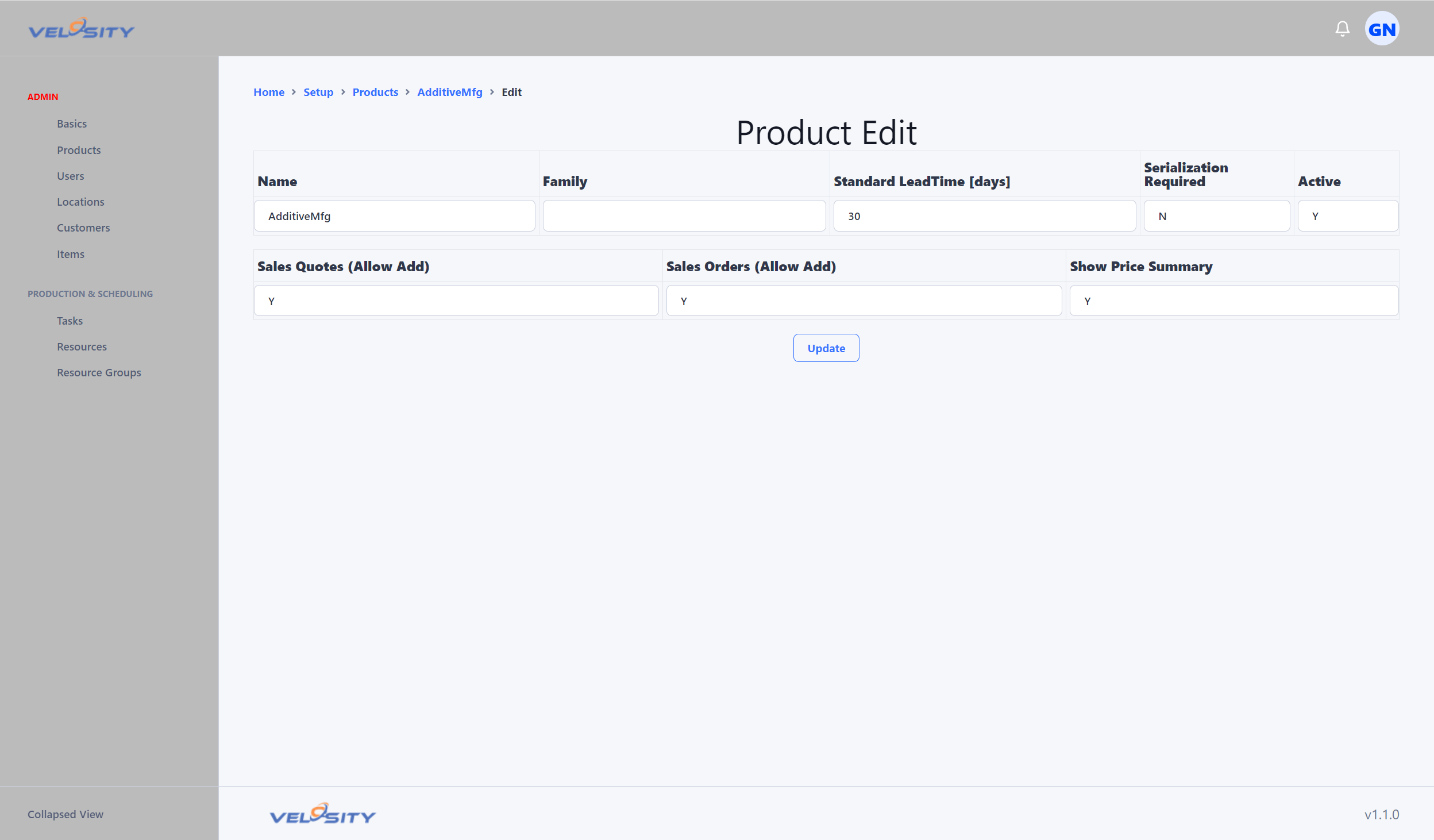
The Edit Product view allows ADMIN users to modify the core properties of an existing Smart Quote product.
From this screen, an ADMIN can: - Update the product name or code - Change the product’s Active/Inactive status - Adjust metadata used in reporting or filtering - Manage default tags - Update the product image
This view focuses on foundational product settings. More advanced configuration (rules, attributes, pages, etc.) is accessed through the related sections.
Each Product has: - Attributes - Pages - Rules - Item Mapping - Documents - Default Tags
Duplicate
Duplicating a product is a powerful tool for accelerating setup and experimentation.
Common use cases: - Creating similar products quickly If a new product shares structure with an existing one, duplication avoids repetitive setup. - Testing or training
ADMIN users can safely experiment with rules, attributes, or layouts without affecting production products.
Behavior notes: - Duplicated products are always created as Inactive - All configuration (attributes, pages, rules, mappings, documents) is copied - ADMIN users can immediately begin modifying the duplicate without impacting the original
This feature supports both operational efficiency and safe experimentation.
Show Me:
Validate
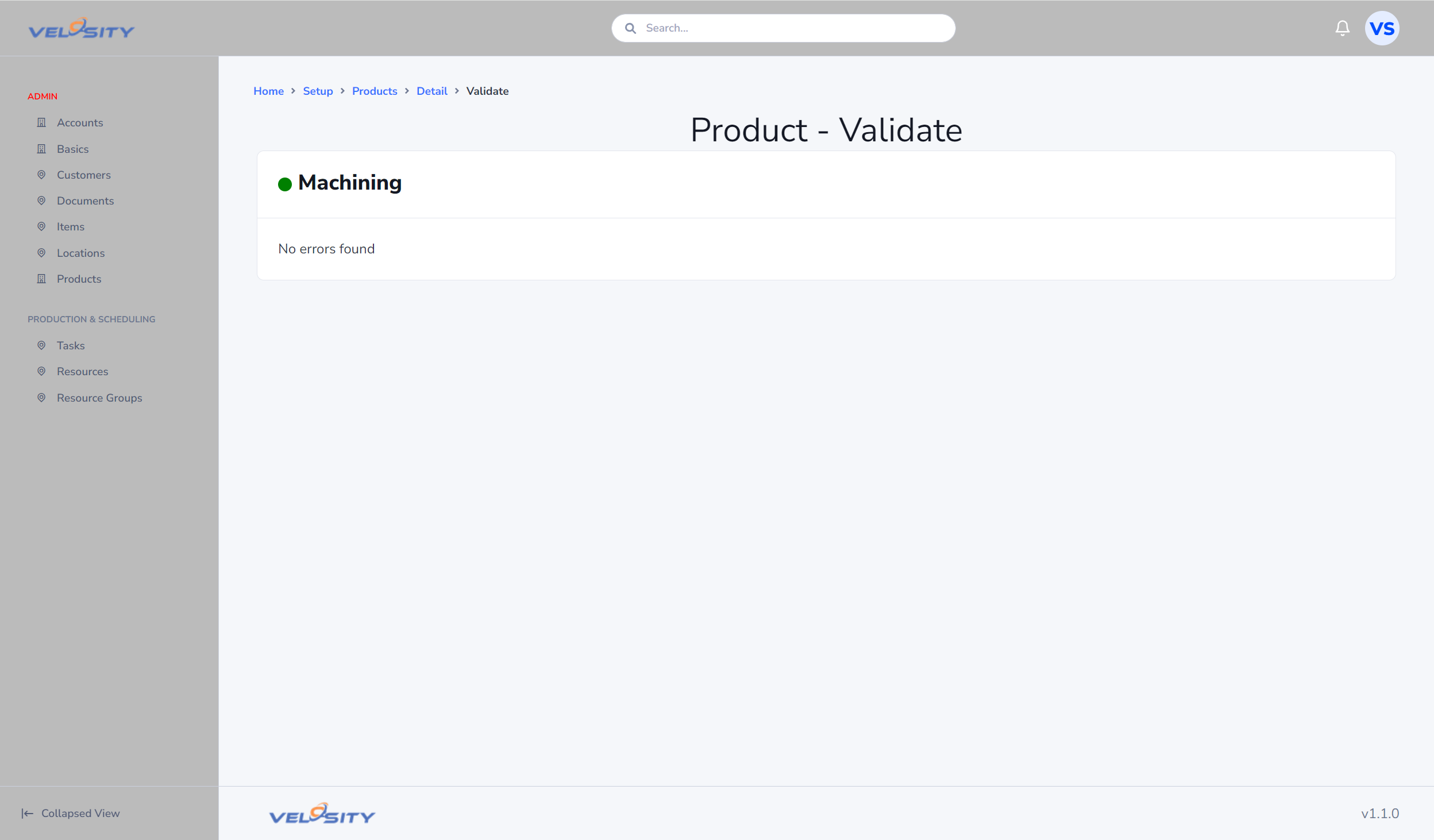
The Validate view analyzes the entire Smart Quote configuration for the selected product.
Validation checks include: - Missing or invalid attributes - Rules referencing undefined fields - Circular or conflicting logic - Missing item mappings - Page layout inconsistencies - Document references that no longer exist
When issues are found: - Each problem is listed with a clear description - A direct link is provided to the exact rule, attribute, or page that needs correction - Validation can be run repeatedly as changes are made
This ensures that products are fully functional before being activated for end‑users.
Default Tags
Default Tags allow ADMIN users to define metadata that automatically flows through the quoting process.
Behavior: - Tags can be added to the Smart Quote configuration (via Rules) when a user configures a product - Tags then flow to the Sales Quote or Sales Order (depending on scope set in the Rules) - Optional Category values allow grouping tags for better organization - Tags can be used for reporting, automation, or downstream integrations
This feature ensures consistent tagging without requiring manual user input.
Image
A Smart Quote product can optionally have an image. Recommendations:
- All images should be the same size
- Image size should be maximum 200x200 pixels
- Image background should be transparent
- Image type is PNG