How to View and Share Quotes as PDF
Providing professional, branded documentation to your customers is a core part of the sales process. Velosity allows you to instantly generate PDF versions of your Sales Quotes using customizable Microsoft Word templates.
Generating the PDF
- Open the Quote: Navigate to Sales → Quotes and select the quote you wish to view.
- Locate the View/PDF Button: In the Detail view, you will find a button labeled View (PDF) or Preview.
- Click to Generate: Velosity will compile the current quote data (including line items, taxes, and customer terms) into the selected template.
!!! note "Fresh Generation" The PDF is generated fresh from the template every time you click the button. If the Word template contains a calculated date field, it will automatically update to the current date in the PDF. This happens regardless of whether the quote is in DRAFT status or not.
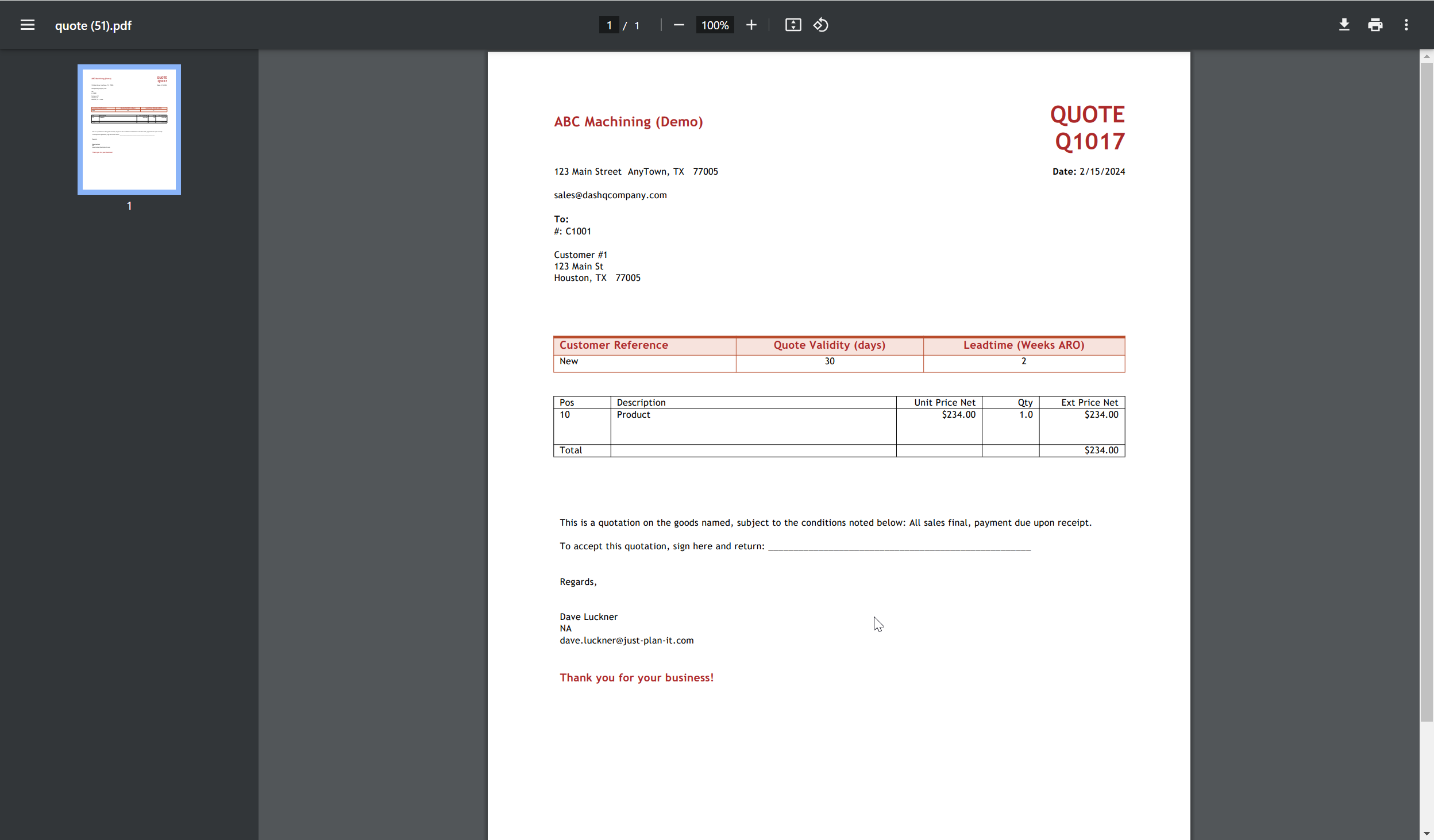
What's Included in the PDF?
The generated PDF is a comprehensive document that typically includes: - Branding: Your company Logo and contact information. - Customer Details: Billing and shipping addresses, and primary contact person. - Line Items: Categorized list of configured products (Smart Quote) and loose items, including descriptions and Price Breaks. - Terms & Validity: How long the quote is valid and any specific payment terms.
Template Selection (Admin Only)
If your organization uses multiple quote templates (e.g., one for Service repairs and one for New product sales), an ADMIN can define which Document Template is used as the default.
✔️ Done
Your Sales Quote PDF will open in a new browser tab. From there, you can: - Download: Save the file to your local device. - Print: Send the document directly to your printer. - Share: Attach the PDF to an email or send it directly via the Message Center using the Send to User feature.