Production - Schedule
Velosity calculates the Schedule automatically. The Scheduler takes all required information into account:
- Sequence: The desired order of Production Orders (manually or automatically assigned).
- Routers: Every task in an order, its duration, and its position in the process.
- Resource Availability: Who is qualified to do the work and when they are available.
- Working Hours: Standard company hours plus specific resource exceptions and holidays.
Schedulers
Velosity provides different scheduling engines to match your production style.
| Scheduler | Best For | Logic |
|---|---|---|
| Sequential | Standard manufacturing | Orders are processed one-by-one based on sequence numbers. |
For a deep dive into the default engine, see the Sequential Scheduler page.
Schedule Views
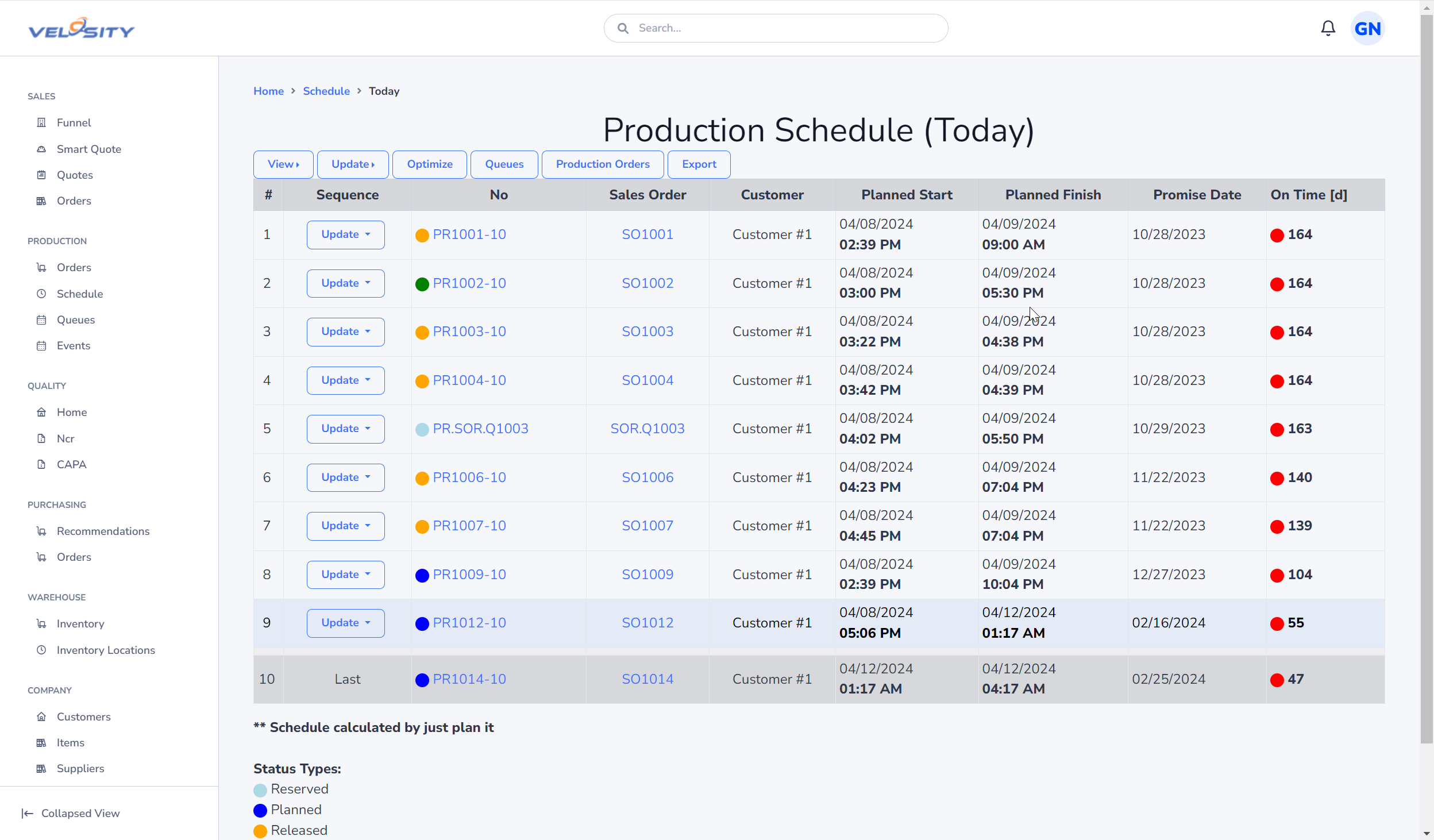
This view shows the schedule - viewable in various time intervals (today, next 3, next 7, next 30 days) and in various ways:
- List
- Gannt
- Calendar
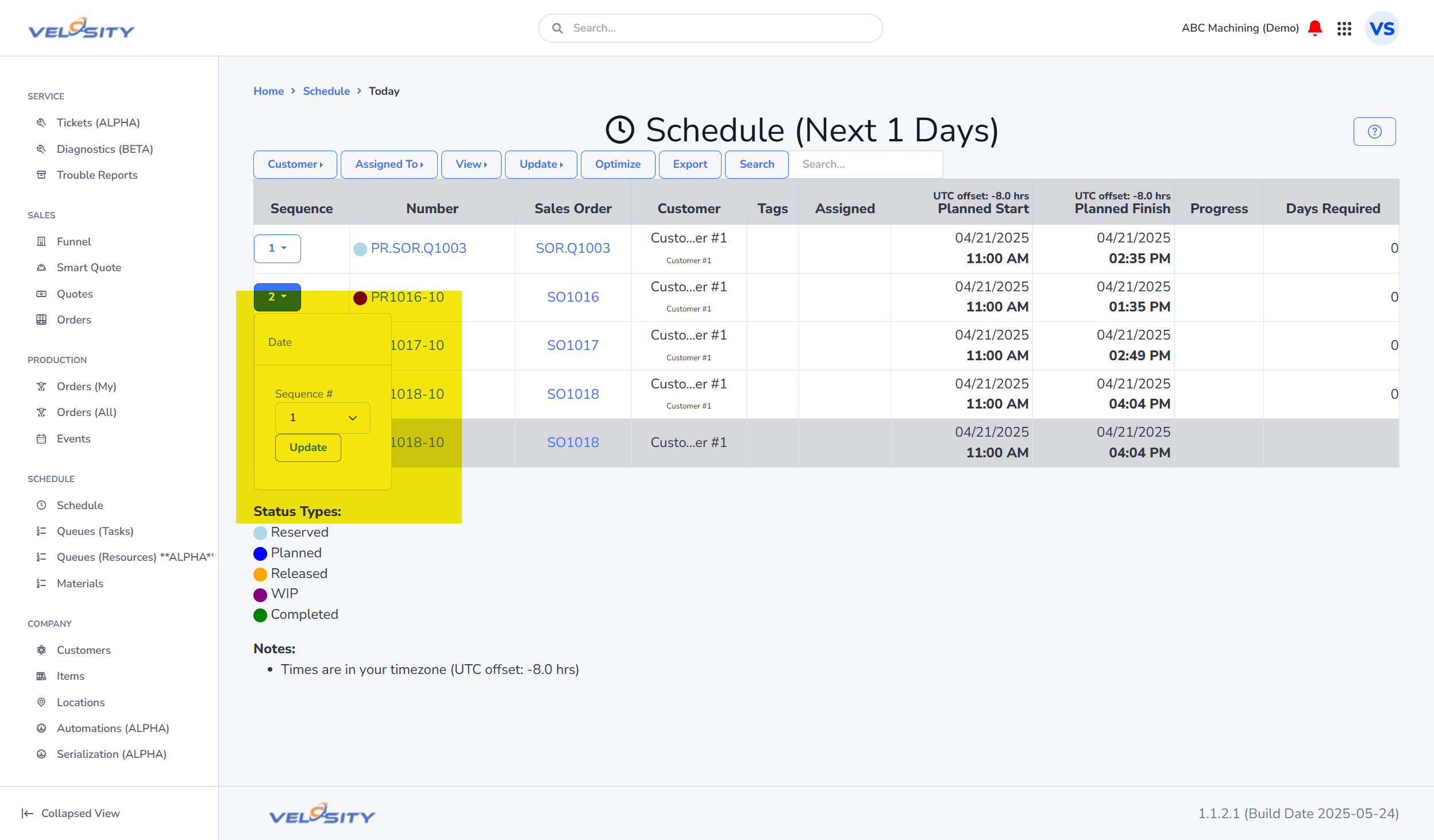
Change Sequence Number
You can change the sequence number of any production order. If the number of production orders is less than 50 the Scheduler will automatically run. Otherwise, click on Schedule, Update to update the schedule.
The production order should appear in the desired position and all other production orders will have updated start and completion dates/times.
On Hold (Auto-Shift)
Production Orders that are linked to a Sales Order in ON HOLD status are automatically shifted down the schedule sequence. As each week elapses, these on-hold work orders move down one week in the sequence. This prevents on-hold work from blocking active near-term slots while keeping the item in the schedule and preserving all task progress.
When the status is moved back to RELEASED, the order resumes its position in the active schedule based on its current sequence.
Optimize
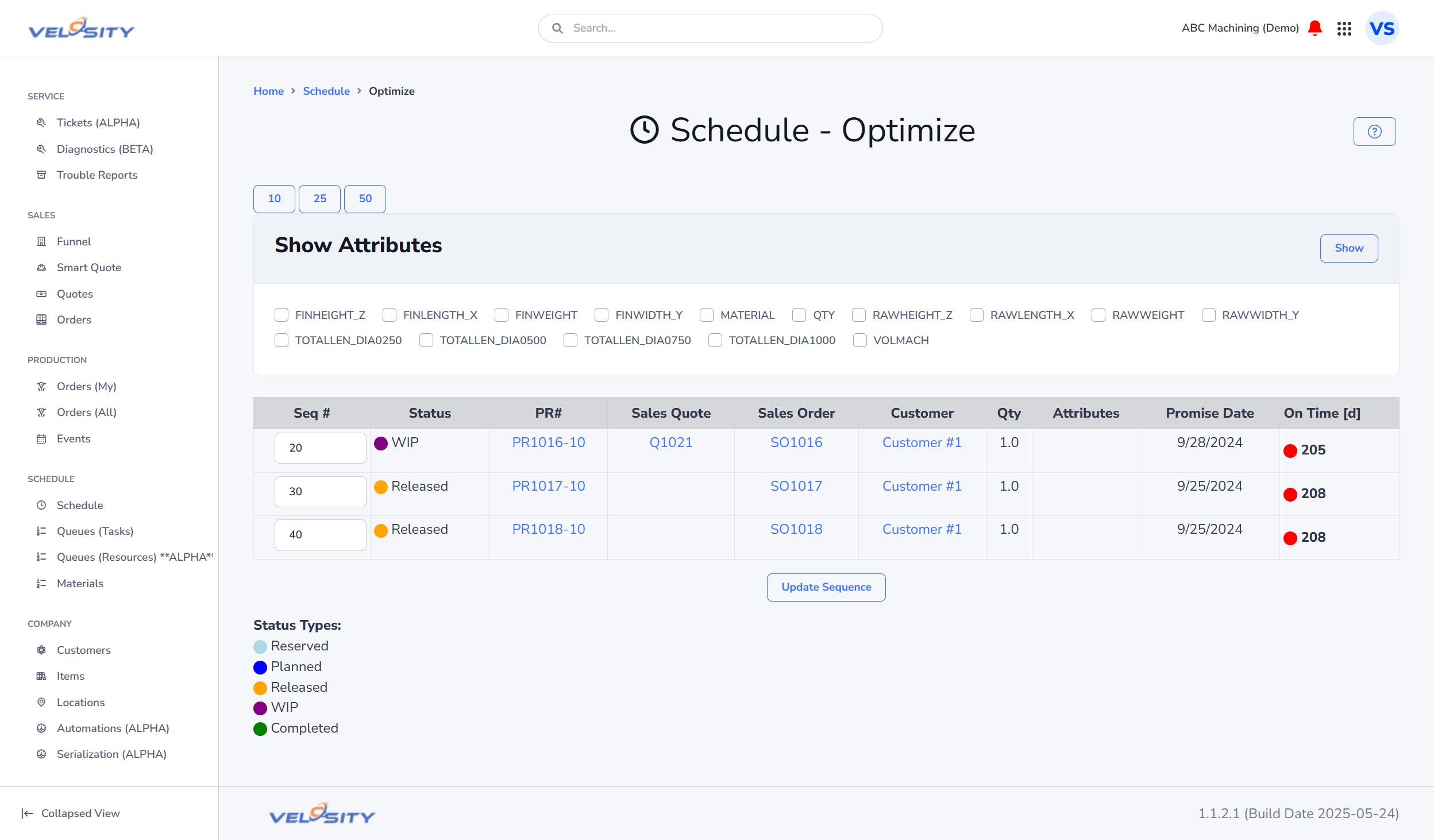
This view provides a update sequence number of production orders based on one or more attributes. You might need to change the sequence of orders by batching around a particular material for example.
Once the desired attributes (one or more) are displayed, you can enter the sequence numbers for each. Sequence number can be any increment (1, 2, 5). Update the Schedule when you are done (Schedule/Update) to ensure the changes in sequence are reflected.
Automation
The Scheduler runs automatically every day at midnight UTC. You can also trigger an update manually from the Schedule view by clicking Schedule > Update.
Export
You can export the current schedule and resource utilization data for further analysis in external tools like Excel.
- Format: Data is exported in CSV format.
- Filter Support: You can export the entire schedule or use filters to export specific dates, resources, or production orders.
- Resource Utilization: Includes data on resource availability and assignment.
Example
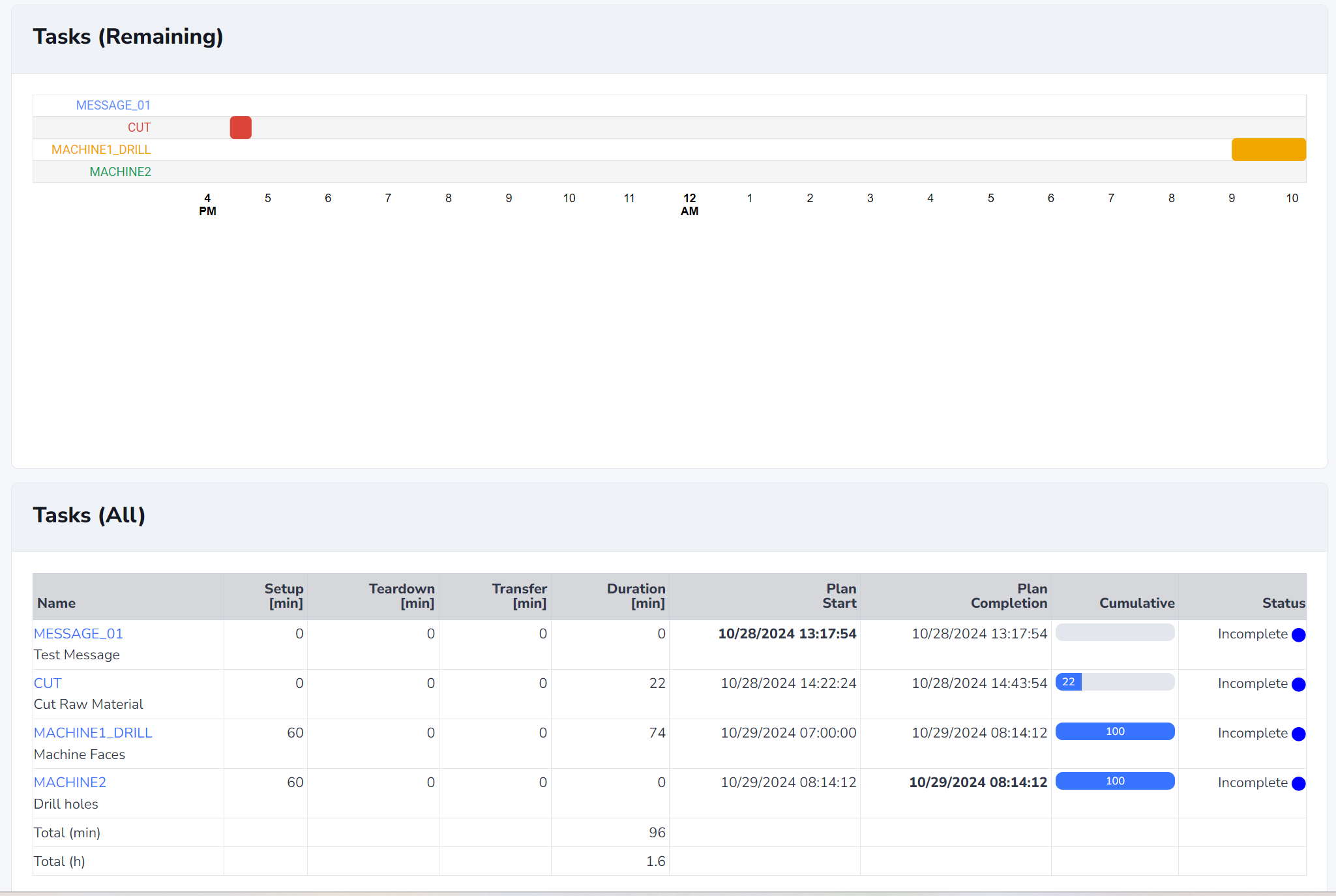
Four production orders are scheduled. If you compare the 3 production orders, you can see that the tasks are stacked as you expect (one resource in this example doing all of the work). Large gaps in the start/finish are from evenings and weekends (non-working hours).
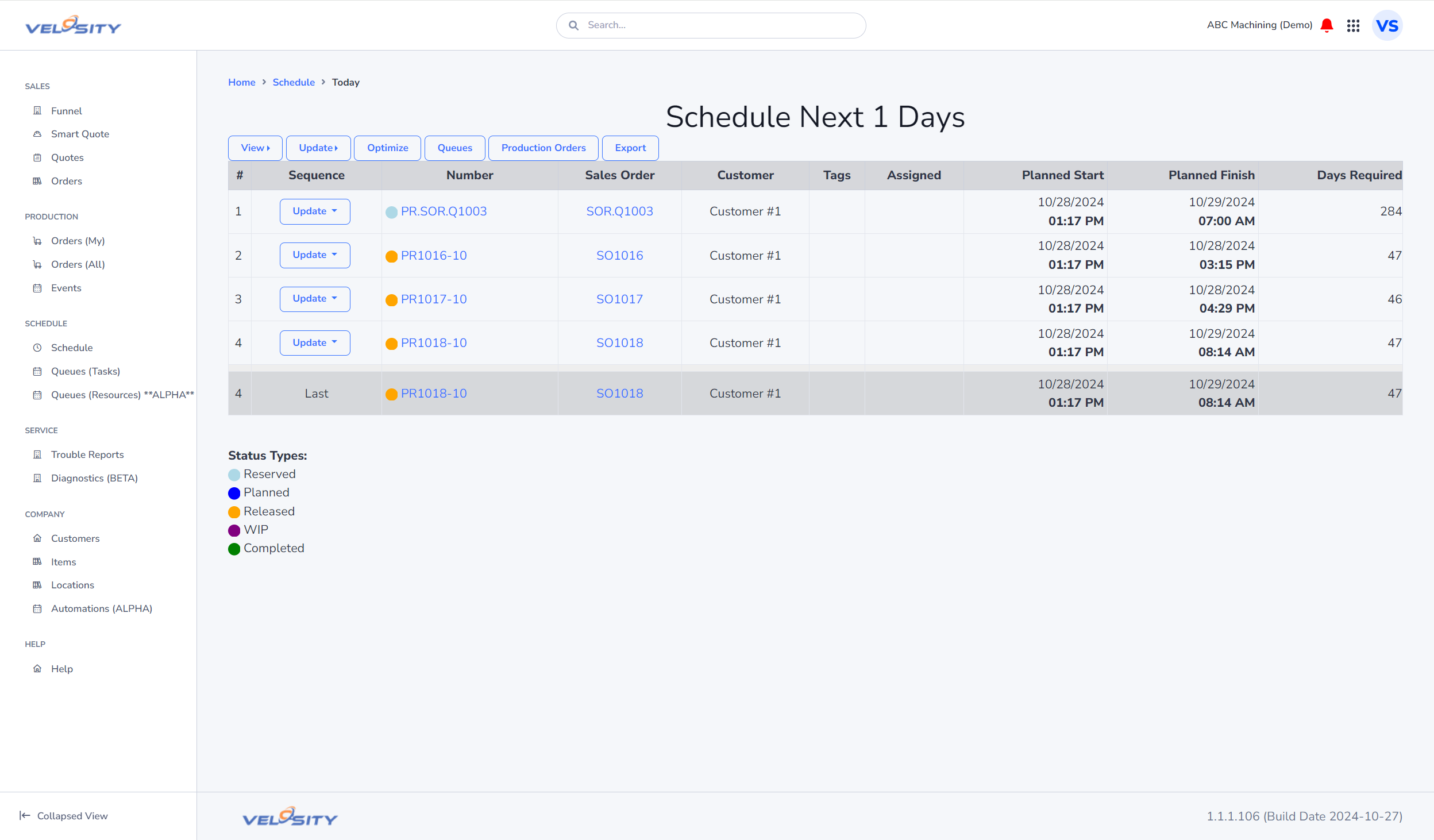
1)
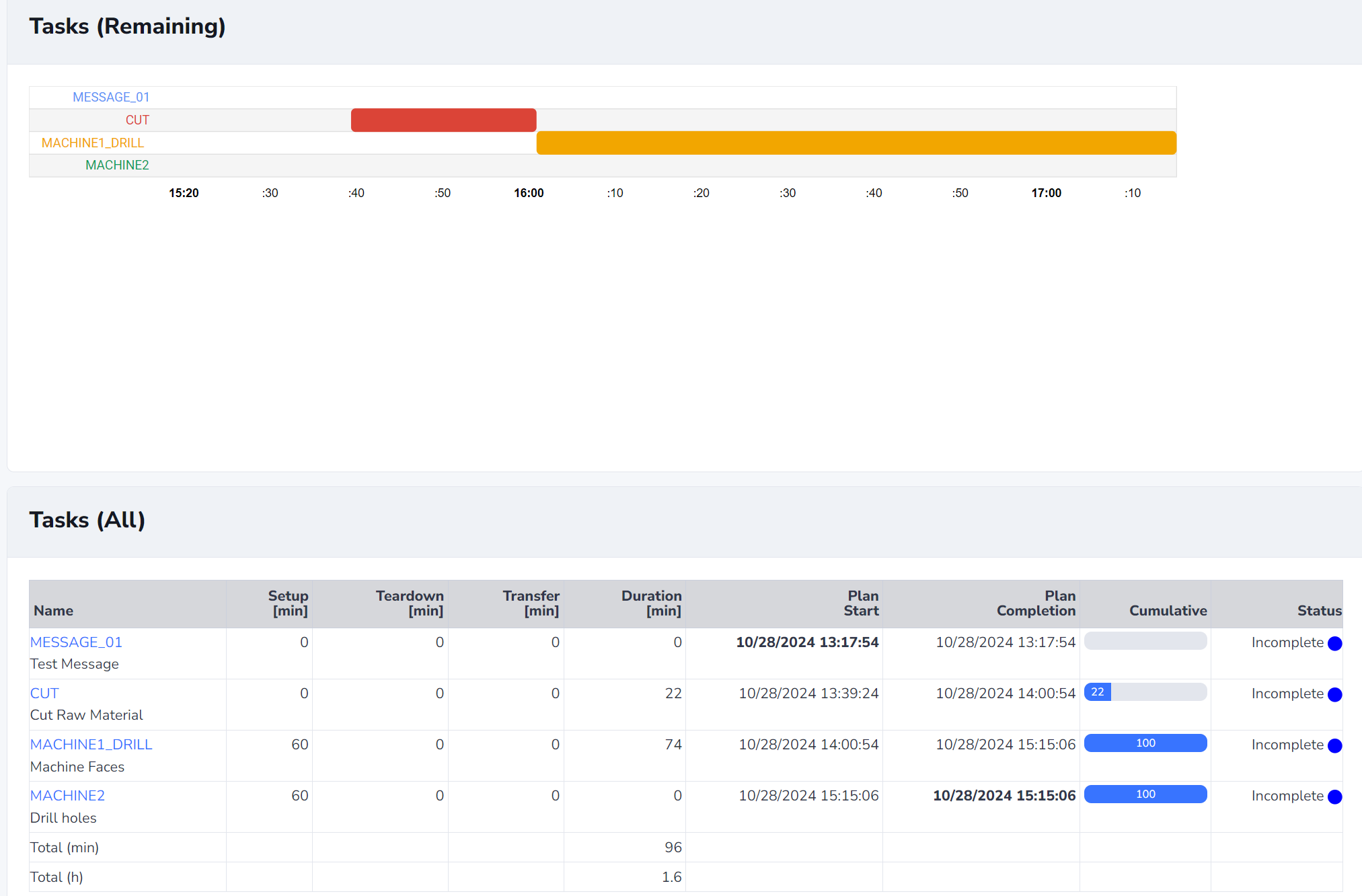
2)
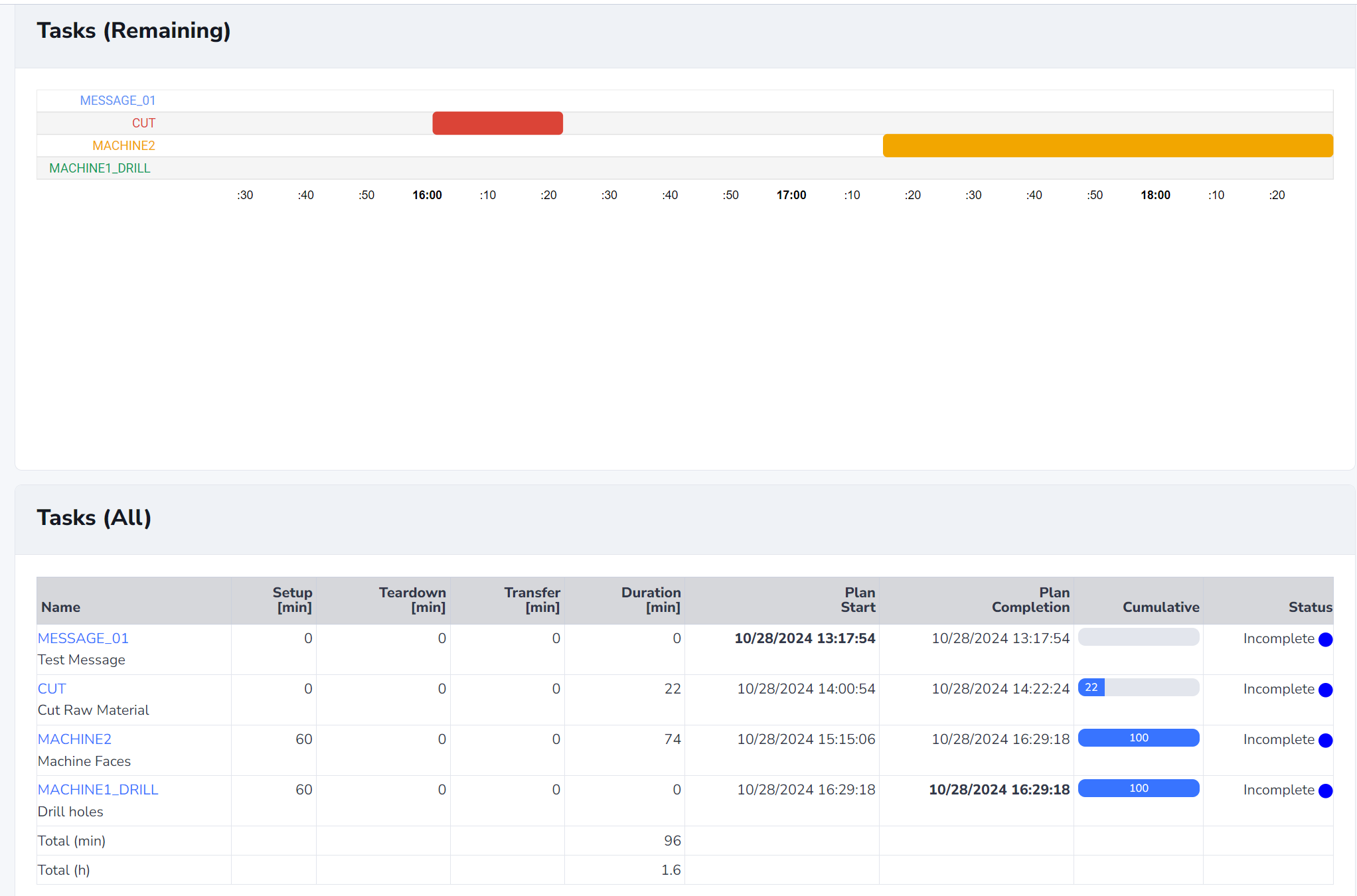
3)