Items
This section enables you to:
-
View
-
Edit or Add (if enabled in Organization settings)
-
Export
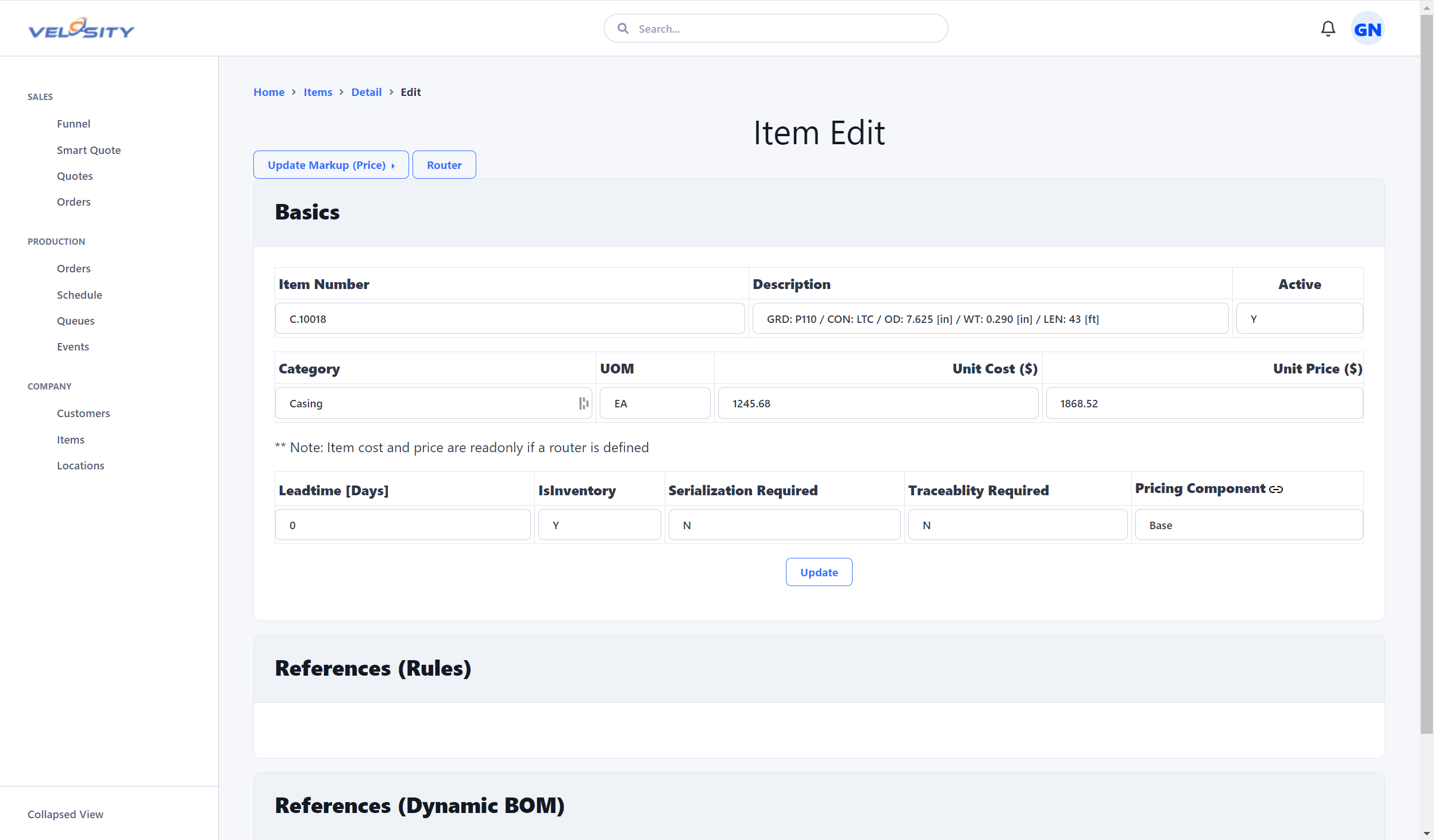
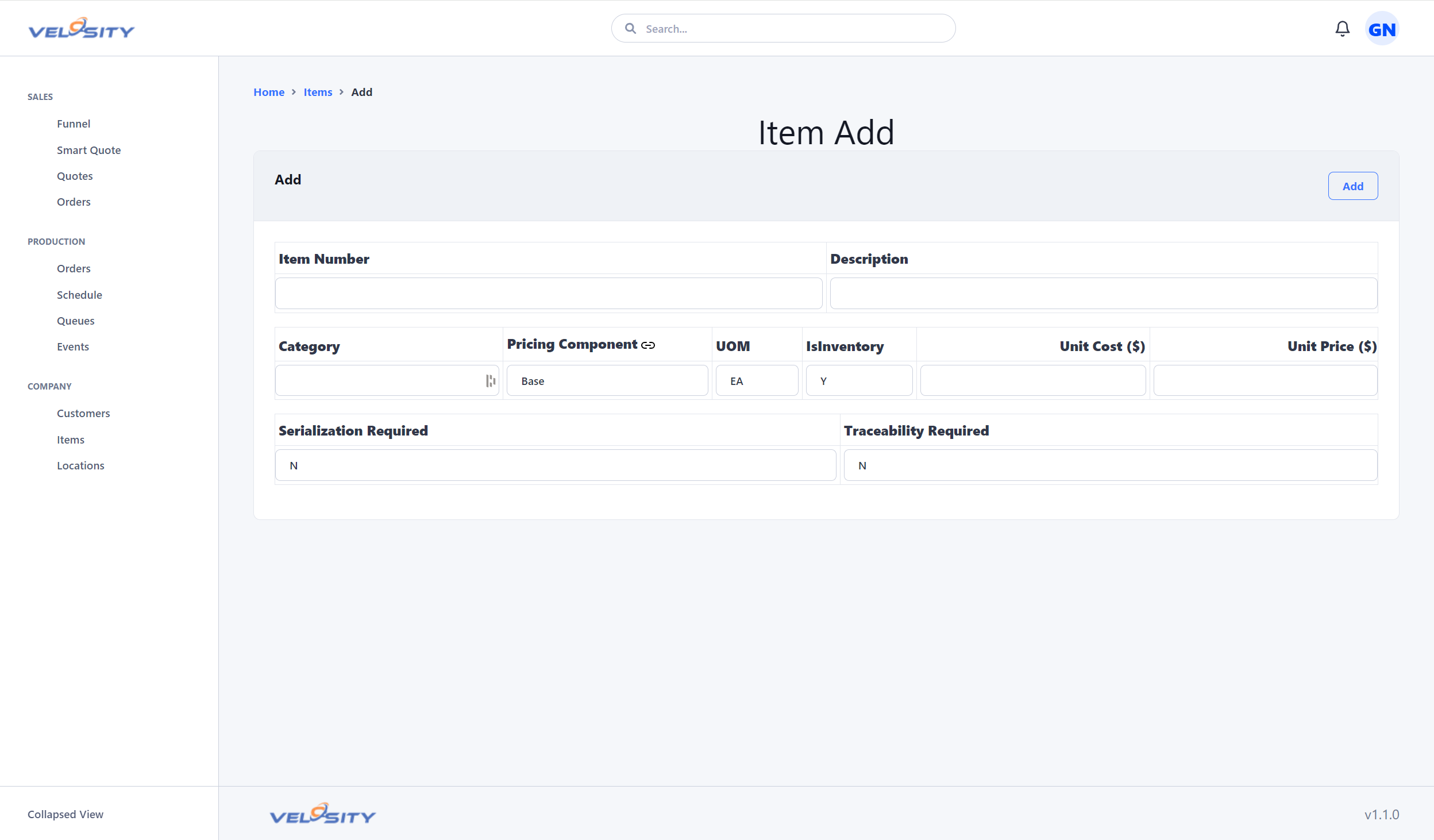
The ability to Add or Edit is determined by the settings (customization ) for your Organization. This is useful when Item (materials) data is primarily managed in another source -- in your ERP for example. This prevents users from adding or editing records that would be overwritten on the next refresh (import or via Velosity API).
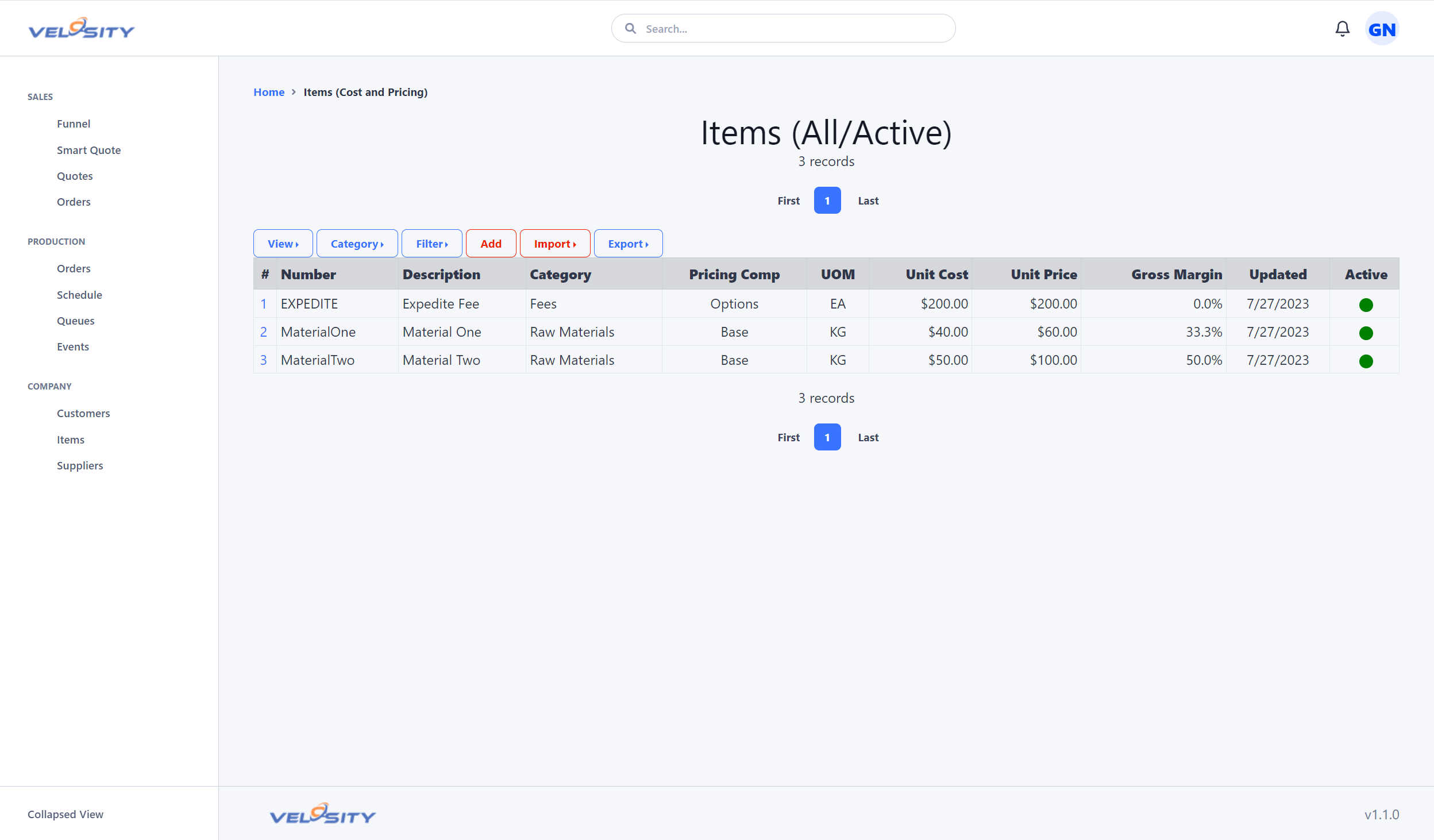
List
Detail
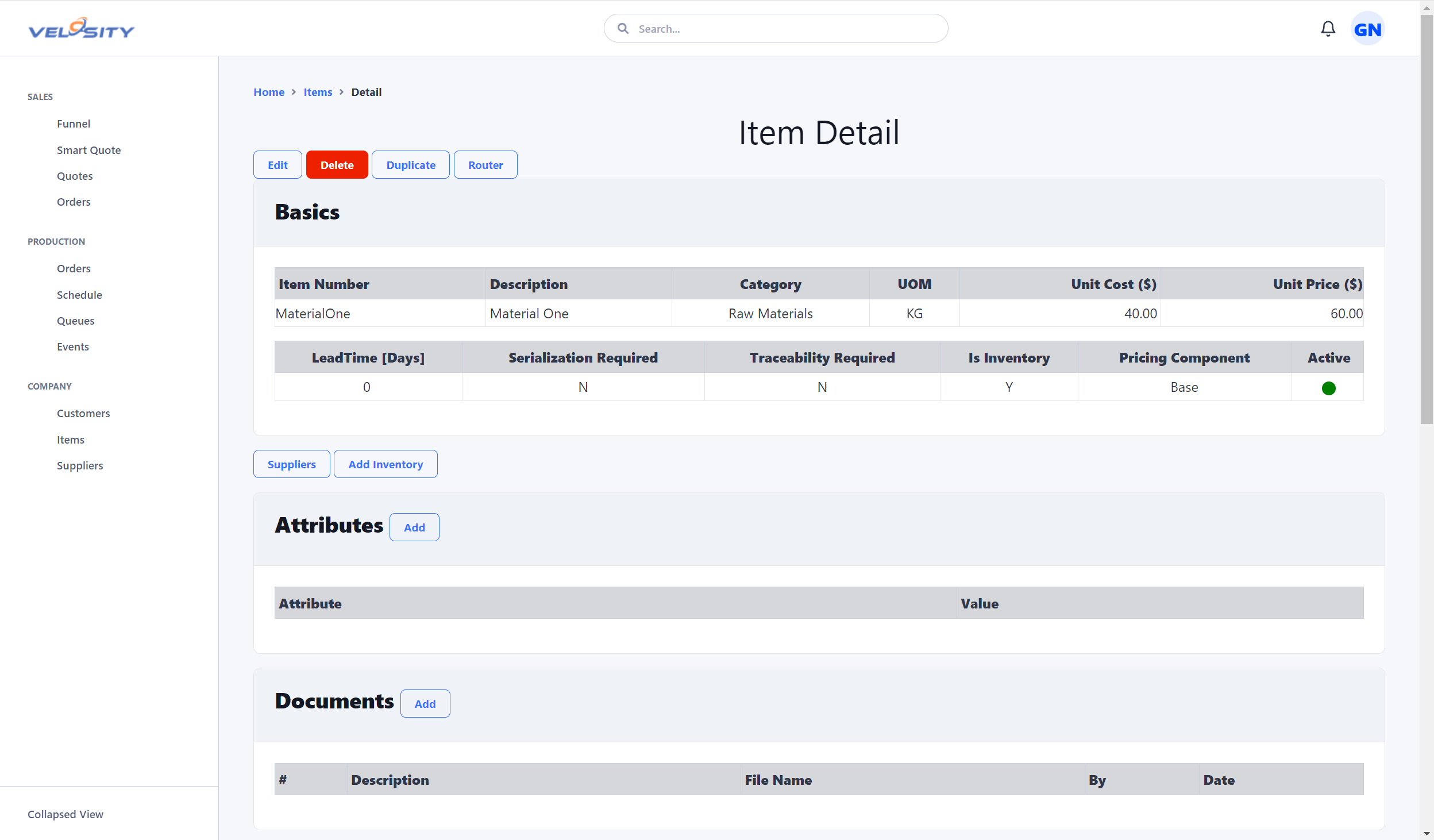
Lead Time
The Lead Time field (expressed in days) is a critical piece of data in the Item catalog. It represents the standard time required to fulfill an order for this item.
This value is the primary source for the lead time displayed on Quote and Order line items: - SKU Lines: When a standard catalog item is added to a quote, its lead time is automatically pulled from this field. - Configured Lines: For Smart Quote products that use Item Mapping, the lead time of the mapped item(s) flows through to the line item.
Maintaining accurate lead times in the item catalog ensures that sales quotes provide realistic delivery expectations without requiring manual overrides.
Edit
Add
Price Breaks
Items can have defined price breaks based on quantity. These are used during the quoting process to automatically apply volume discounts. See the SKU Item Price Breaks guide for details.
- Quantity-Based: Discounts are triggered when a specific minimum quantity is reached.
- Ranges: You can define multiple price break ranges to cover various order volumes.
- Sorting: Price breaks are automatically sorted by minimum quantity for clarity.
Compatibility
Manage relationships between items, such as alternatives or accessories. See the Item Compatibility guide for details.
Analysis
The Items Analysis tools help you identify data quality issues and items that require attention from purchasing or sales. See the Items Analysis guide for details.
Search
You can search for an Item using the search bar at the top of the Velosity window. Using just a text string will return search results across all entities. You can restrict the search to just Items by using this syntax (case insensitive):
- it:searchtext
- IT:searchtext