Administration - Smart Quote / Product / Pages
Pages define the structure and flow of the Smart Quote experience. Each Page groups together a set of Attributes that the user will interact with during the quoting process. Pages help organize complex product configurations into clear, manageable steps for USER roles.
- SELECTED Attributes (those chosen by the ADMIN) must be assigned to a Page
- GENERATED Attributes (system‑created fields) are not assigned to Pages and do not appear in the Page layout
- Pages determine the order in which users encounter product options
- The Page sequence can be adjusted using the up/down arrows, allowing ADMIN users to control the quoting flow
This structure ensures that Smart Quote remains intuitive, even for products with many configuration options.
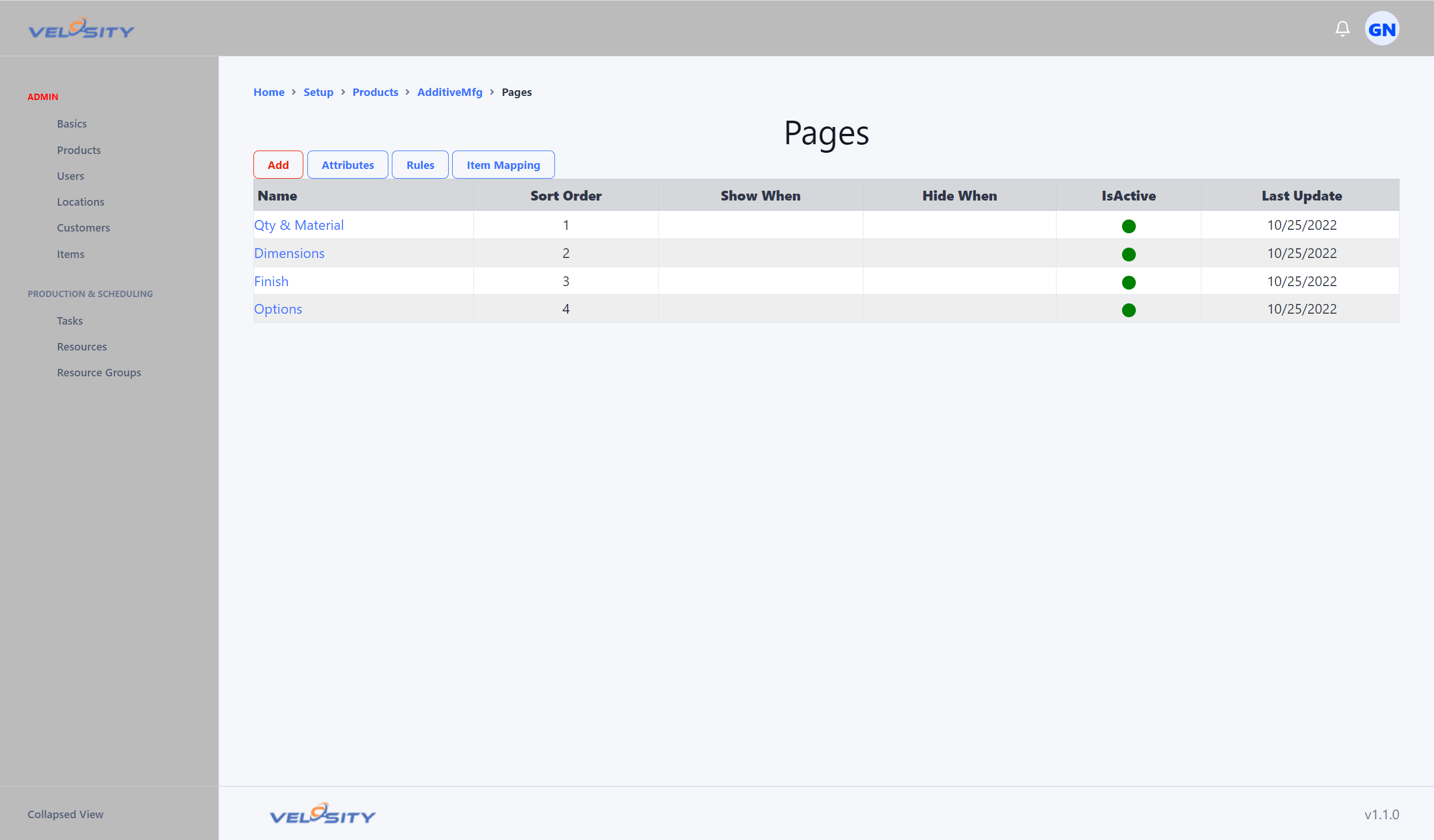
Additional views allow ADMIN users to: - Rename a Page - Set a Page to Active or Inactive - Define conditions that determine when a Page should be shown or hidden - Review which Attributes are assigned to each Page
These tools give ADMIN users full control over the quoting experience, ensuring that only relevant information is shown to end‑users at the right time.
Page Display Control
In many quoting scenarios, certain Pages should only appear when specific conditions are met. Velosity supports this through Page Display Control, allowing Pages to be shown or hidden based on Attribute values selected earlier in the quote.
This is especially useful when: - A product has optional features - Certain selections unlock additional configuration steps - Some Pages are only relevant for specific materials, finishes, sizes, or product variants
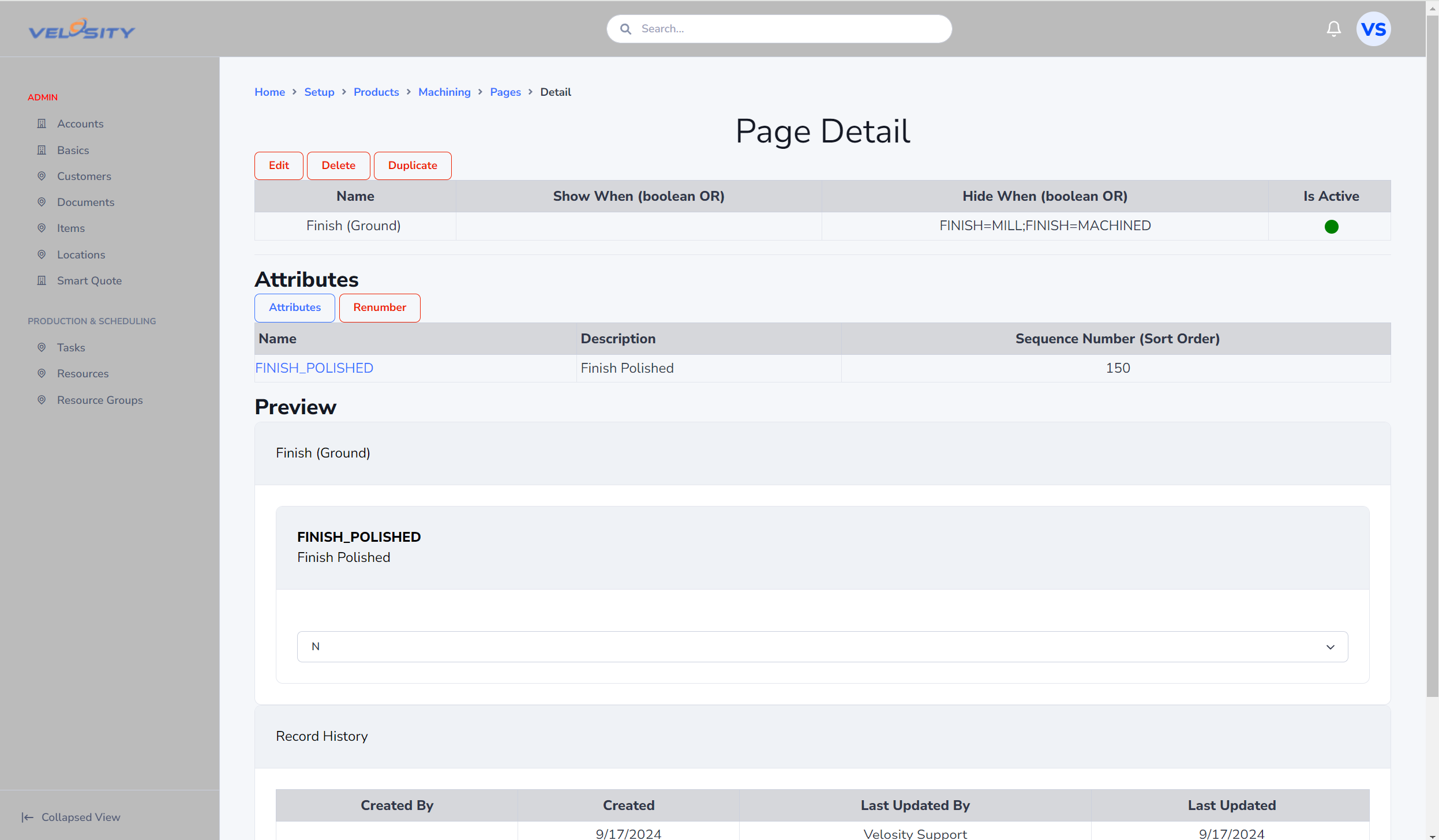
Example:
Suppose you add a new Page that should only appear when the FINISH Attribute is not one of the following:
- MILL
- MACHINED (any RMS value)
In this case, you can configure a display rule that hides the Page unless FINISH is something other than those two options. This ensures that users only see Pages that apply to their chosen configuration, keeping the quoting process clean and efficient.
Page Display Control allows ADMIN users to build dynamic, responsive quoting flows without writing code. As users make selections, Smart Quote automatically adjusts which Pages appear next, creating a streamlined and context‑aware experience.
Troubleshooting – Pages Not Appearing as Expected
If a Page does not appear in the Smart Quote flow, one or more configuration issues may be preventing it from being displayed. The following checklist helps ADMIN users quickly identify and resolve the most common causes.
1. The Page is Inactive
Verify that the Page is set to Active.
Inactive Pages are completely hidden from USER roles, regardless of Attribute values or display rules.
2. No Attributes Assigned to the Page
A Page with no SELECTED Attributes assigned will not appear in the Smart Quote flow.
Ensure that at least one Attribute is assigned to the Page.
3. Display Control Rules Are Hiding the Page
If Page Display Control is configured, the Page will only appear when all conditions are satisfied.
Check for:
- Incorrect Attribute selection
- Conditions that are too restrictive
- “NOT” conditions that unintentionally hide the Page
- Attribute values that never match the rule logic
A quick way to test is to temporarily disable the display rule and confirm whether the Page appears.
4. Attribute Values Are Not Set Yet
If a Page depends on Attribute values from earlier Pages, but those Attributes are:
- Hidden
- Inactive
- Not assigned to any Page
- Not visible due to their own display rules
…then the dependent Page may never appear.
Ensure the controlling Attributes are visible and reachable in the quoting flow.
5. Page Order Is Incorrect
If a Page is placed before the Page that contains the controlling Attribute, the display rule will fail.
Example:
A Page depends on FINISH, but the FINISH Attribute is on a later Page.
Result: the dependent Page never appears.
Reorder Pages so that controlling Attributes come first.
6. Attribute Has No Default Value
If a display rule expects a value but the Attribute has:
- No default
- No user selection yet
- A value that is null or empty
…the Page may remain hidden until the user makes a selection.
7. Conflicting Display Rules
Multiple rules applied to the same Page can conflict, especially when combining:
- “Show when…”
- “Hide when…”
- Multiple Attribute conditions
Review the rules to ensure they work together logically.
8. Cached Browser Session
In rare cases, browser caching may cause outdated Page logic to appear.
Refreshing the browser or starting a new quote typically resolves this.