User and Account Administration
Managing user access is a primary responsibility for any Velosity ADMIN. This section allows you to control who can access the system, what data they can see, and what actions they are authorized to perform.
Managing User Accounts
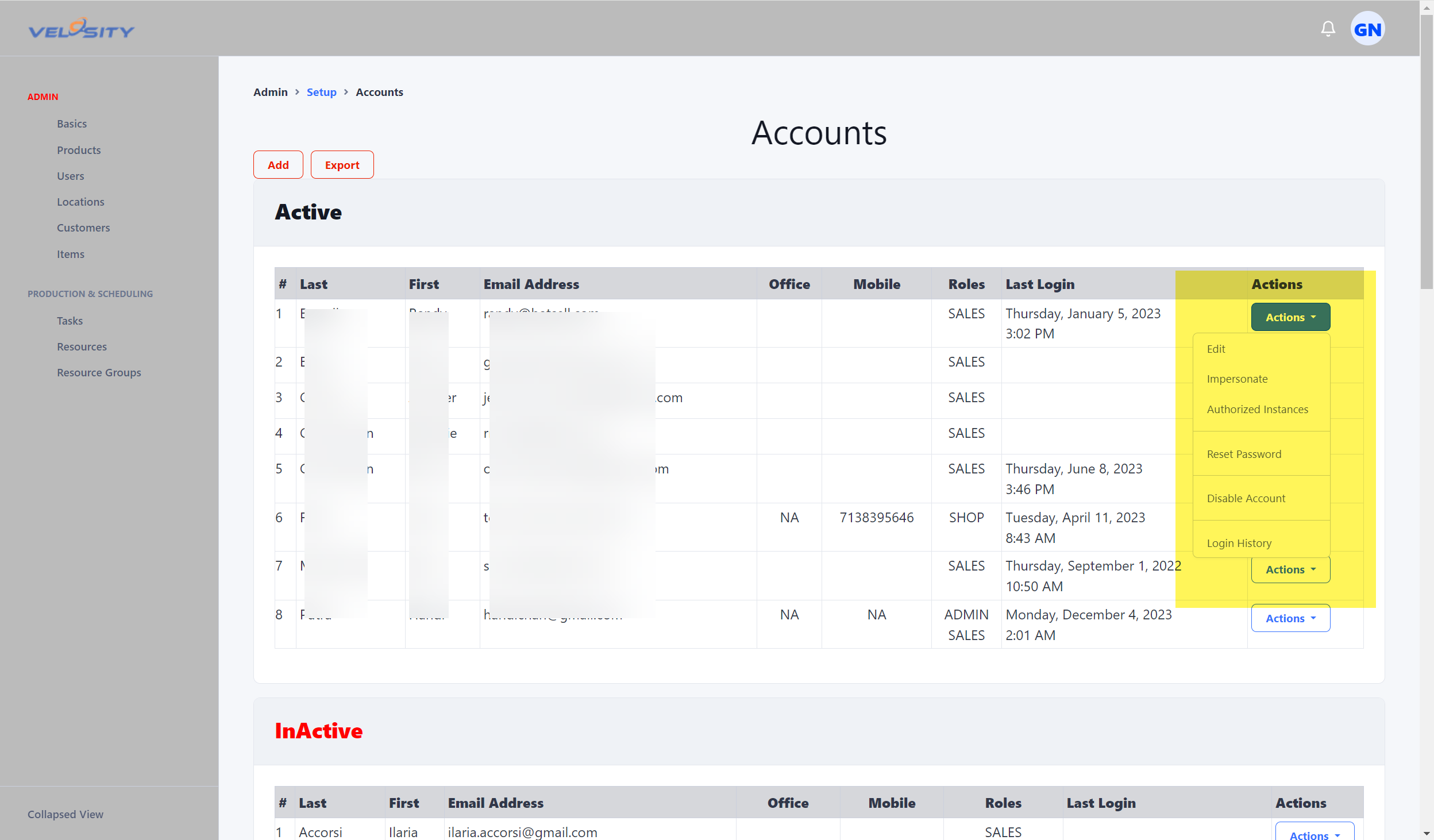
The Accounts interface provides a centralized dashboard for all registered users. From here, you can perform several critical administrative tasks:
- Reset Passwords: Securely reset a user's password if they are locked out.
- Deactivate Users: Revoke access for employees who have left the organization or no longer require system access.
- Sync Status: View if the user's account is correctly linked to your organization's Single Sign-On (SSO) or identity provider.
Roles and Permissions
Velosity uses a Role-Based Access Control (RBAC) model. When you add or edit a user, you must assign one or more roles. These roles determine the user's default navigation and their ability to interact with specific modules:
| Role | Primary Function | Navigation Focus |
|---|---|---|
| ADMIN | Full system configuration | All Modules + Administration |
| SALES | Quoting and Customer Management | Sales, Funnel, Customers |
| PLANNER | Production scheduling | Production, Schedule, Queues |
| SHOP / TECH | Executing work on the floor | Queues, Tasks, Events |
Linking Users to Resources
For accurate labor tracking and scheduling, it is often necessary to link a SHOP or TECH user account to a specific Resource. This allows the system to: 1. Automatically clock the user in when they interact with a task. 2. Account for the user's Non-Working Days in the production schedule.
User Types
Velosity distinguishes between two types of user accounts:
- Standard Users: Accounts used by employees to log in and interact with the system.
- System Users: Special accounts used for automation, API integrations, or scheduled tasks. System users are typically excluded from standard billing metrics and cannot be used for interactive login.
Adding a New User
- Navigate to Administration → Accounts.
- Click the Add User button.
- Provide the user's professional email, display name, and initial role assignments.
- The user will receive an automated invitation to set their password and complete their Account Profile.