Production Orders - Task Insert
The Task Insert feature allows users to dynamically add tasks to an existing Production Order by duplicating current tasks and inserting them at a specific point in the sequence.
Availability
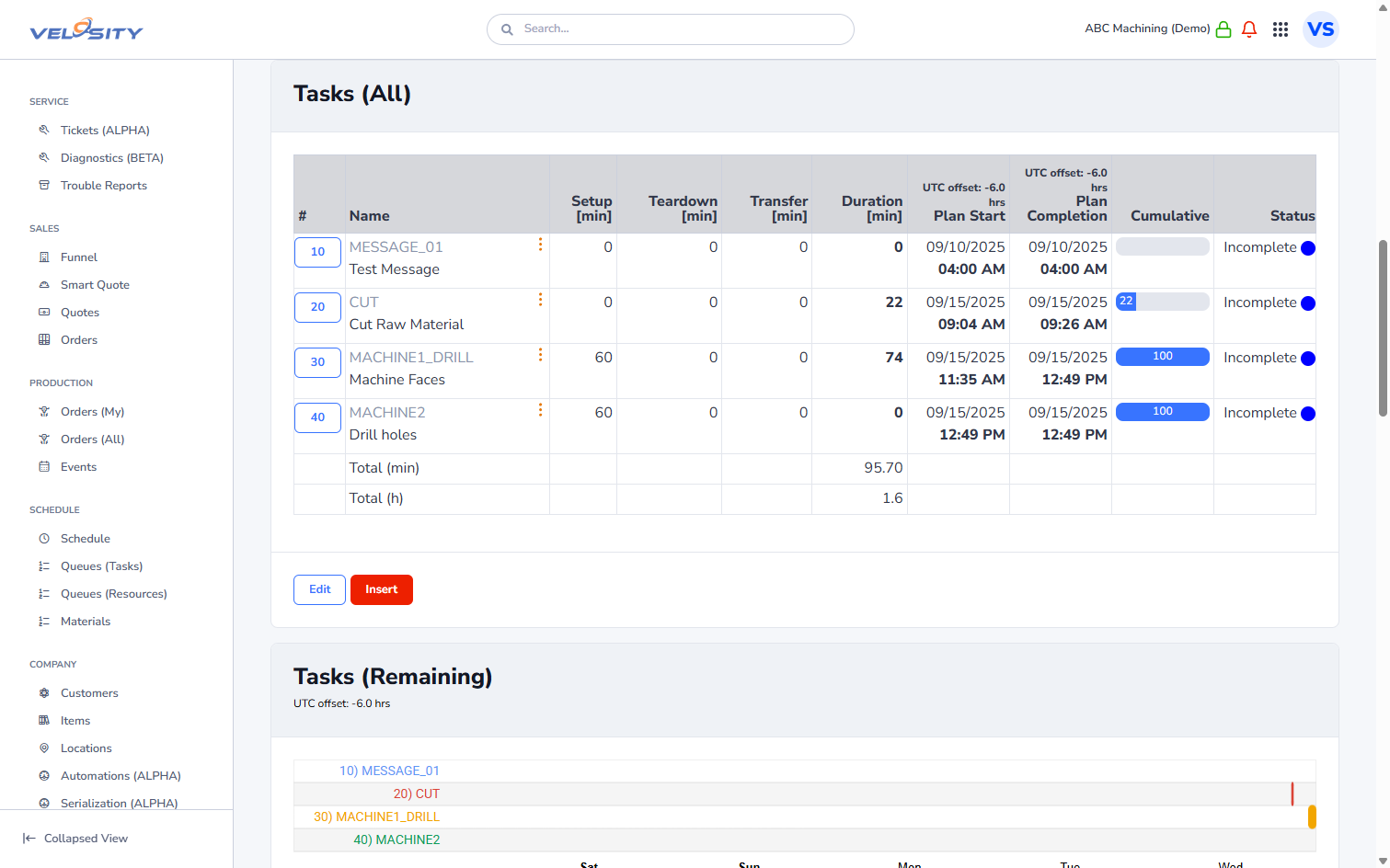
The Task Insert functionality is available under the following conditions: - Navigation: It can be accessed from the Production Order Detail page. - Task Status: You can only insert tasks before an existing task if that task is currently in INCOMPLETE status. Tasks that are WIP (Work In Progress), COMPLETED, or other statuses cannot be used as an insertion point. - Permissions: Typically requires Admin or appropriate production management roles.
How It Works
-
Accessing the Page:
- From the Production Order Detail view, look for the "Insert After" or "Insert" options in the task dropdown menus or action buttons.
- URL structure:
/ProdOrders/{ProductionOrderID}/Tasks/{ProductionOrderTaskID}/Insertor/ProdOrders/{ProductionOrderID}/Insert.
-
Selection:
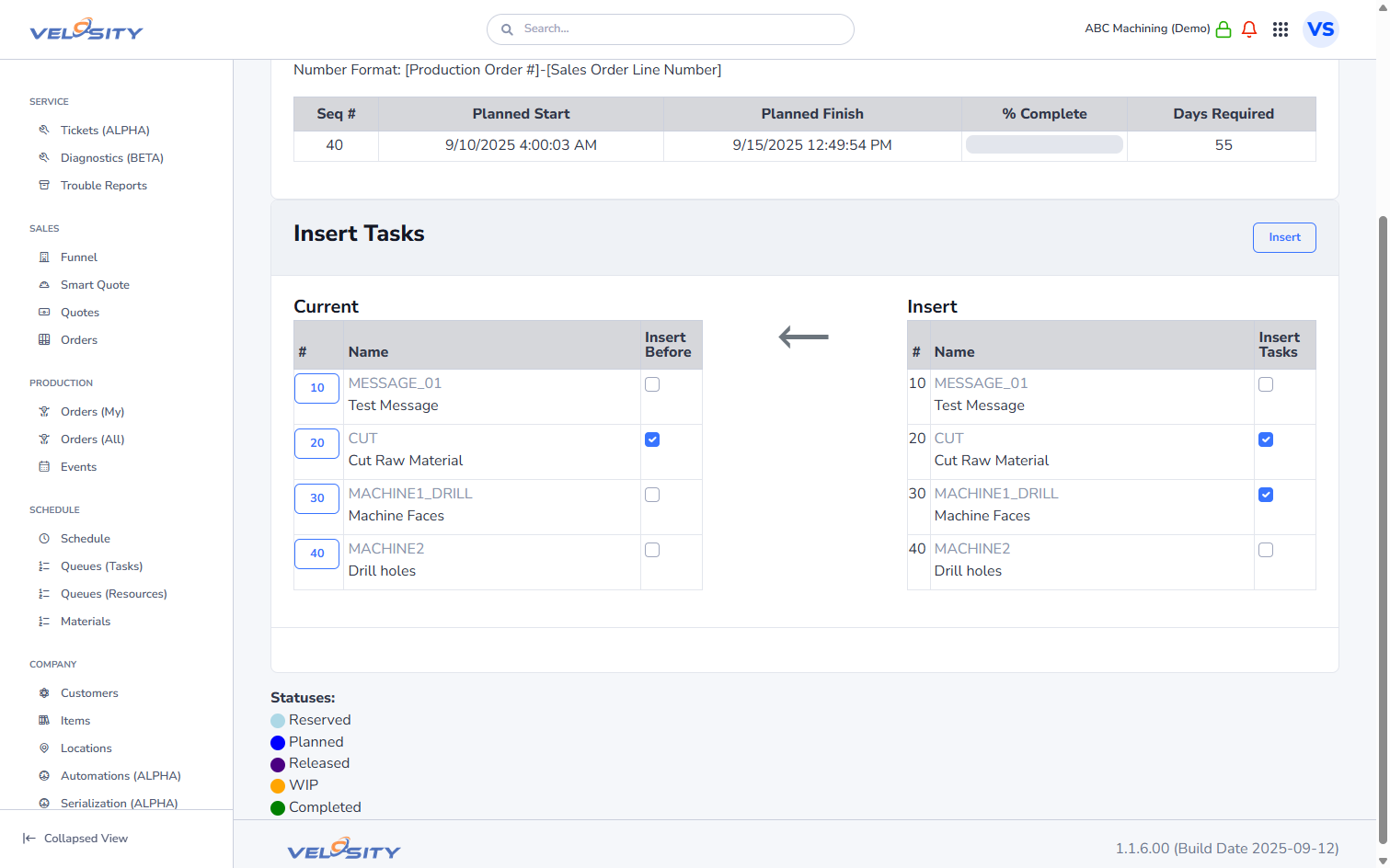
- Current Tasks (Insert Before): On the left side of the page ("Current"), select the checkbox for the task before which you want to insert new tasks.
- Note: Only one insertion point can be selected at a time.
- Tasks to Insert: On the right side of the page ("Insert"), select the checkbox(es) for the task(s) you wish to duplicate and insert. You can select multiple tasks to be inserted at once.
- Current Tasks (Insert Before): On the left side of the page ("Current"), select the checkbox for the task before which you want to insert new tasks.
-
Execution:
- Click the Insert button.
- The system will duplicate the selected tasks and place them before the chosen insertion point.
Side Effects & Automated Actions
- Task Status: All newly inserted tasks are automatically set to INCOMPLETE status.
- Sequence Renumbering: The system automatically re-sequences all tasks in the Production Order to maintain a consistent order (usually in increments of 10 or as defined by the system configuration).
- Sales Order Integration (Change Orders):
- Inserting tasks creates a Change Order on the associated Sales Order.
- The cost and price of the Change Order are automatically calculated based on the
PlanMinutesof the inserted tasks and theTaskHourlyRate/Markupdefined in the task's base definition.
- History Tracking: The system records the insertion activity in the Production Order's history, documenting which tasks were inserted and where.
Screenshots