How to Create Your First Quote
This guide walks you through creating your first Sales Quote in Velosity using the updated workflow.
1. Create New
- Navigate to Sales → Quotes.
- Click Create New to start a new Sales Quote.


2. Choose Customer & Currency
- Select the Customer for the quote.
- Select the Currency.
- Click Create to proceed to the Quote Detail page.
[!NOTE] When the quote is created, the default Inco Terms are automatically copied from the Customer record (or Ship-To address). You can manually override these later if needed.
Ensure the quote remains in Draft status to continue adding or editing configured items.

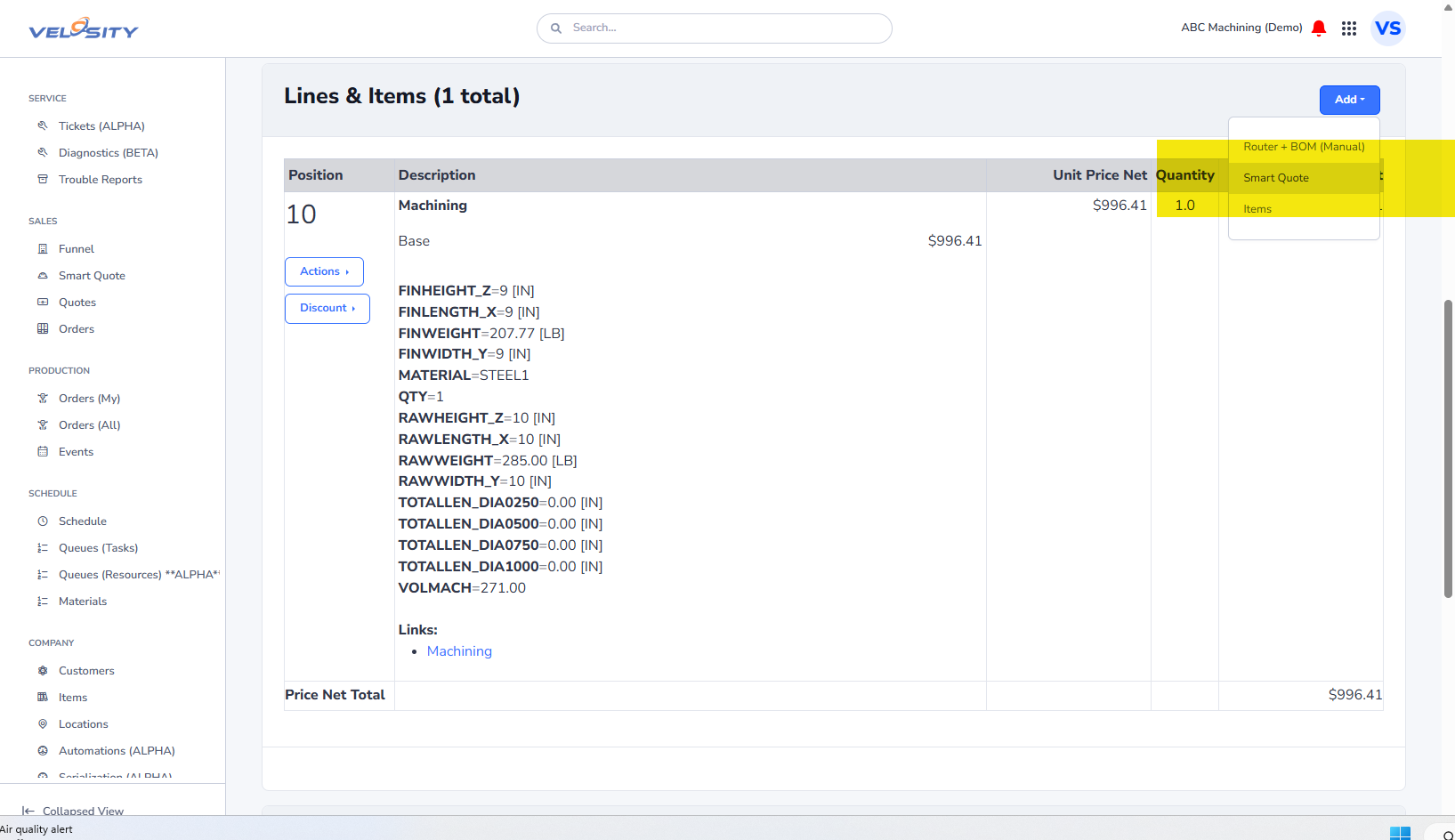
3. Scroll to Lines & Items – Choose Smart Quote
- Scroll down to the Lines & Items section.
- Select Smart Quote to begin adding a configured item.

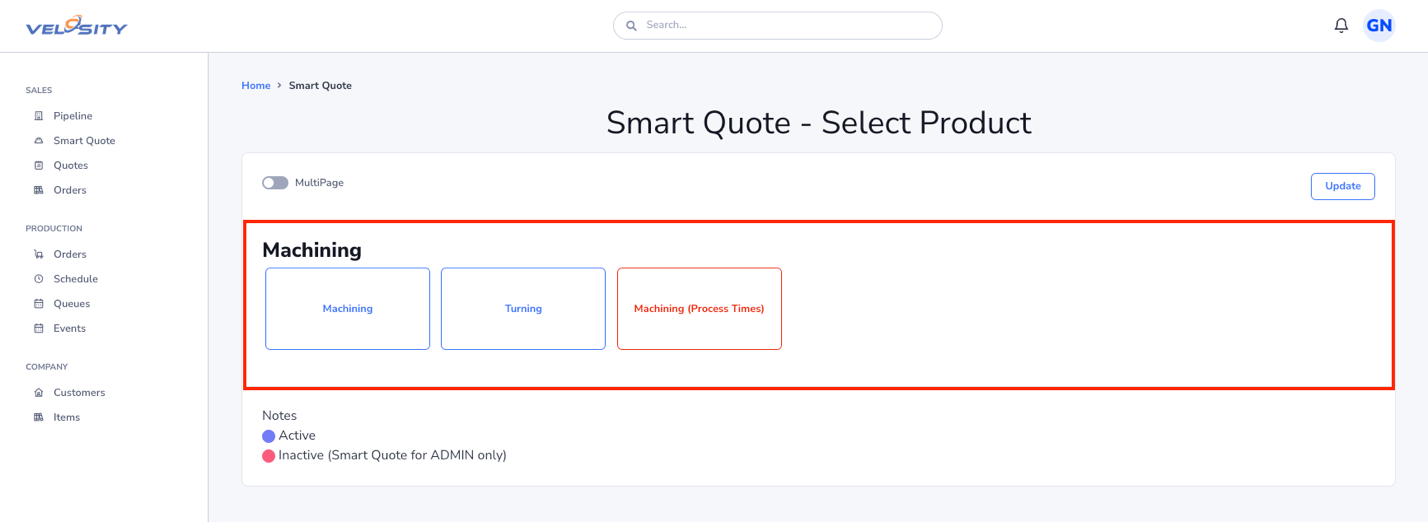
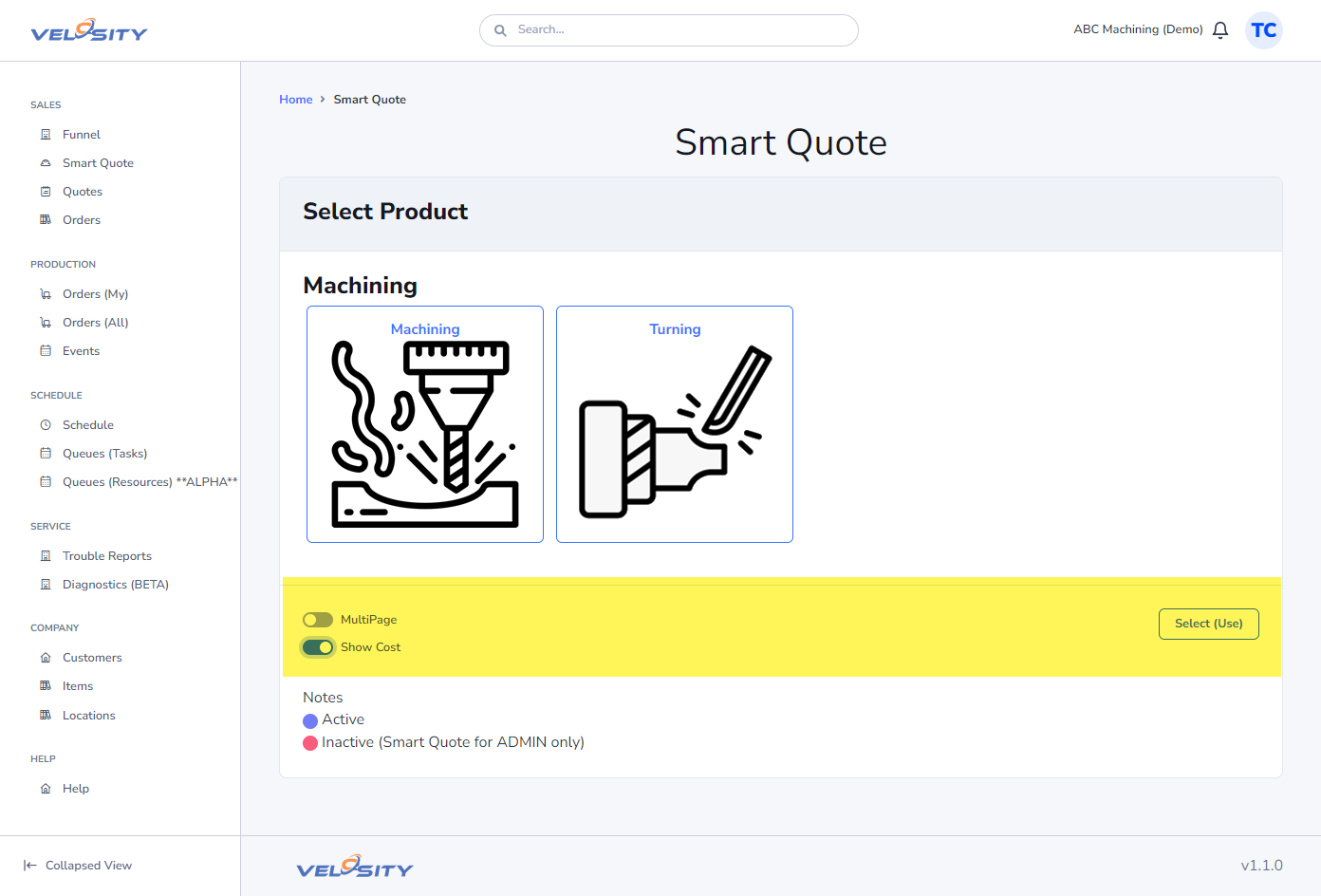
3. Select the Product to Configure
- Browse or search for the product you want to configure.
- Click the product to open the configuration screen.
4. Choose Your Desired Options
- Adjust the available options such as:
- Dimensions
- Features
- Materials
- Associated components
- Confirm your selections before proceeding.
5. Click on “Add To”
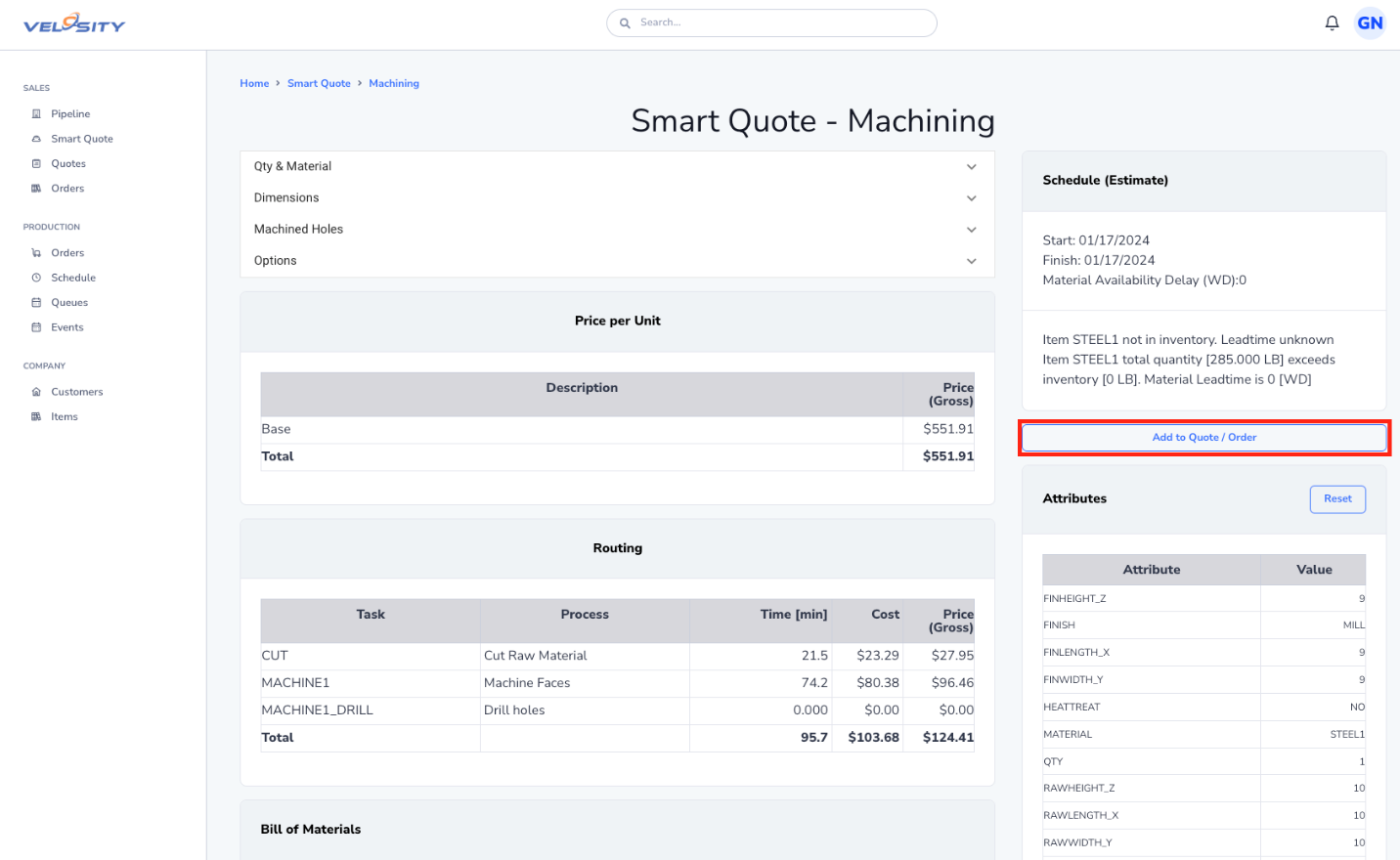
Once configuration is complete, click the Add To (or Finish) button at the bottom of the configuration screen.
6. Finish and Add
Depending on how you started, you will see different options:
- If you started from a Quote: Click the green Finish (Add to) button. The system already knows which quote and customer to use.
- If you started from the Product list: Click Add to Quote / Order to see a list of your recent Draft quotes, or use the Create + Add shortcut.
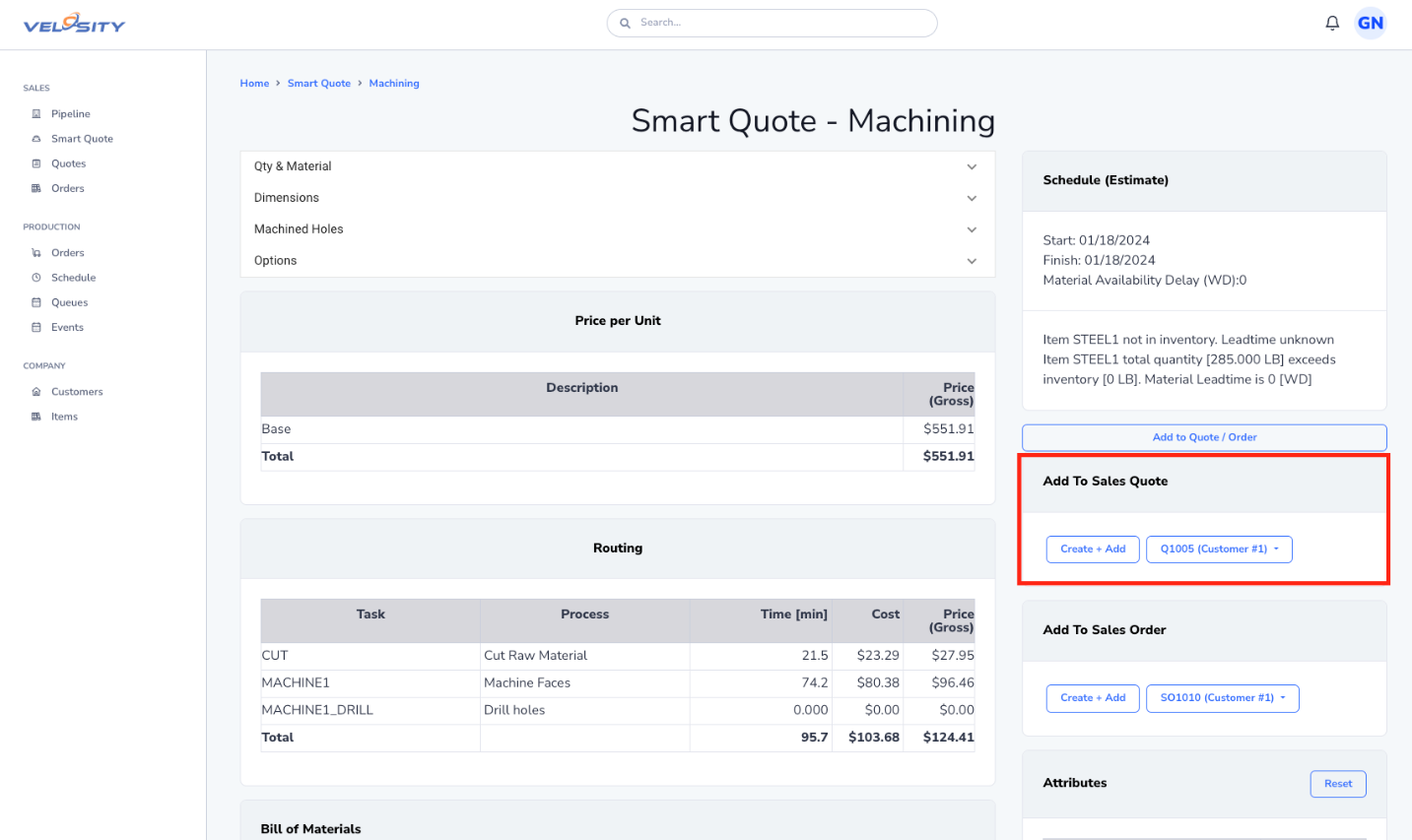
7. Select the Quote/Customer (Stand-Alone Flow Only)
If you started configuration without a quote: 1. Select the target Sales Quote or Customer from the list. 2. Click Add to finalize.

✔️ Done
Your configured item is now added to the Sales Quote.
Reordering & Renumbering Lines & Items
If you have multiple line items or loose items, you can reorder them by clicking and dragging each item to the desired position. Once reordered, use the Renumber button to update the sequence numbers. This sequence will be preserved when you generate a PDF for the customer.
You may continue adding items, editing details, or finalize the quote for sending.