Production - Orders
Production orders describe the process and material required to complete a Sales Order line item. Each Production Order has an associated Sales Order. See Sales Order Status for more information on how the Sales Order lifecycle affects production.
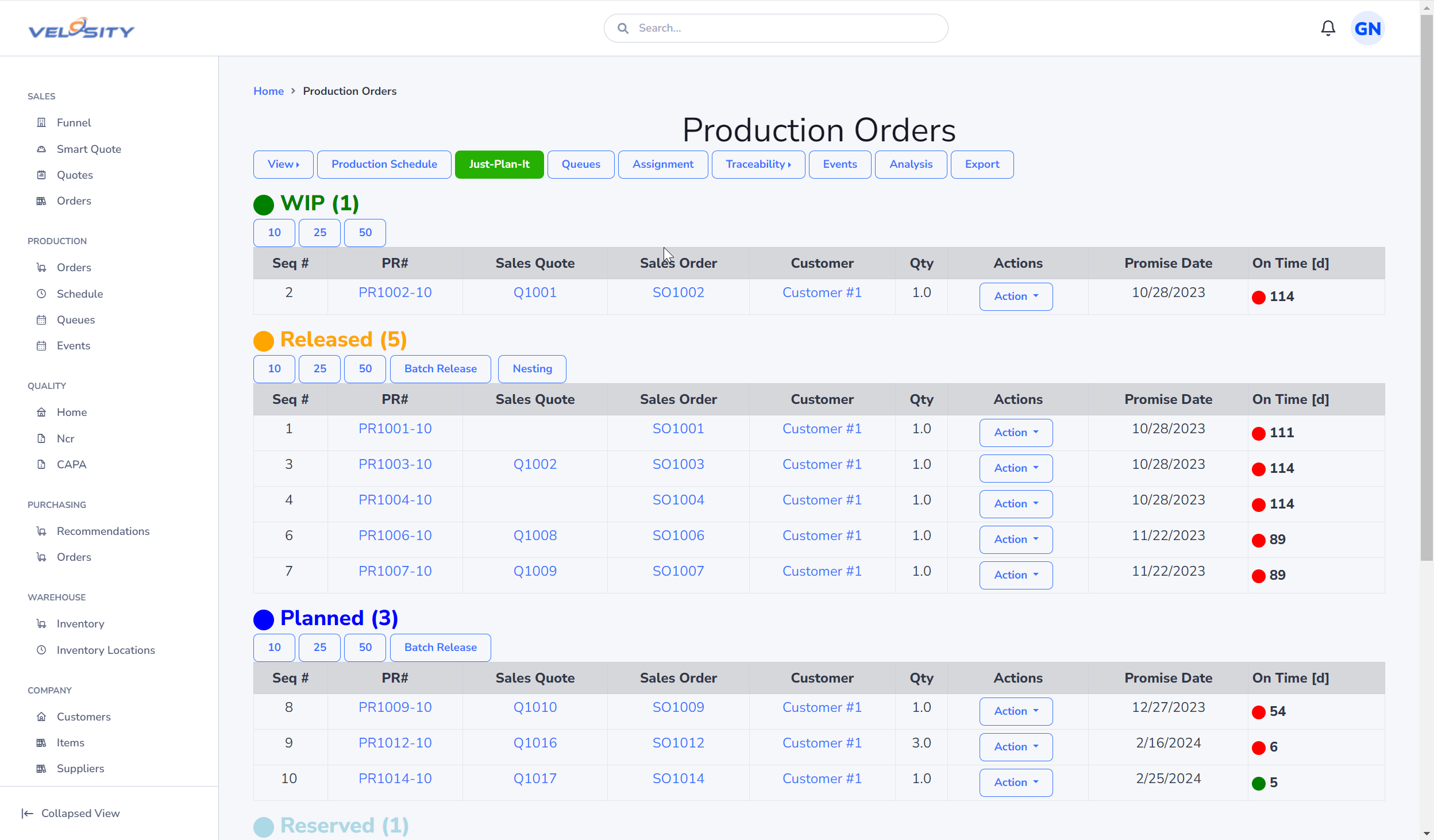
A production order has five possible status types. Hovering over the status indicator in the list view will display a tooltip with the status name: - PLANNED - RELEASED - WIP - COMPLETED - ON HOLD
By Status
A PLANNER or ADMIN role can update the Status (WIP, RELEASED, PLANNED, COMPLETED, ON HOLD) using the Action drop down.
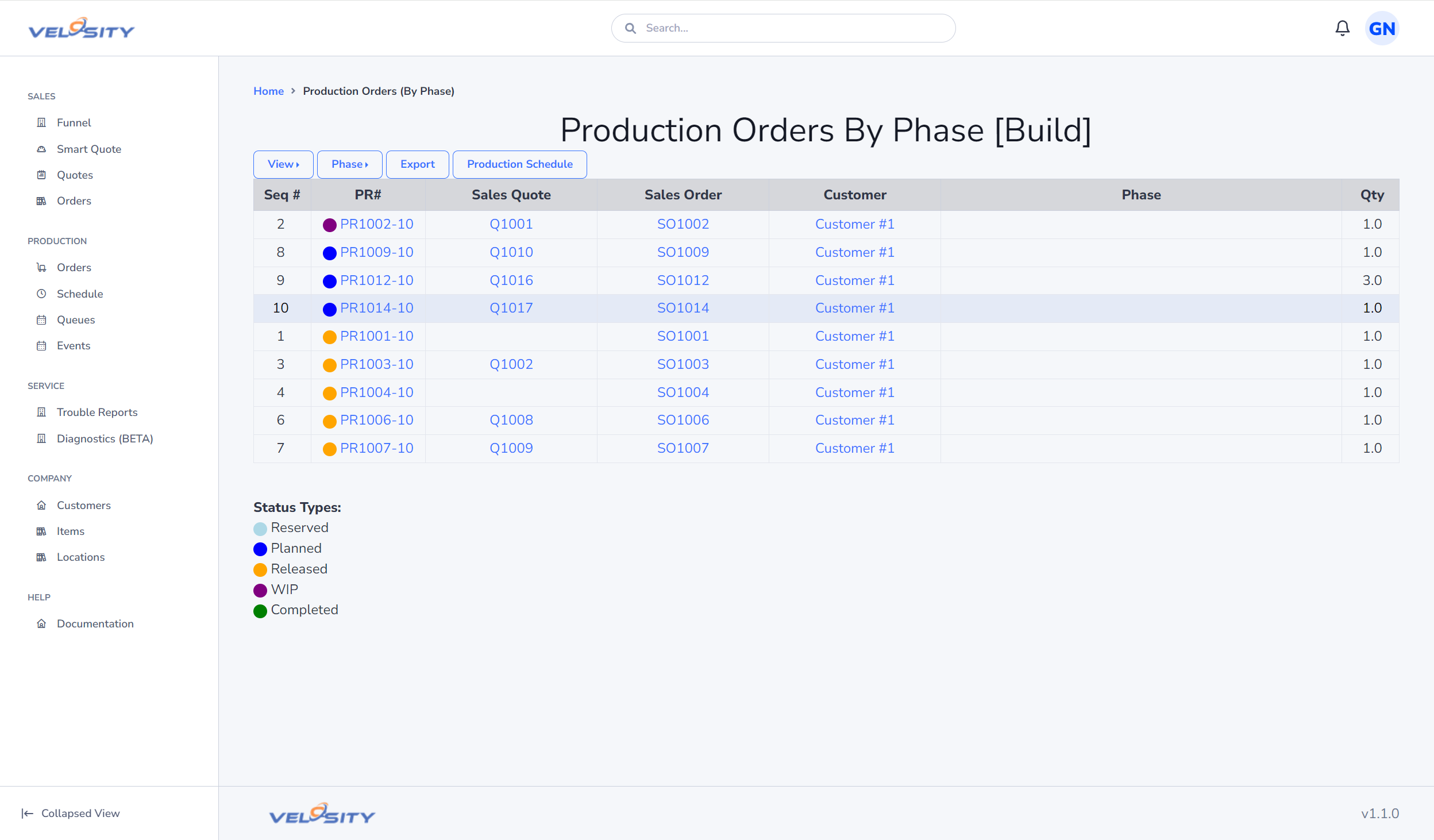
By Phase
This view shows production orders by Phase.
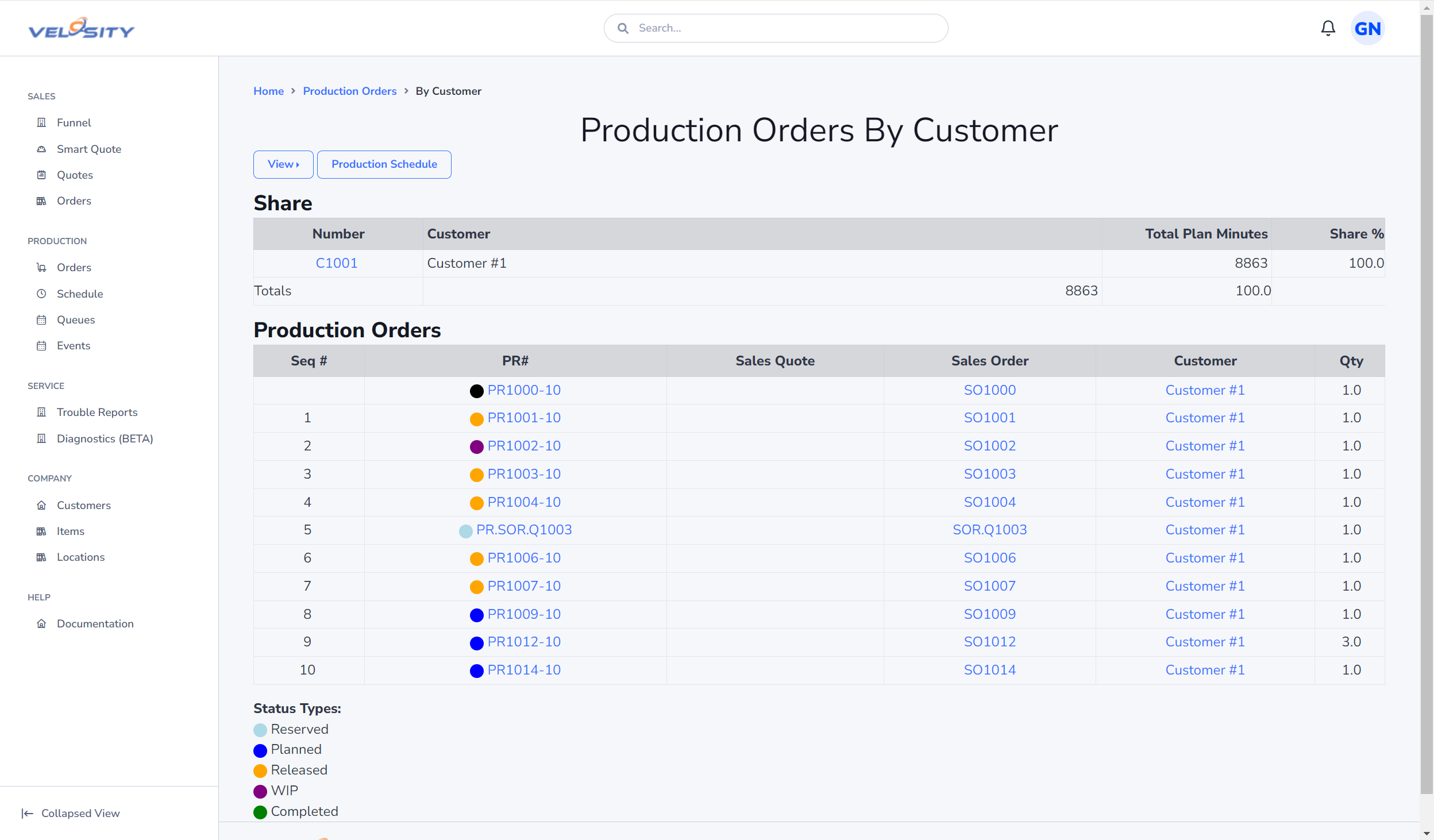
By Customer
This view shows production orders by Customer.
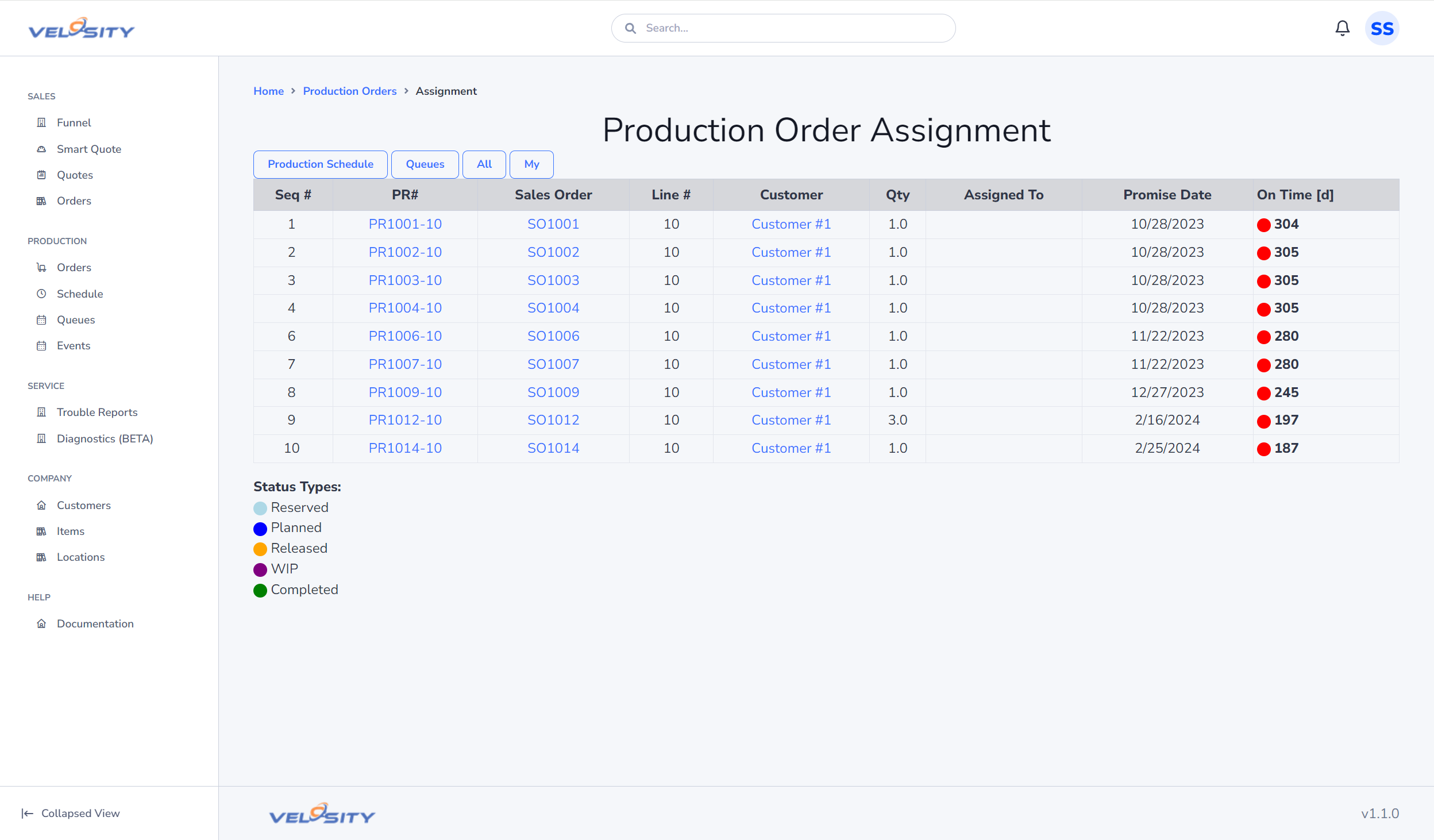
By Assignment
This view shows production orders by Assignment (Project Management).
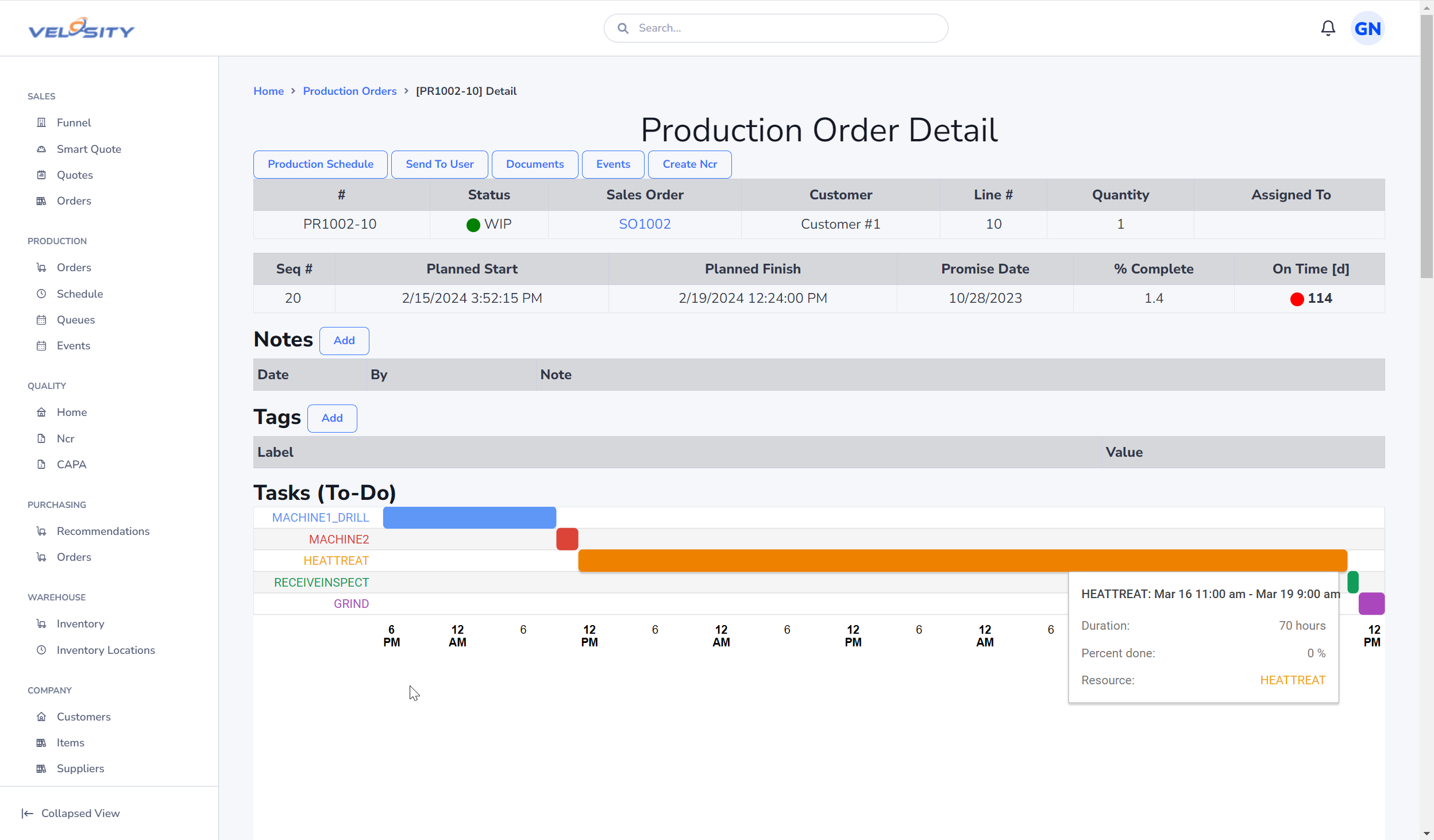
Detail
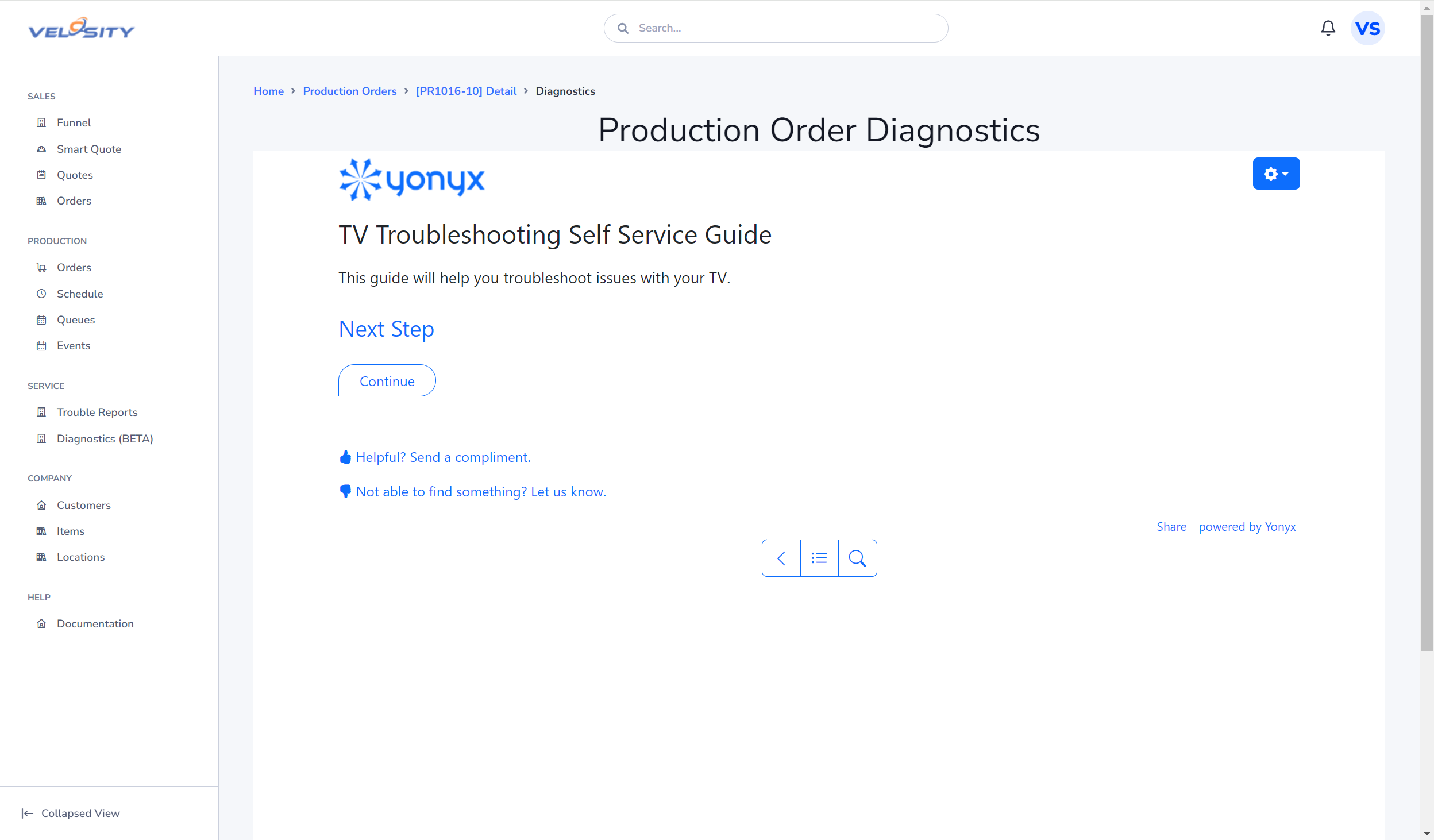
Diagnostics (Service)
If the Service module is enabled and a Diagnostic is setup for the Product, the Diagnostic tree can be viewed directly from the Production Order. Click here for more details.
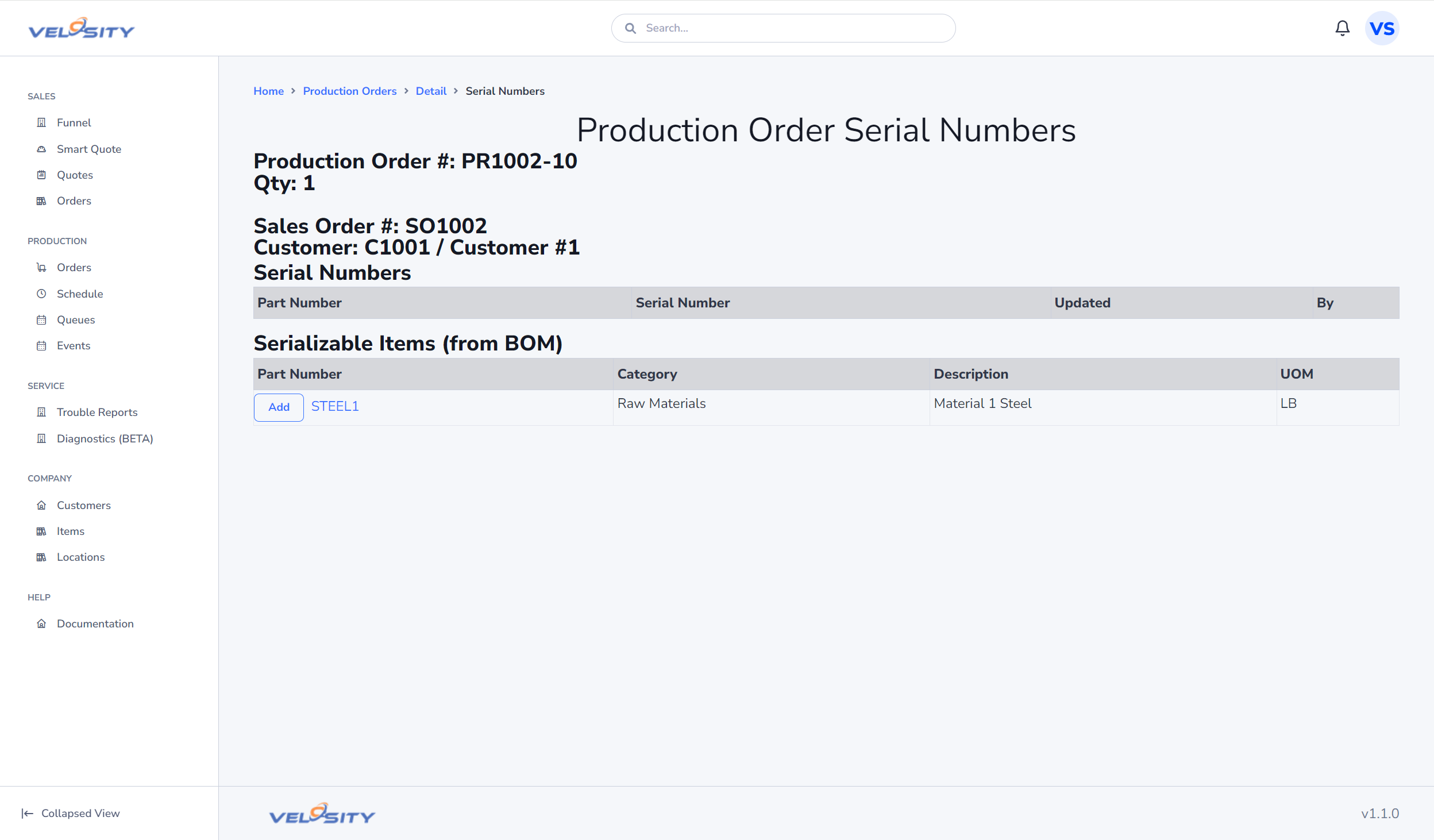
Add Serial Numbers
If Serialization is required for any of the Items in the BOM for the associated Sales Order Line Item..then a button will appear allowing the user to update.
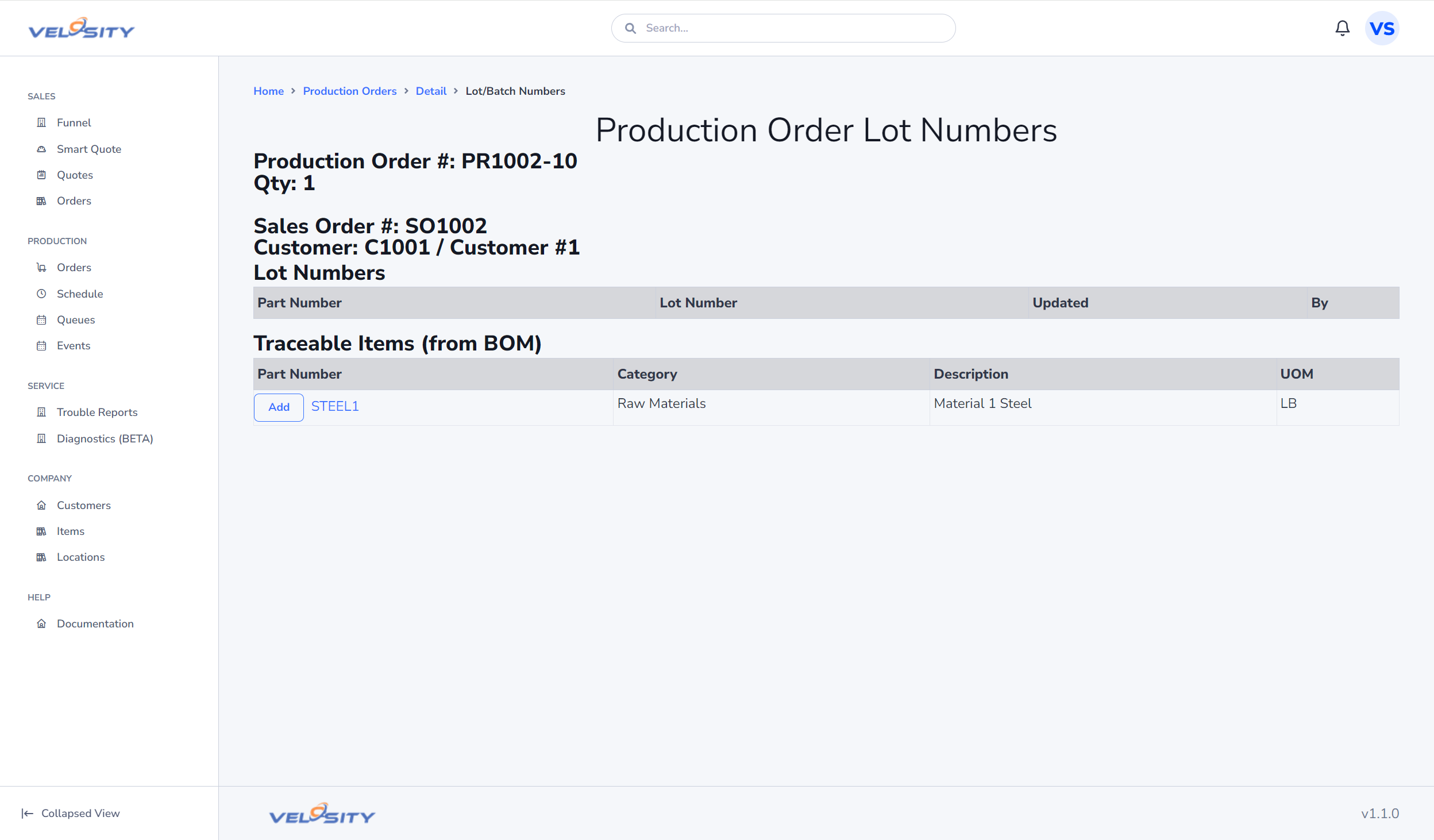
Add Batch/Lot Numbers
If Batch/Lot Numbers are required for any of the Items in the BOM for the associated Sales Order Line Item..then a button will appear allowing the user to update.
Update Start Date
The start date of the Production Order can be updated - determining a new priority number (sequence). The next Schedule update will revise start and finish dates for the entire Schedule.
Update Phase
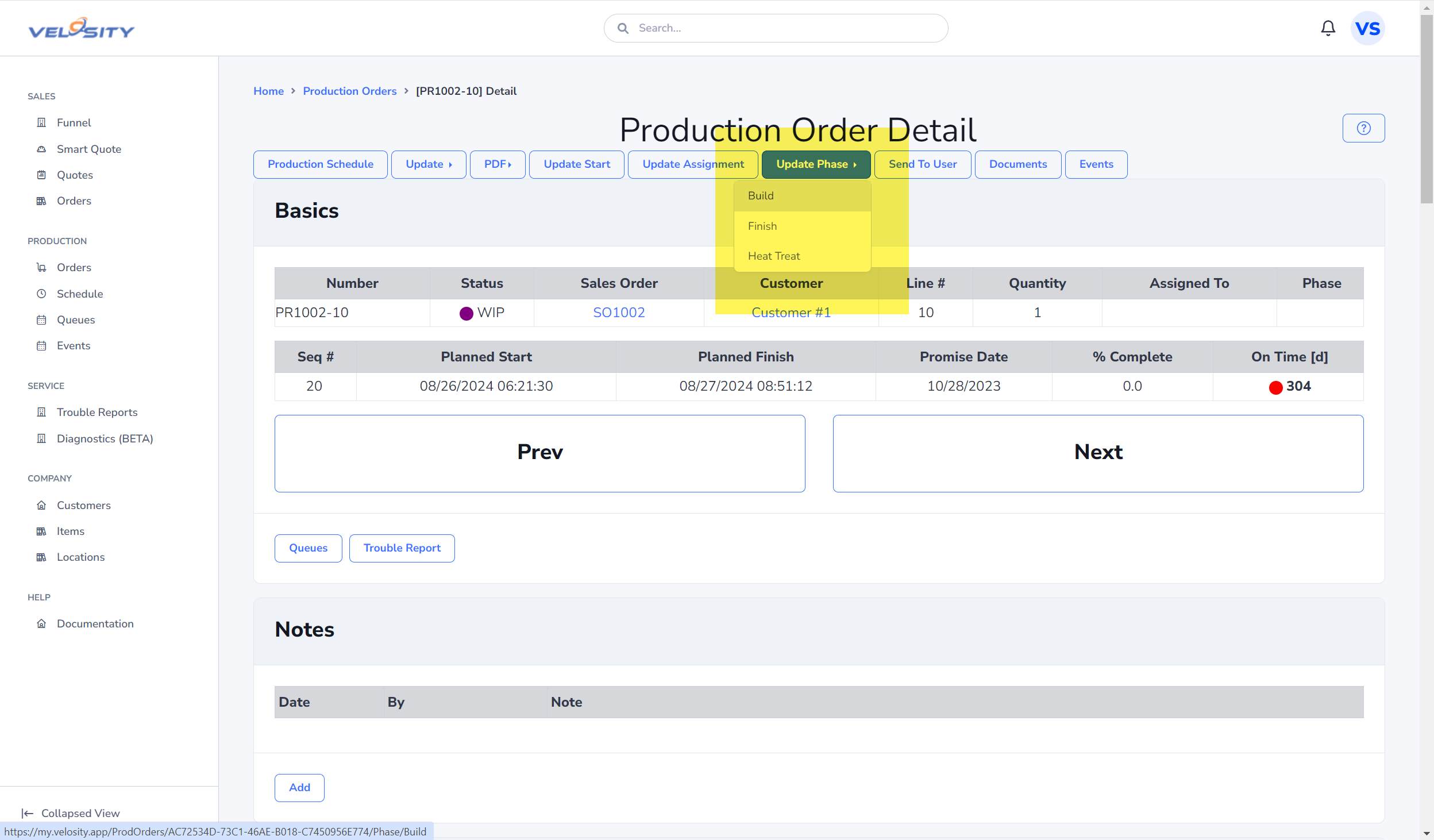
Phase is a further way to understand the state of any production order - but specific to your processes. The default Phase for a Production Order is defined on the Tasks in Setup. When the next Task is started on the Production Order the Phase is updated to that value.
A unique list of Phases can also be defined in Setup/Phases. Each phase can have a Delay Days setting which influences escalation and SLA tracking. The Phase of a Production Order can also be set with the drop down as shown here.
Update Assignment (Project Manager)
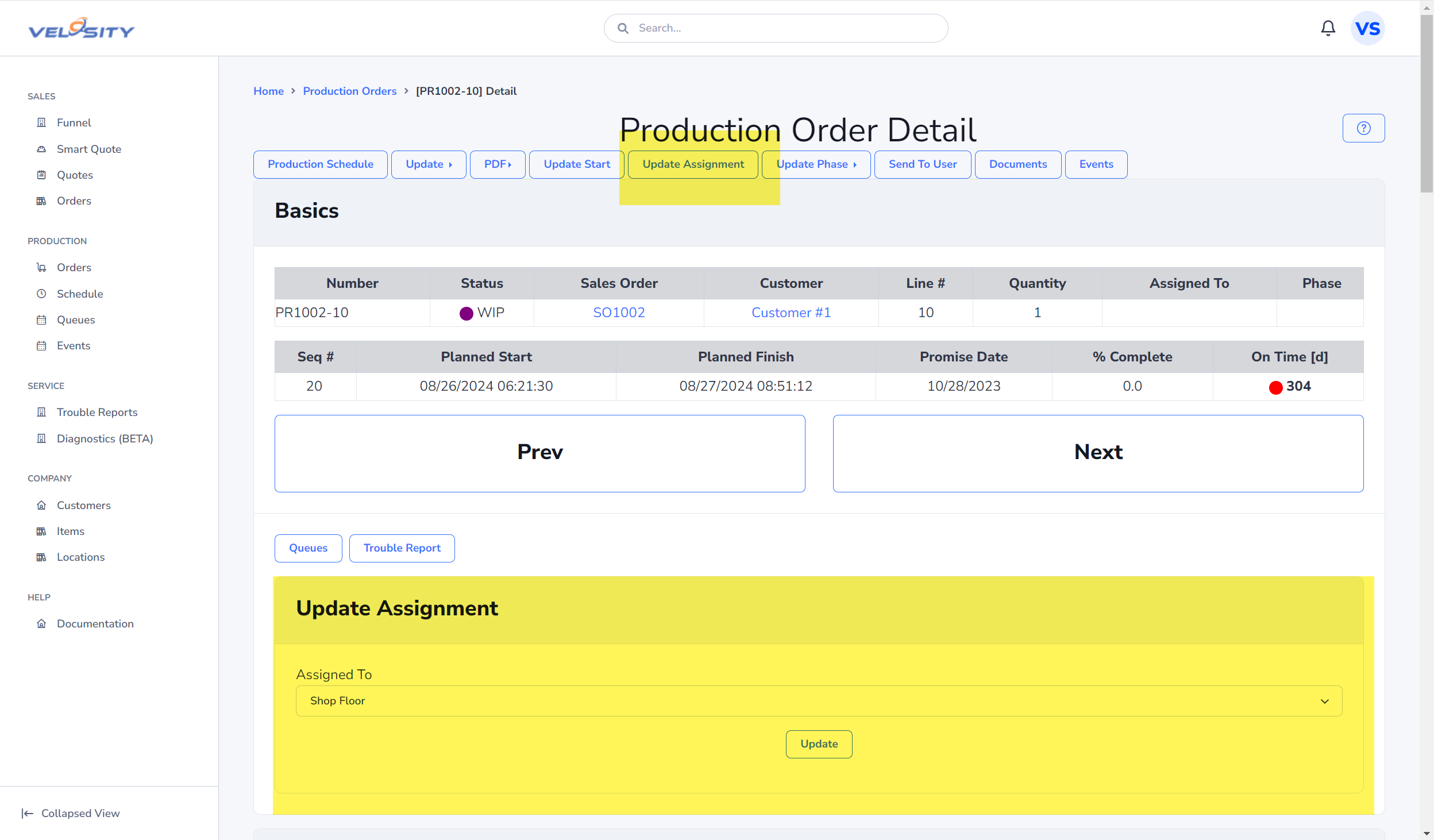
You can optionally assign a Production Order to a person by clicking on Update Assignment.
Send to User
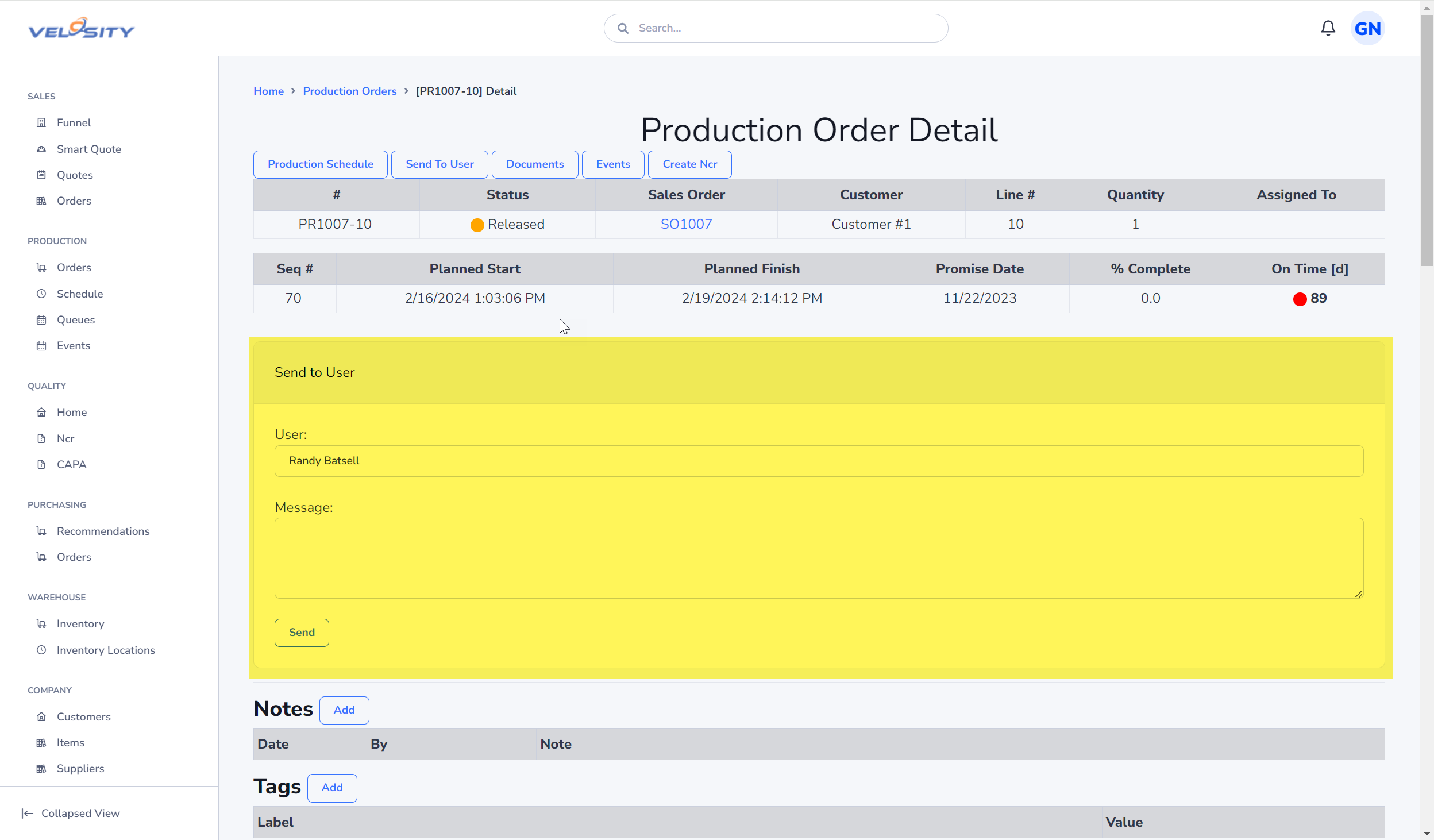
The Send To User button allows you to send this quote as a message to another Velosity user. The recipient's view of Velosity will have a different Notification bell at the top right of the window.
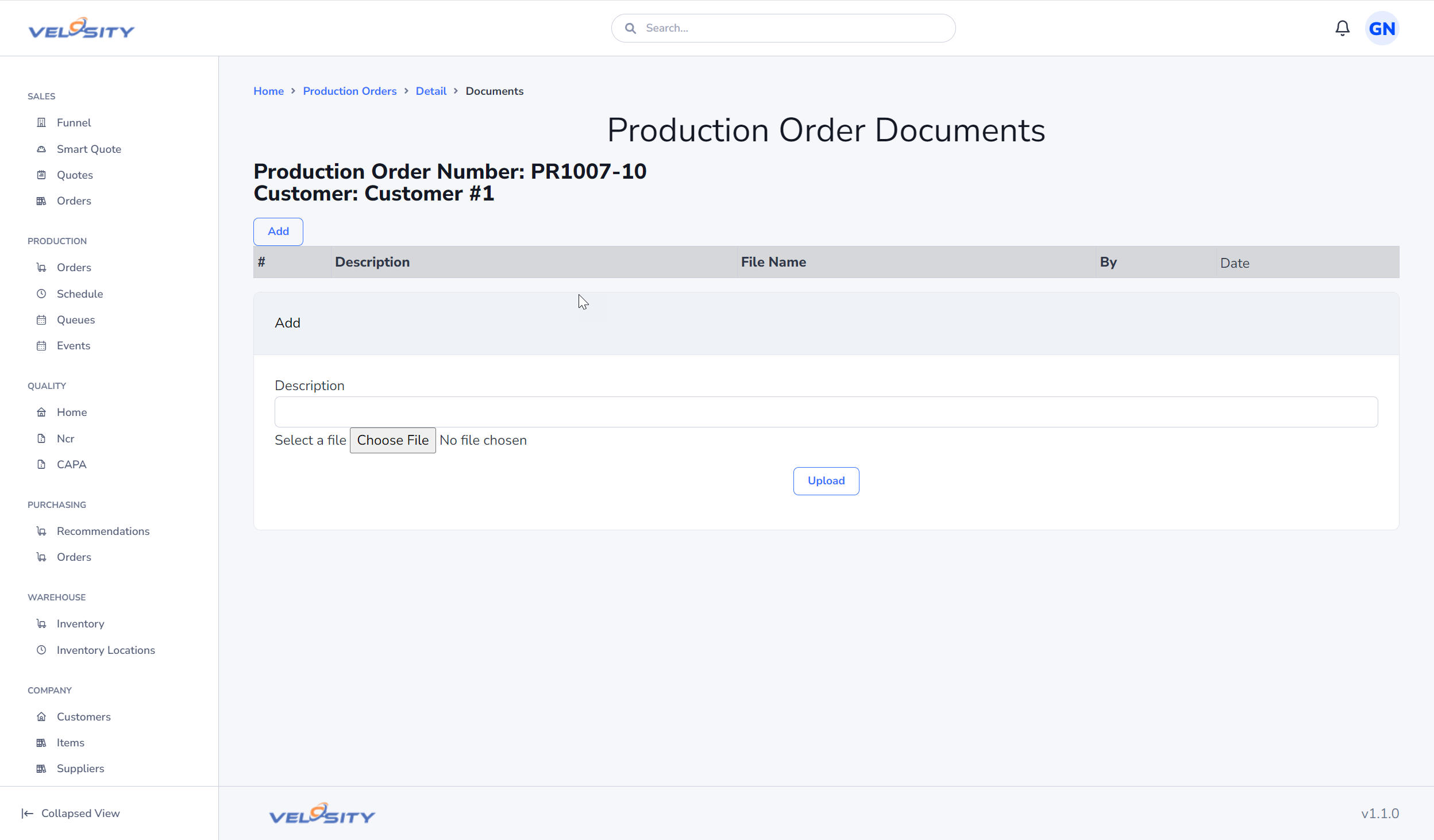
Documents
Task Insert
The Task Insert feature allows you to dynamically add tasks to an existing Production Order. Click here to learn more.
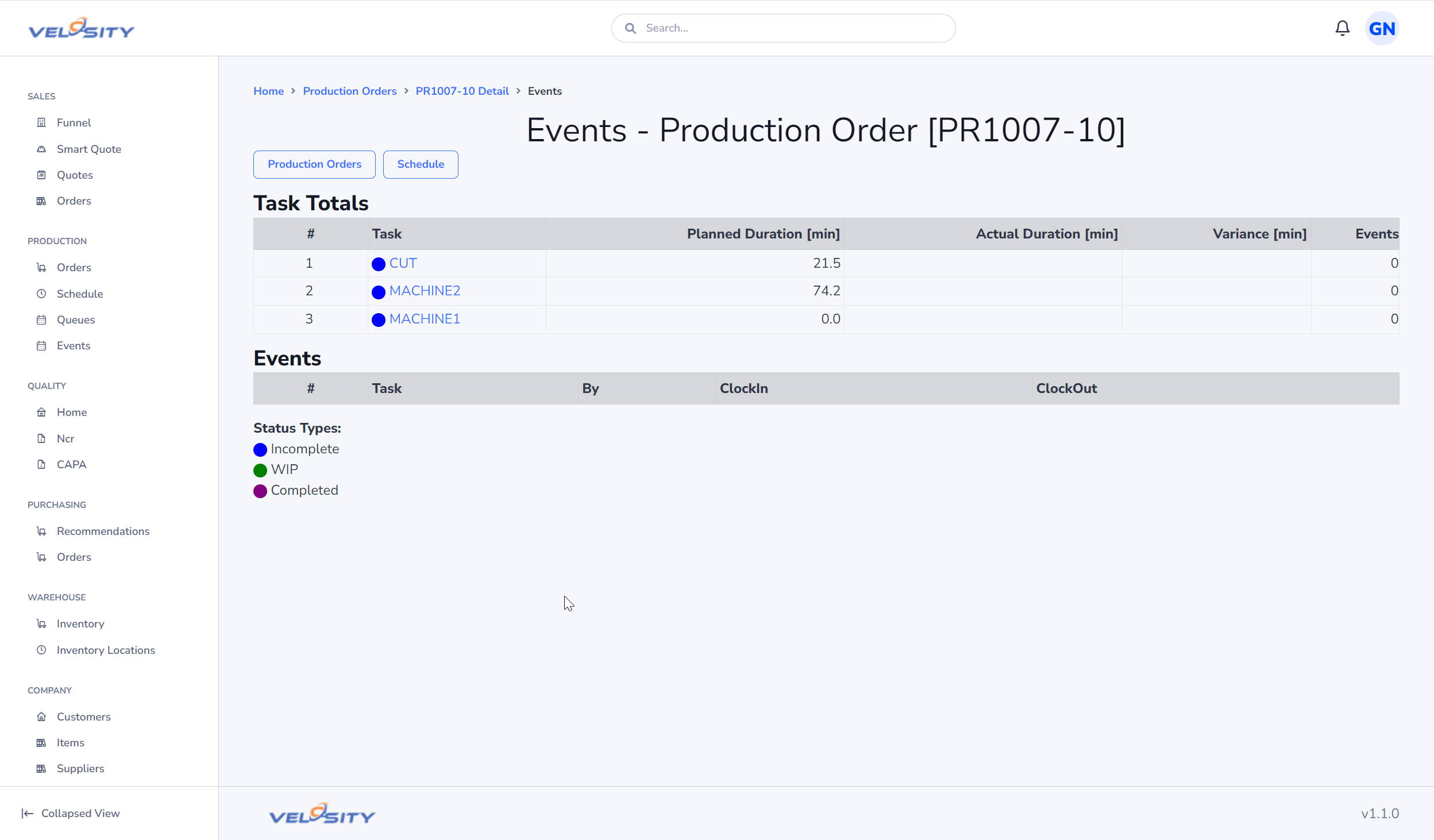
Events
Escalations
Production Orders can be escalated to bring attention to issues or delays. Escalations can be created by users and assigned to specific team members for resolution.
- Active Escalations: Shown with a red badge.
- Resolved Escalations: Once addressed, escalations are marked as Resolved (previously Inactive).
- Actions: Users with appropriate roles can Edit, Dismiss, or Resolve escalations.
- Discussions: Each escalation supports threaded discussions for collaboration between team members.
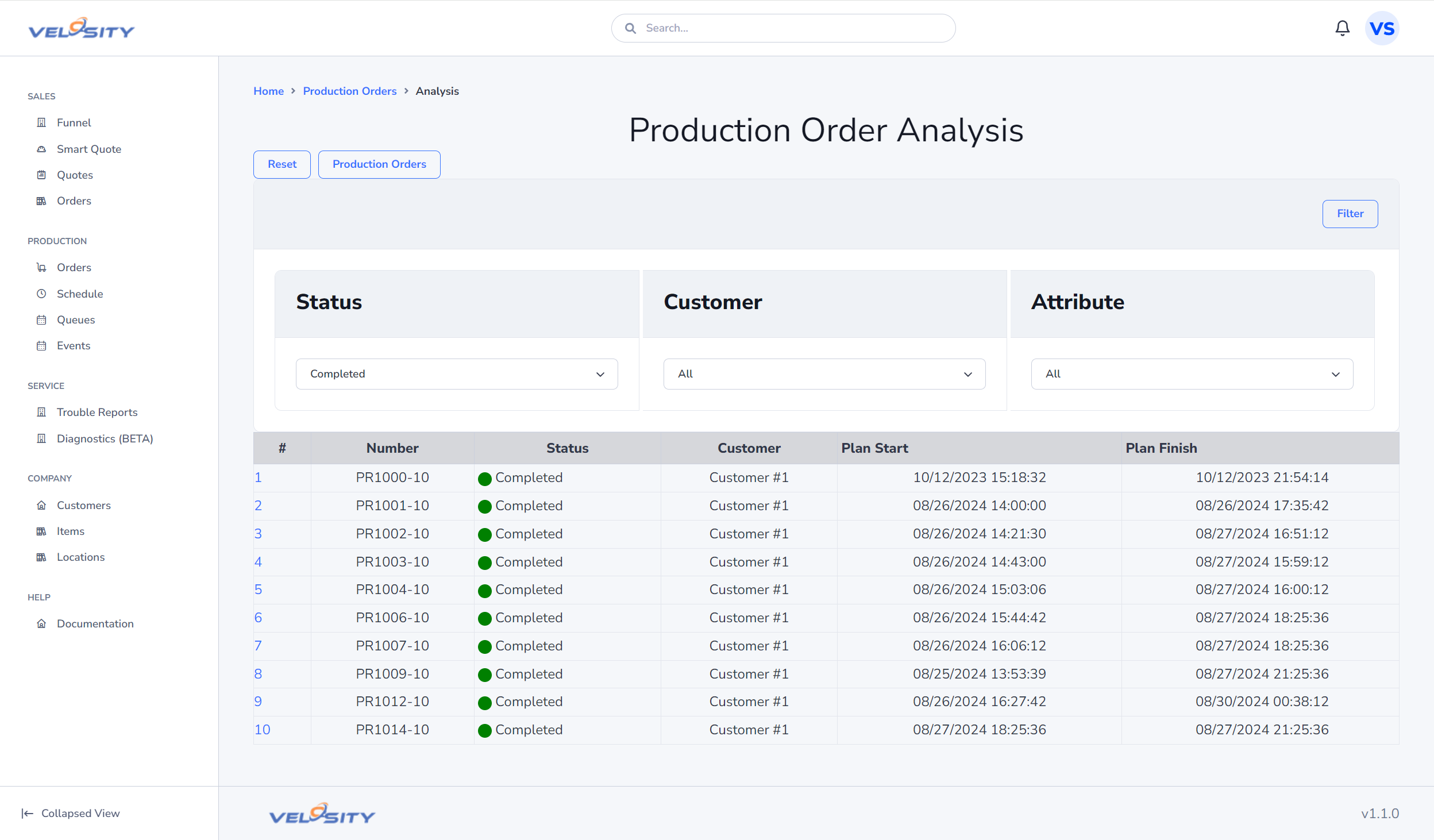
Analyze
Using this view you can filter Production Orders by Customer and Attribute + Value.
Search
You can search for a Production Order using the search bar at the top of the Velosity window. Using just a text string will return search results across all entities. You can restrict the search to just Production Orders by using this syntax (case insensitive):
- pr:searchtext
- PR:searchtext
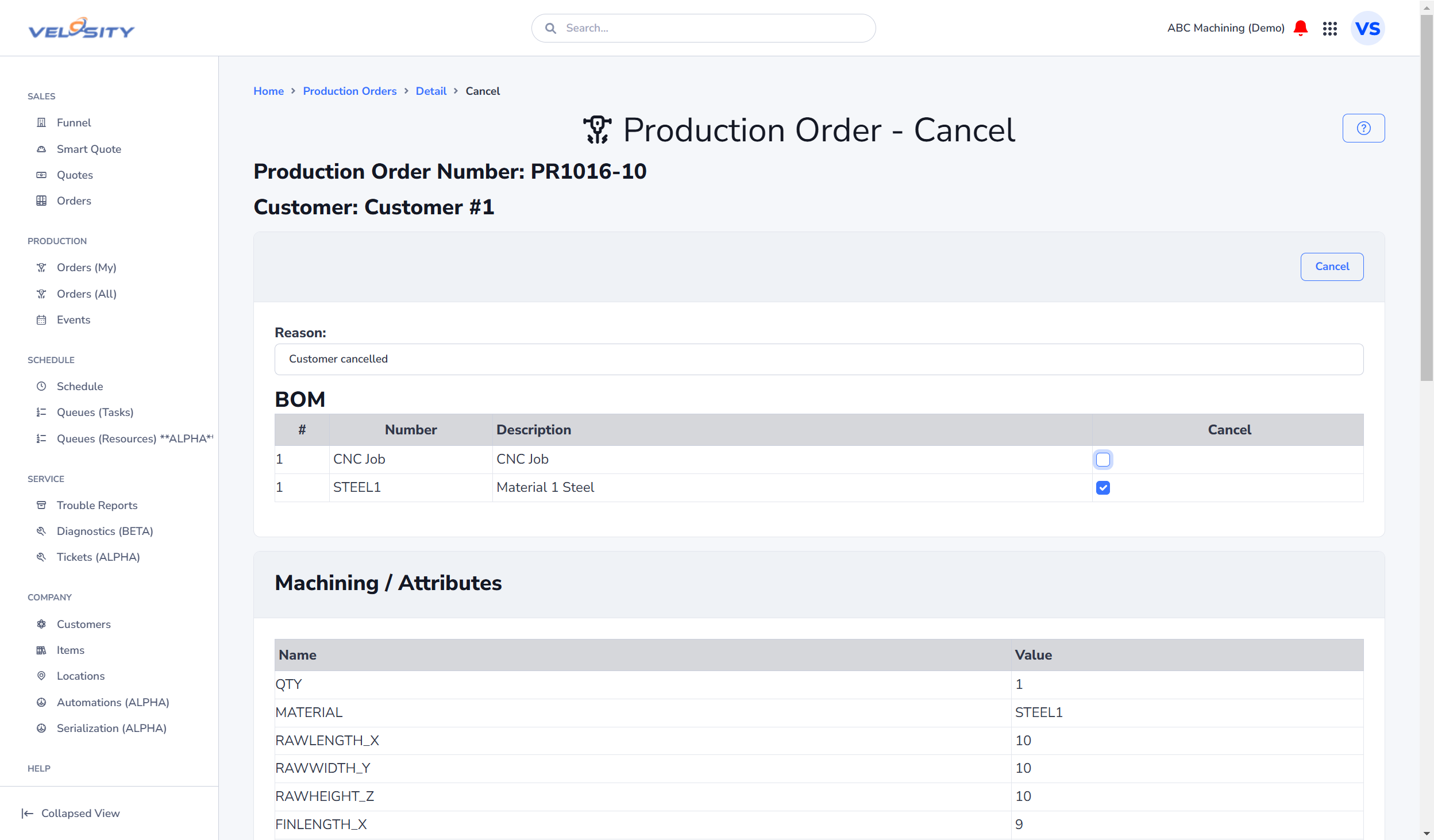
Cancel
While a rare occurence, you might have a situation where a Production Order is started and then needs to be cancelled - while still keeping a history of the work completed and to get paid by the customer for this work. This feature allows you to do just that.
Using this feature will mark all Production Order Tasks that are INCOMPLETE as CANCELLED and set the times to 0 minutes. Additionally, the Tasks on the Line Item are set to 0 minutes (and 0 cost/price). The selected materials on the BOM are also set to Quantity 0.