Sales Quotes
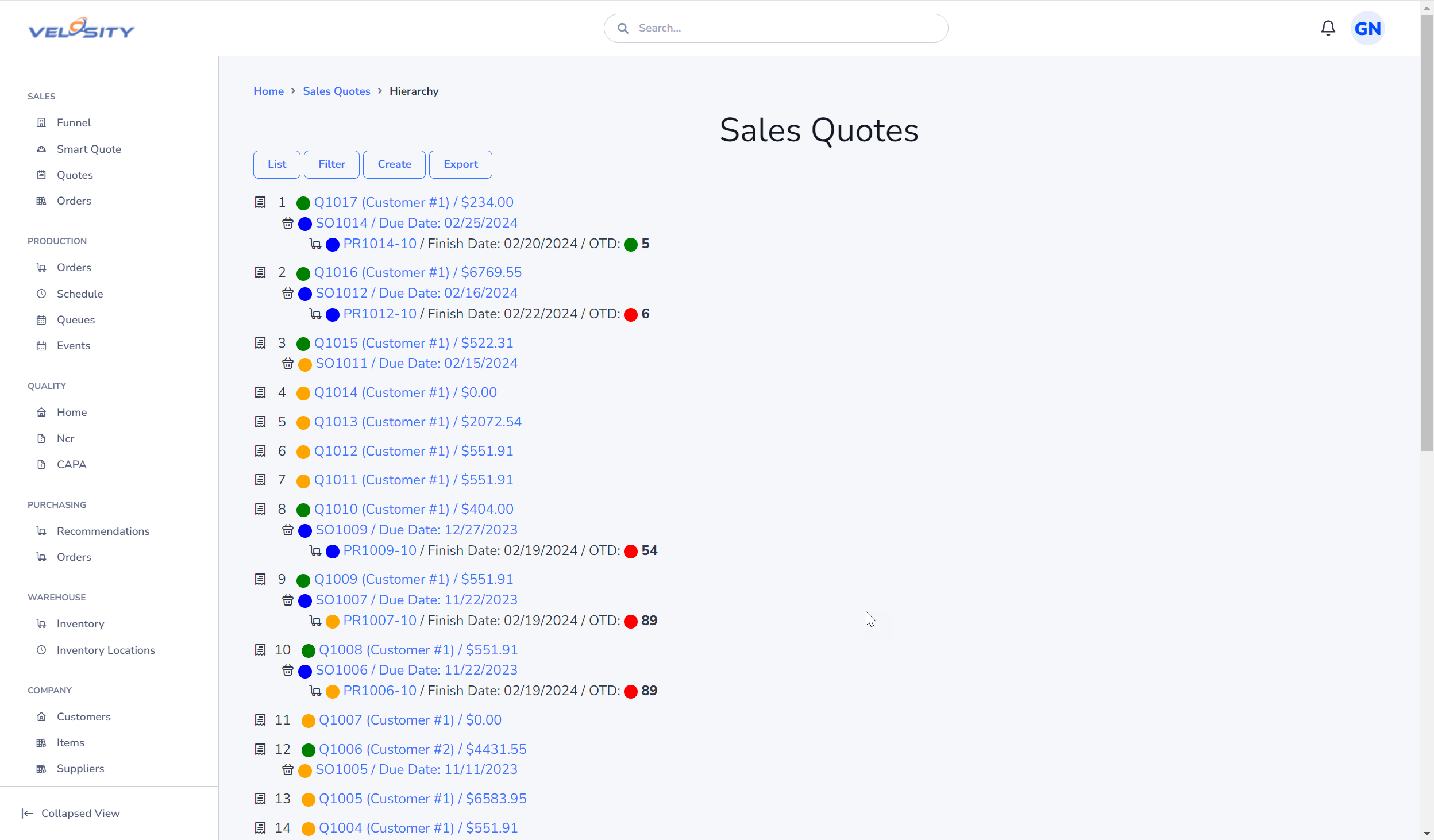
Hierarchy
The Hierarchy view shows the entities - Sales Order and Production Orders - relate to each Sales Quote.
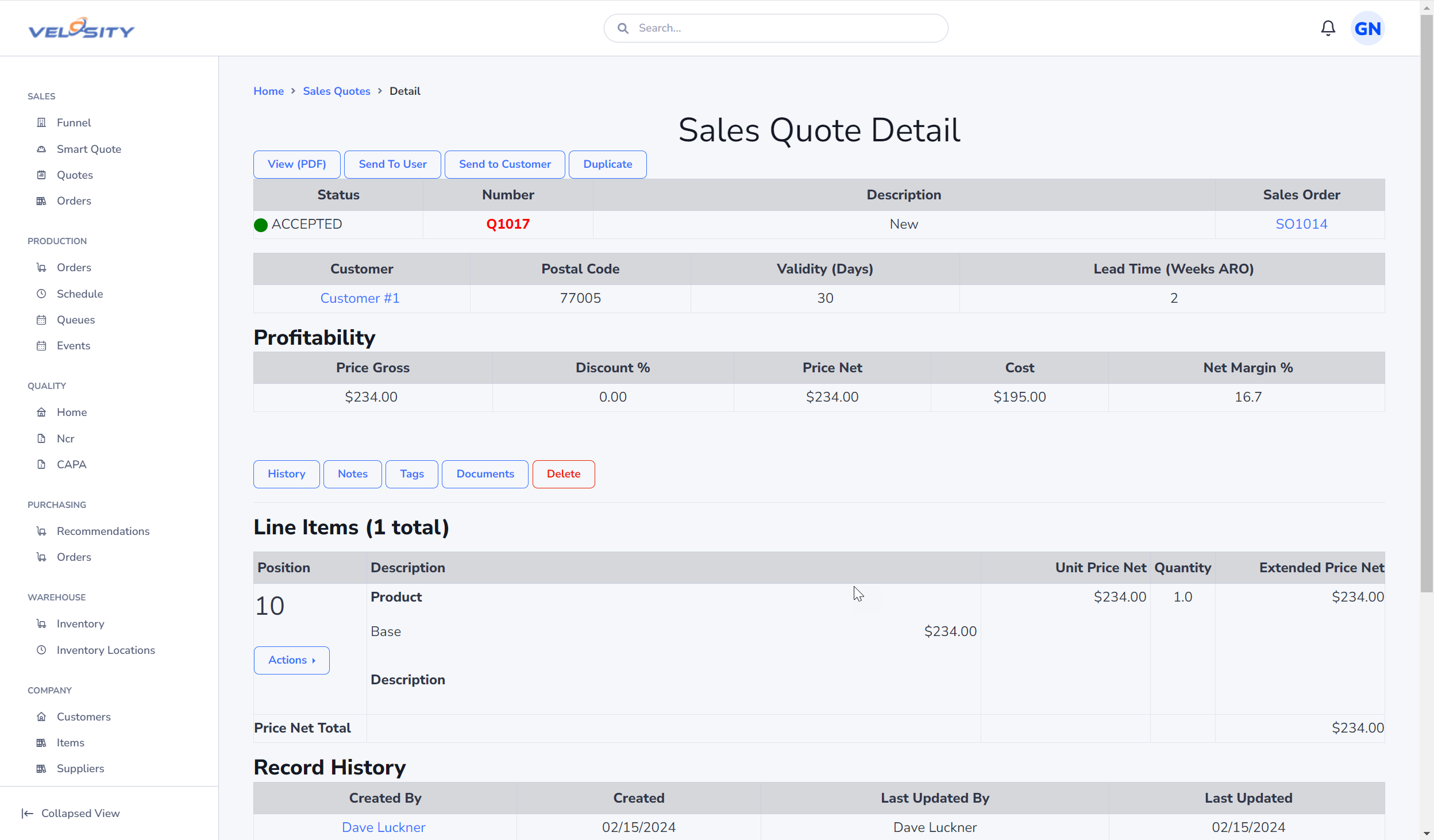
Detail
A Sales Quote can be edited as long as the Status is DRAFT.
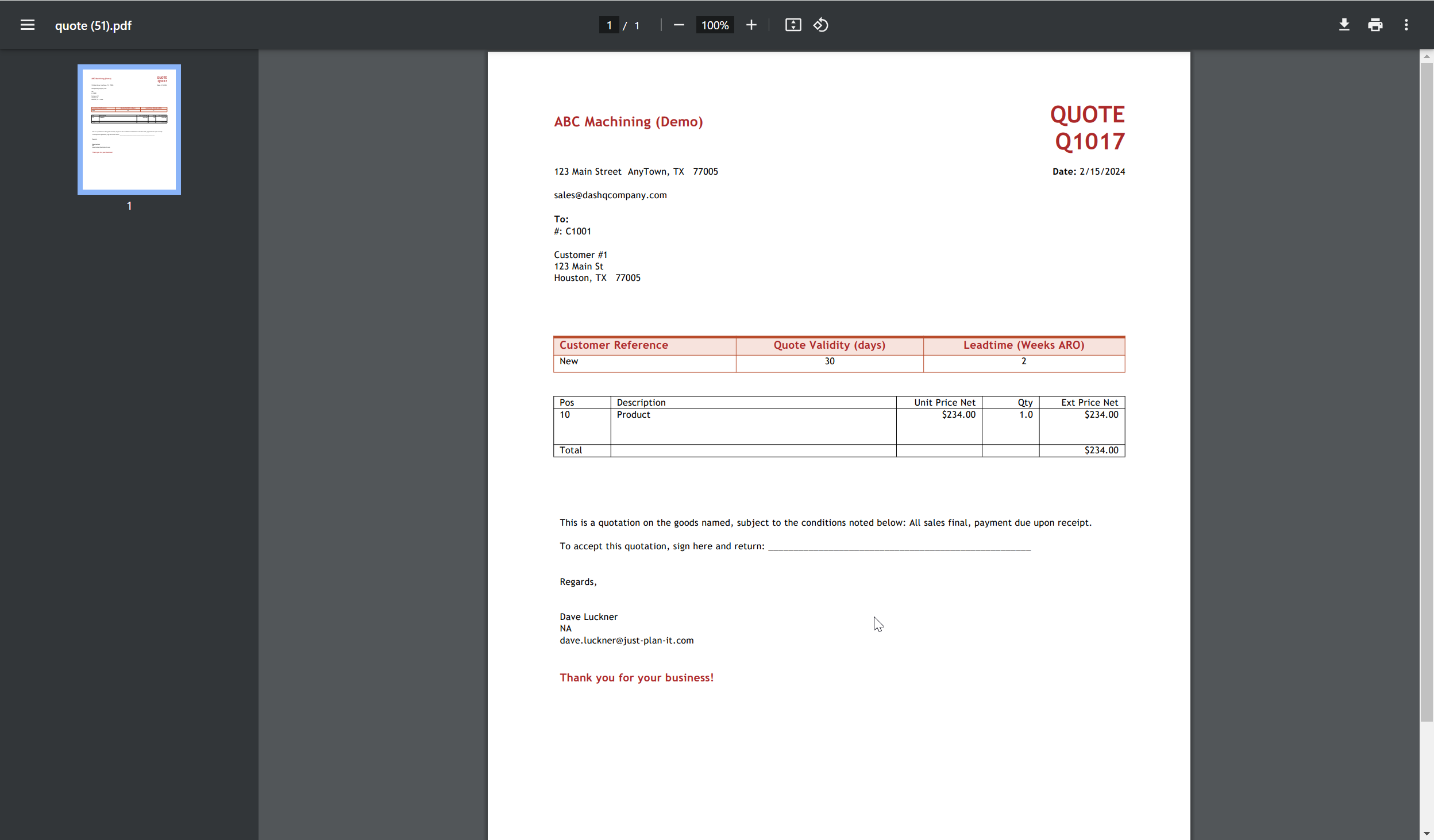
View (PDF)
Clicking on the View (PDF) button will return the quote in PDF format to your browser. The PDF is generated fresh from the Microsoft Word template each time you click the button.
If the Word template contains a date field (calculated), it will automatically update to the current date in the generated PDF. This occurs whether the Sales Quote is in DRAFT status or not.
The template can be edited to suit by any ADMIN role user.
Update Status
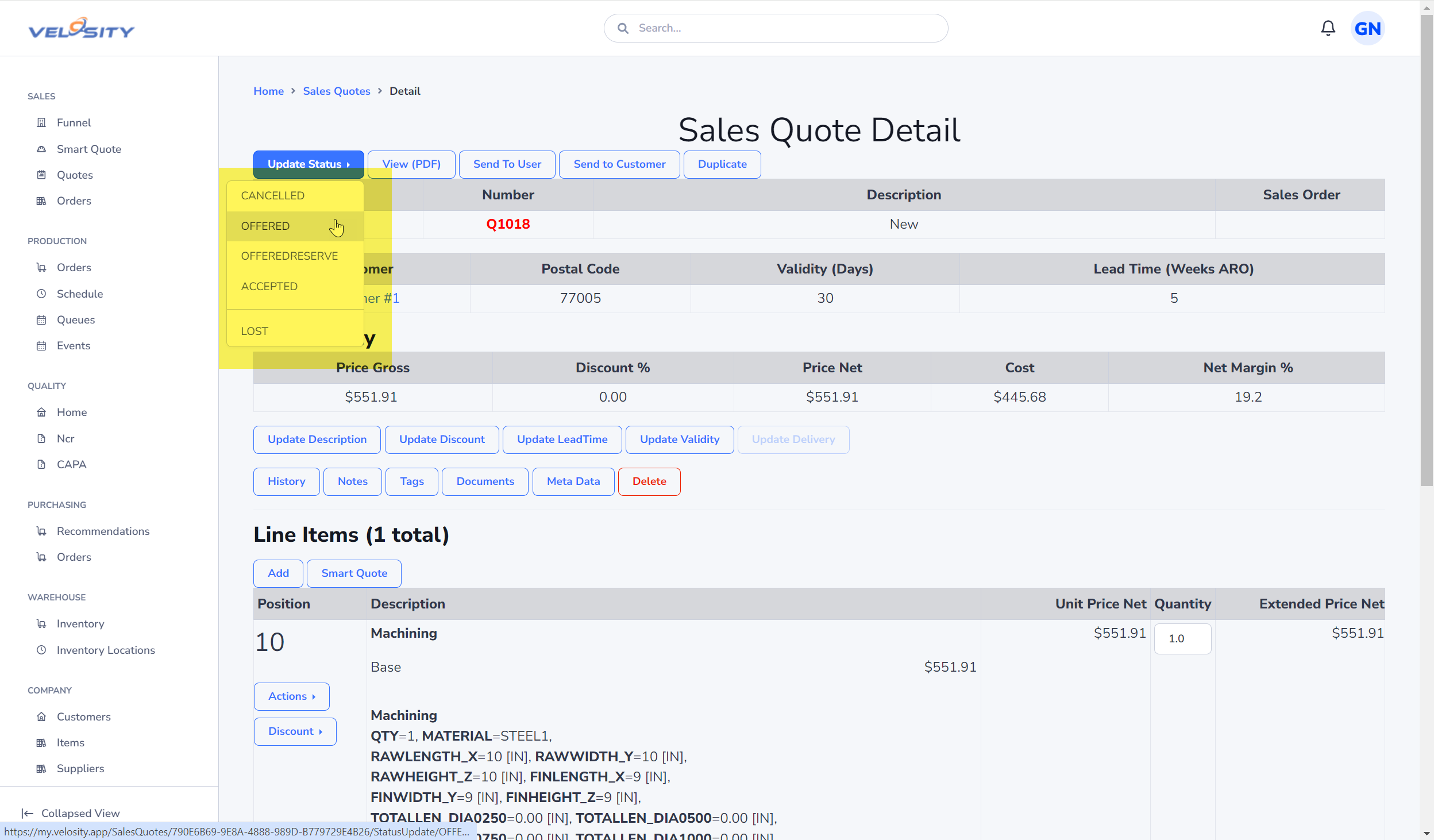
The Update Status dropdown allows you to change the Status of the Sales Quote to one of these values:
- DRAFT
- RELEASED
- CANCELLED
Update Phase
Phase is another way the state of a Sales Quote can be managed. Phases are fully customizable to your needs (ADMIN role).
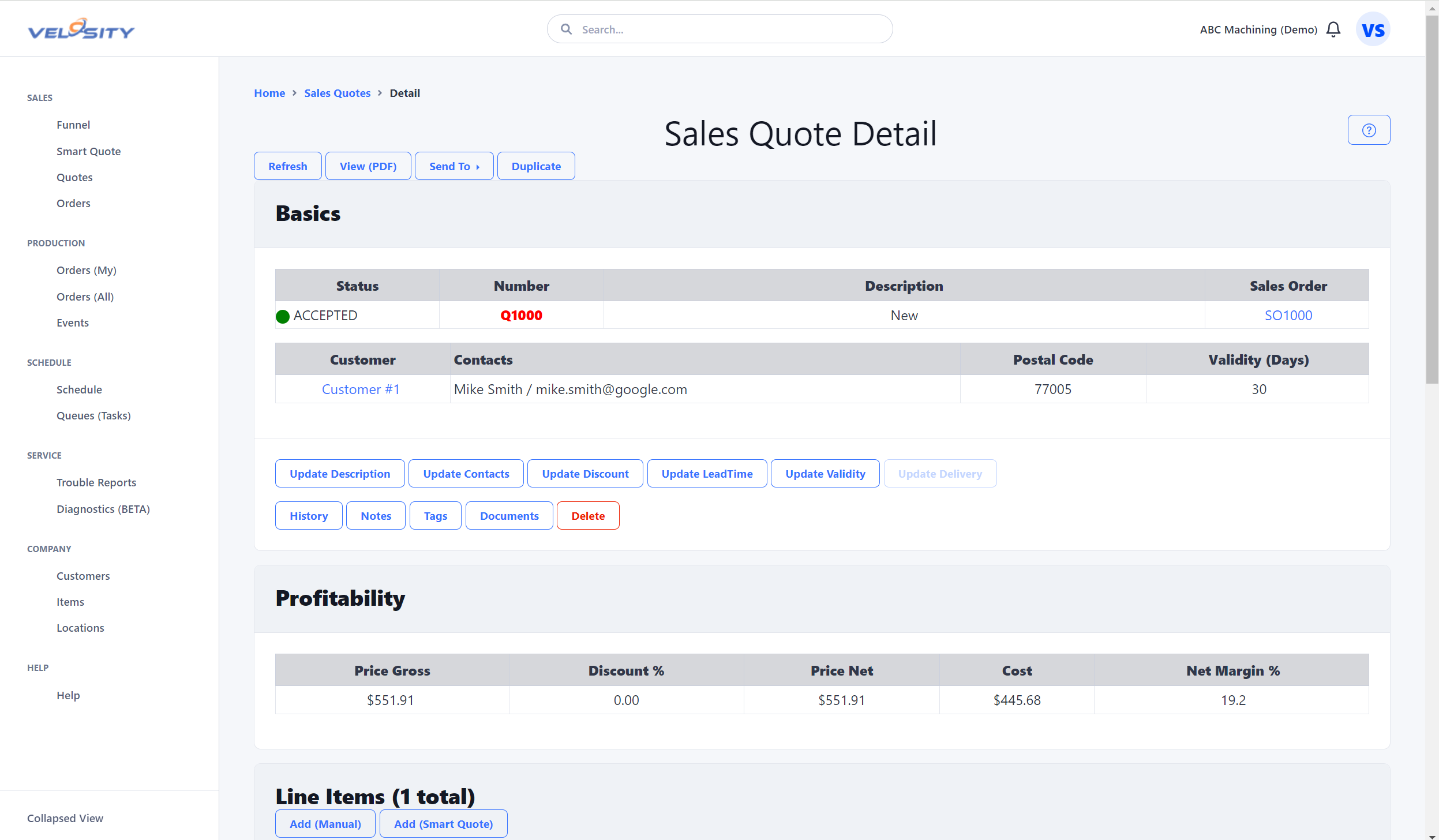
Update Contacts
The Update Contacts card allows you to select which Contacts (People) from the Customer record should be included on the Sales Quote. If no Contacts are defined on the Customer record, an Add Contacts button will take you to the Customer record to add.
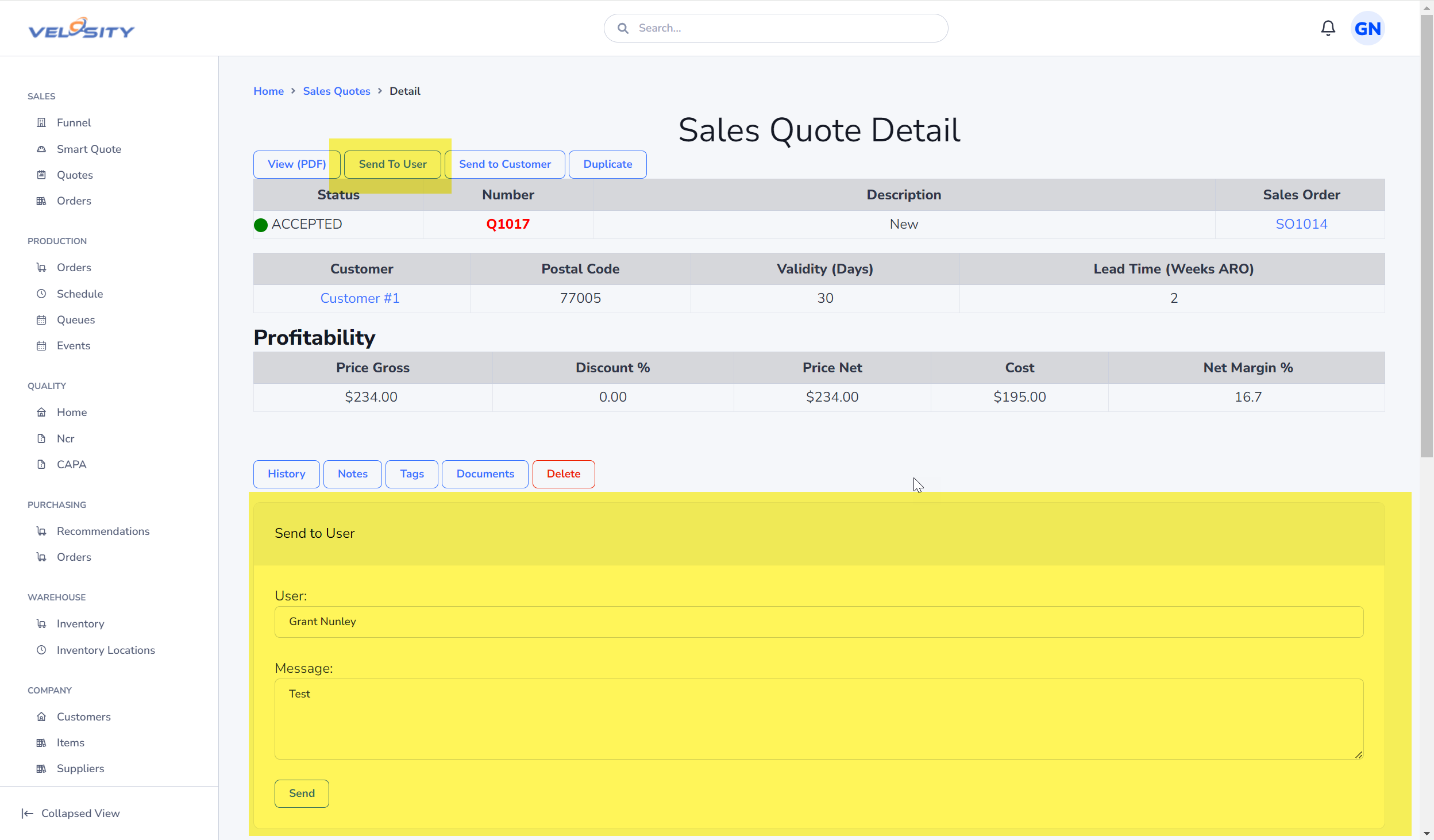
Send to User
The Send To User button allows you to send this quote as a message to another Velosity user. The recipient's view of Velosity will have a different Notification bell at the top right of the window.
Edit - Update Status
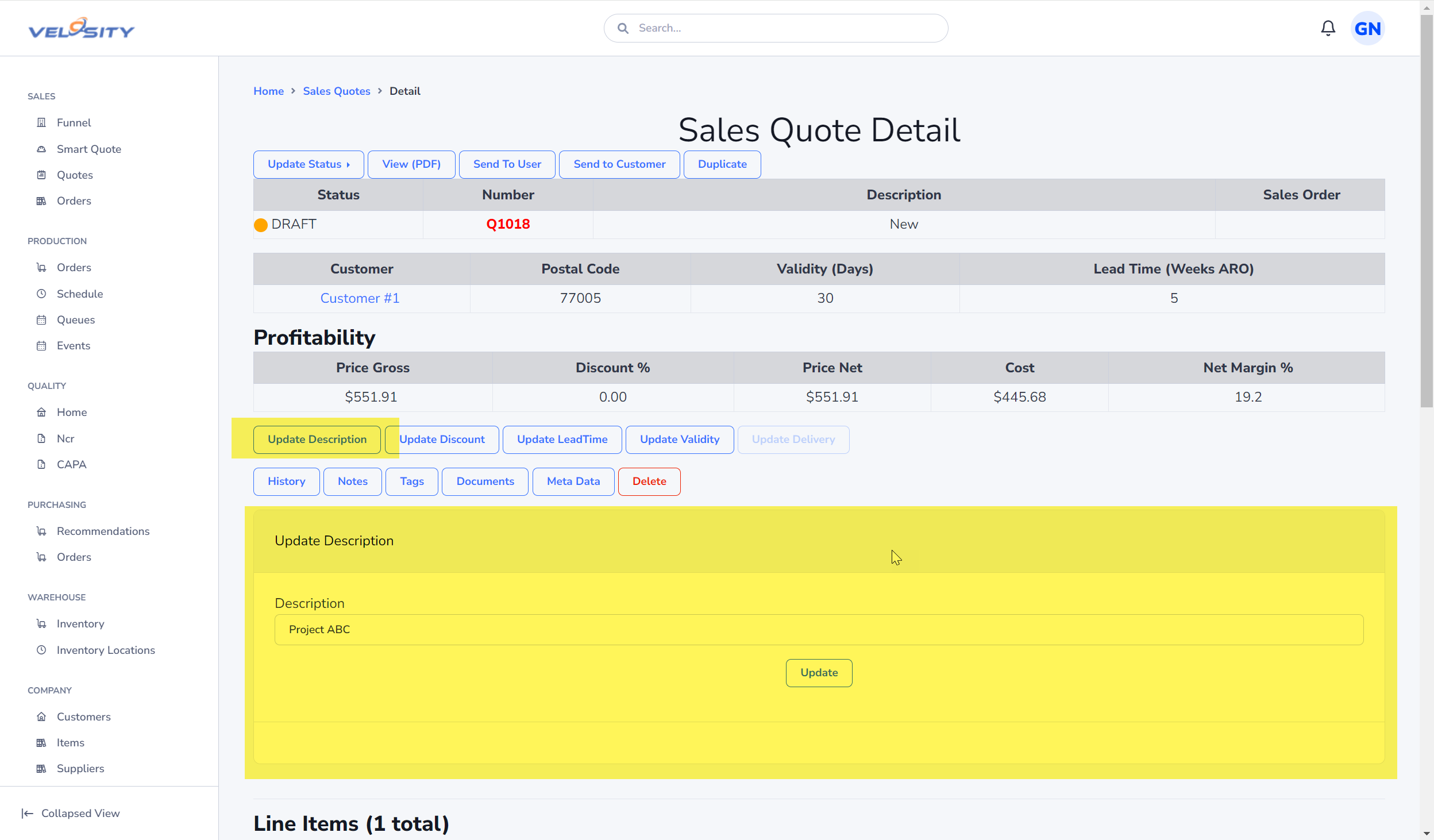
Edit - Update Description
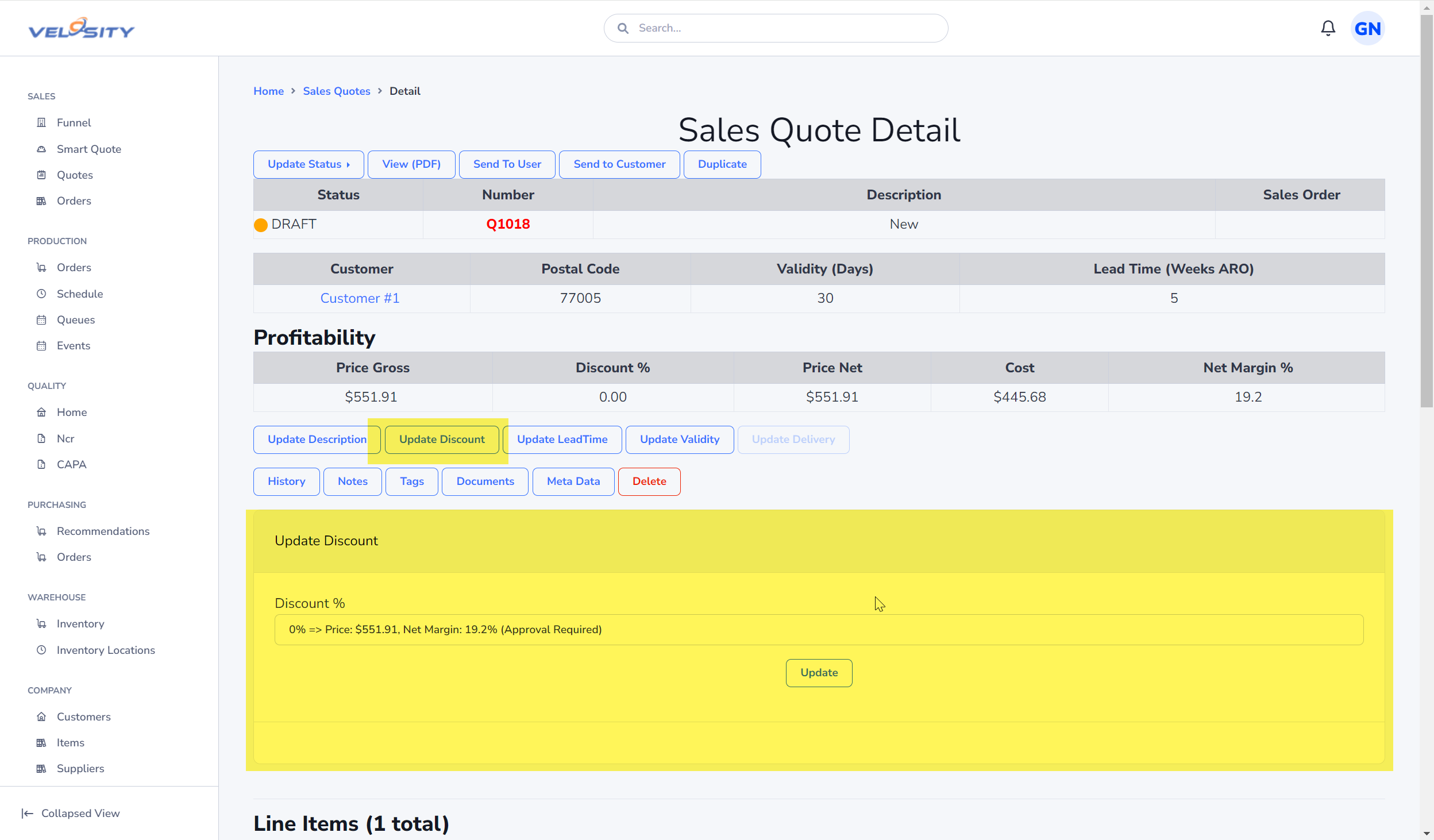
Edit - Update Discount
Edit - Update Leadtime
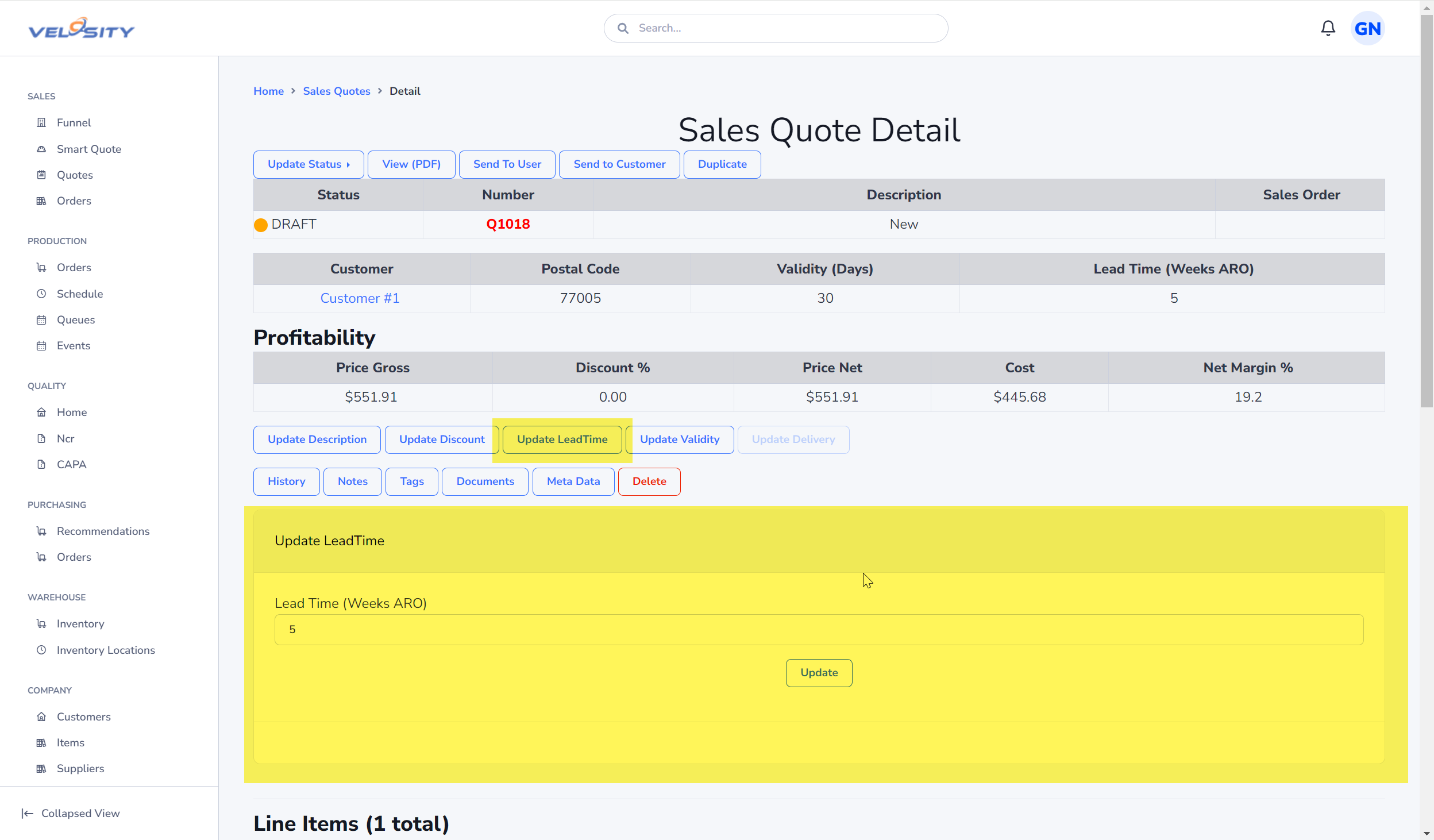
The Lead Time (in days) for a Sales Quote represents the estimated time until the entire quote can be fulfilled.
Line Item Lead Time
By design, the lead time for individual line items is automatically sourced from the Item Catalog:
- SKU-based Lines: Automatically populates from the Lead Time field defined on the Item record.
- Configured (Smart Quote) Lines: Sourced from the primary item mapped to the configuration.
This automated flow ensures consistency across different paths (e.g., Direct Add-SKU vs. SmartQuote .AddSku rules). While these values can be manually overridden on each line if necessary, maintaining them in the catalog reduces the need for constant coordination with production or product management.
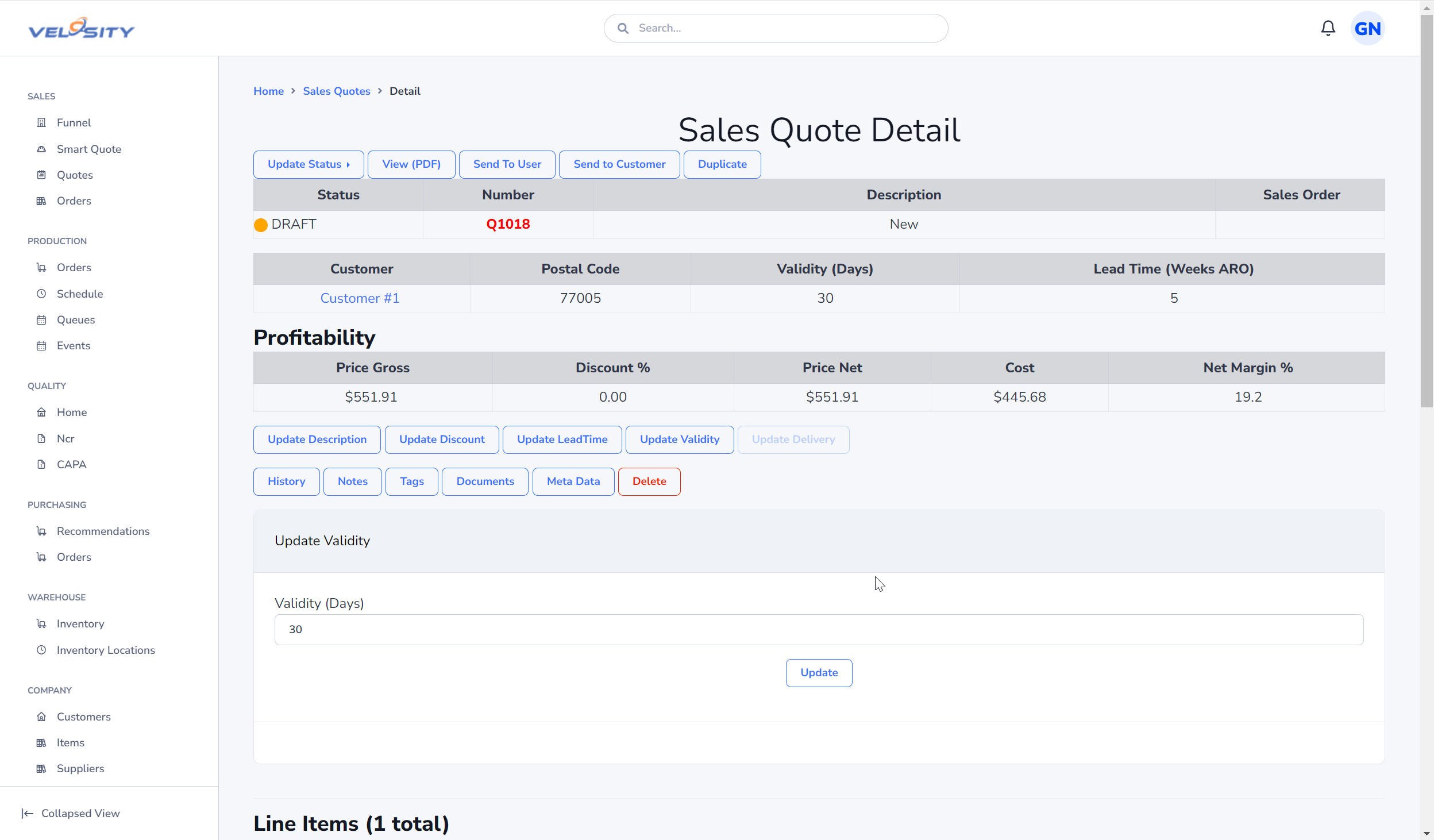
Edit - Update Validity
Edit - Update Inco Terms
Inco Terms are automatically copied to the Sales Quote on Create from the Customer record (or the specific Ship-To address selected).
You can manually update or override this selection on the quote detail page at any time while the quote is in DRAFT status.
Selected Inco Terms are automatically included in generated Quote PDF documents using the {{SQ.INCOTERMS}} placeholder.
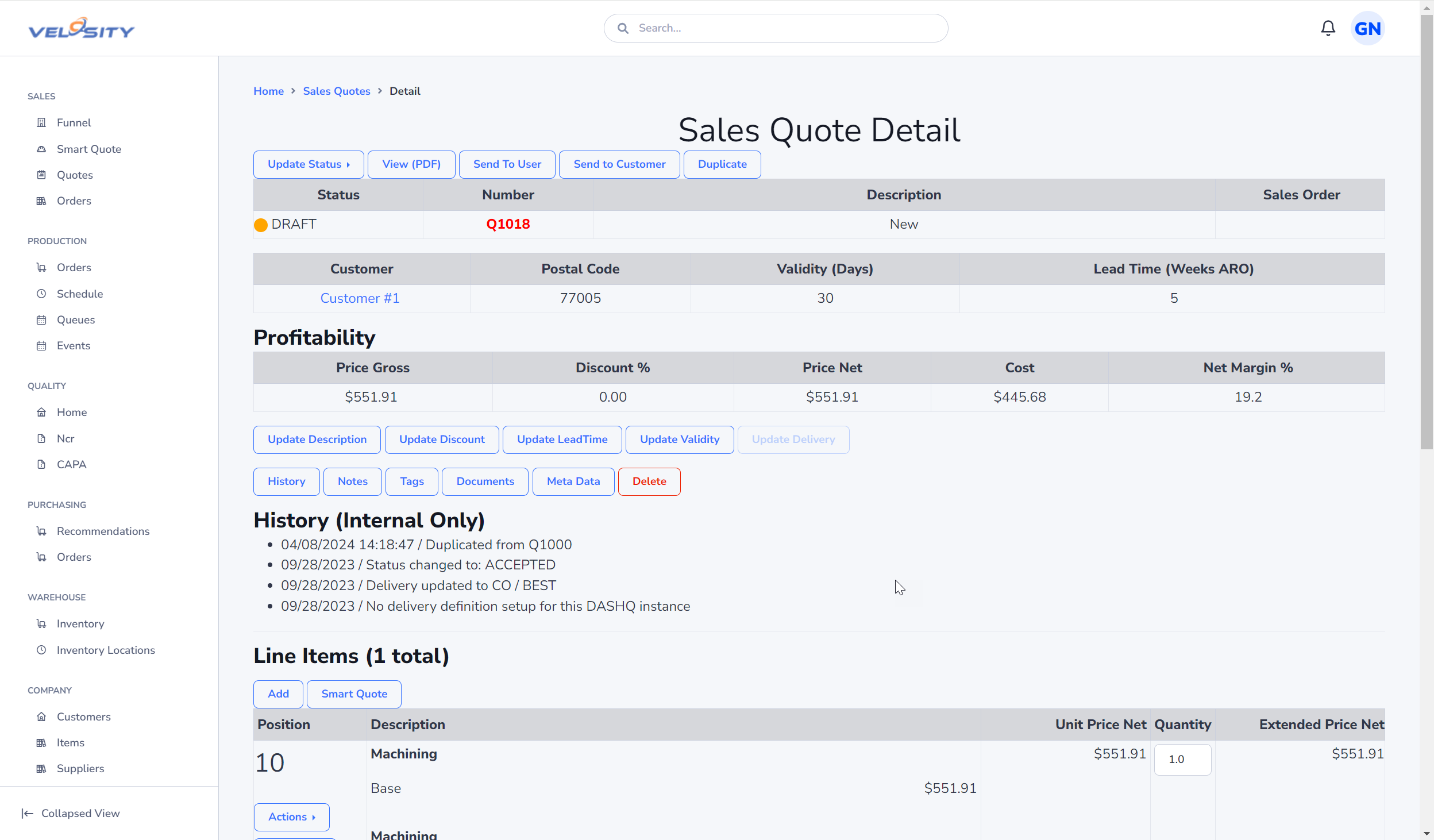
History
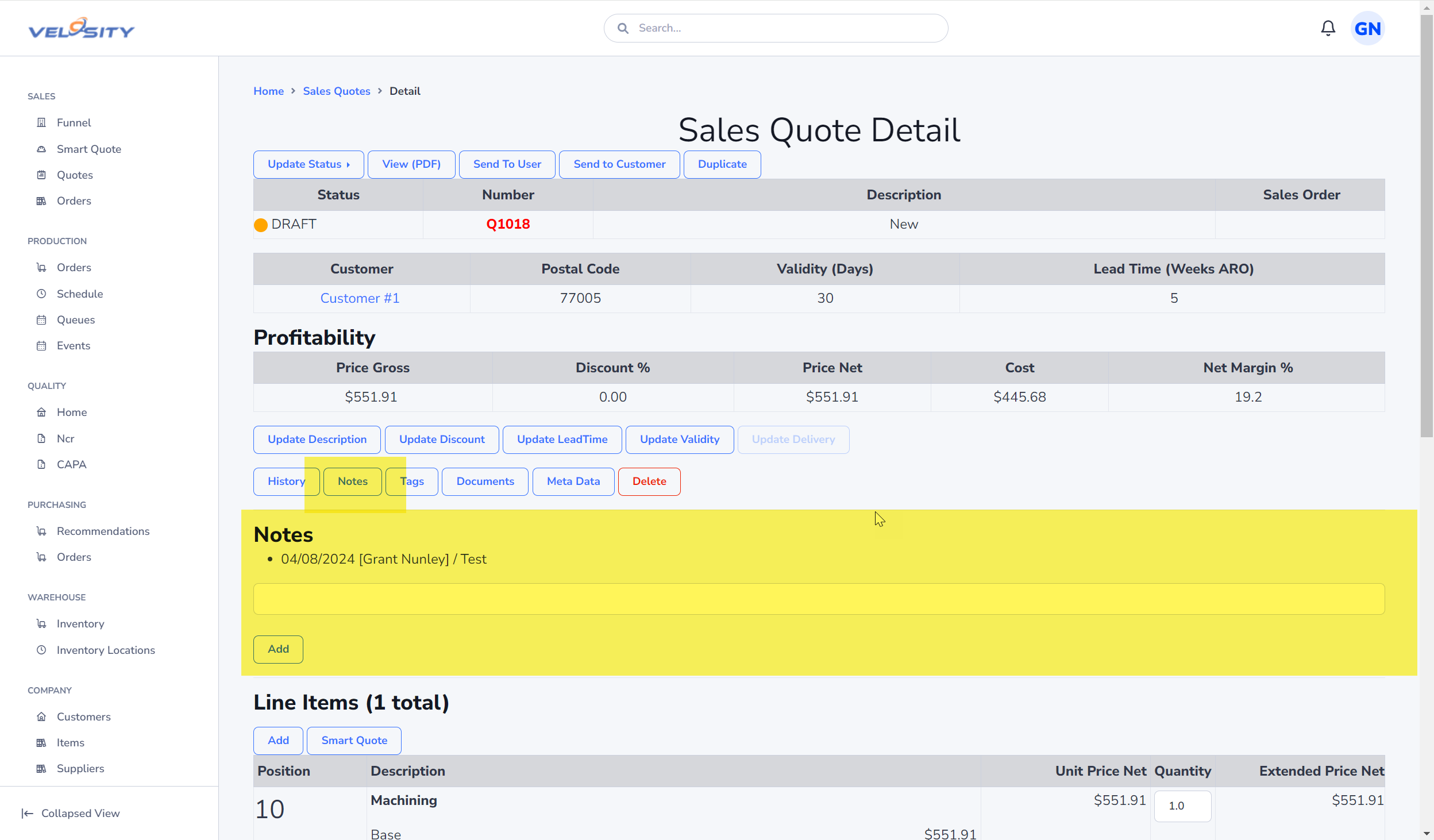
Notes
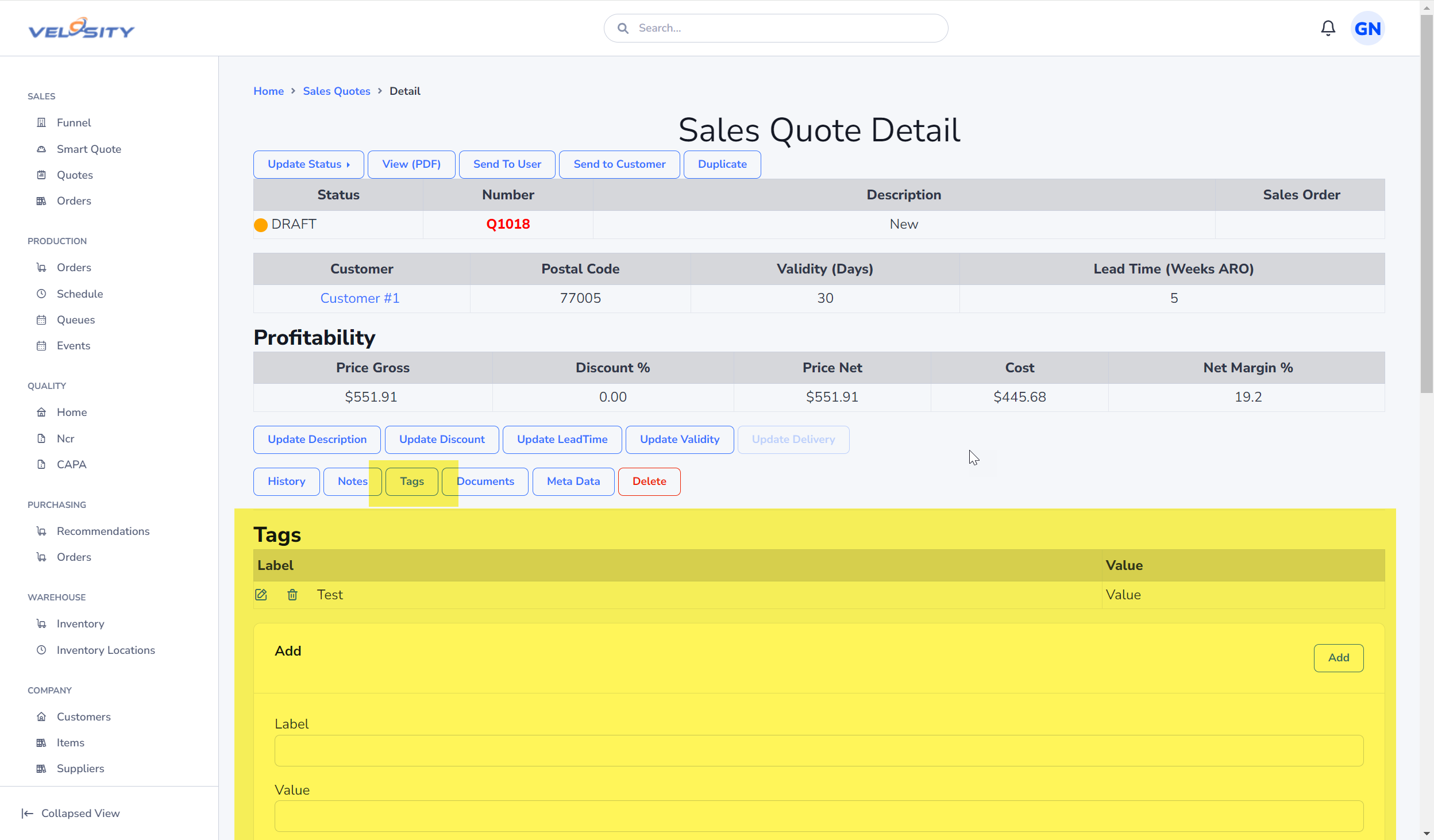
Tags
Tags allow data capture that is not already captured in Velosty. Tags can be added by any user. Default Tags (setup by Administrator) are automatically added when a Sales Quote is created (optionally can be marked as Required). If a tag is required, the Status of the Sales Quote cannot be changed until the Tag value is entered.
Required tags cannot be deleted (except by ADMIN users).
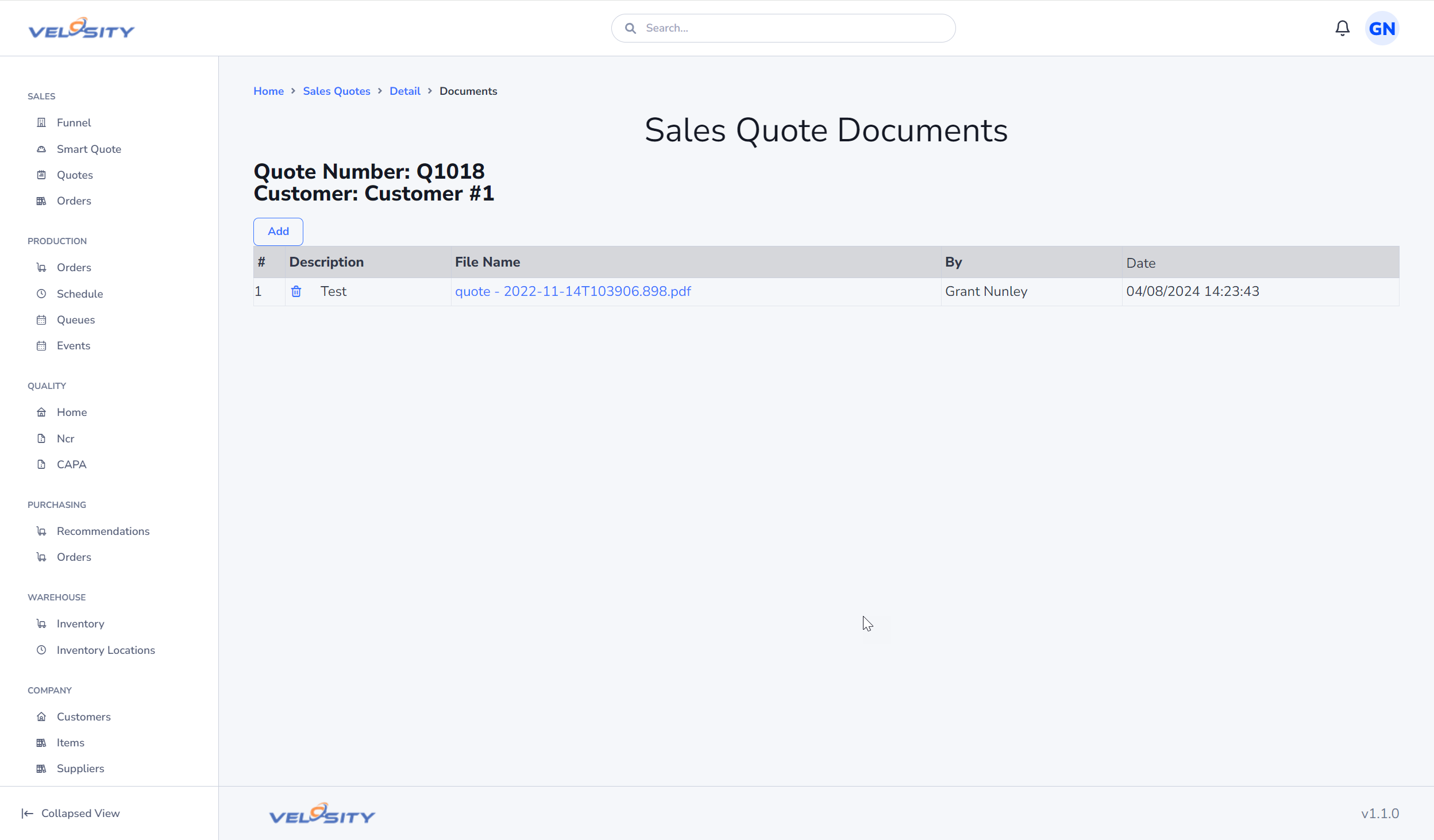
Documents
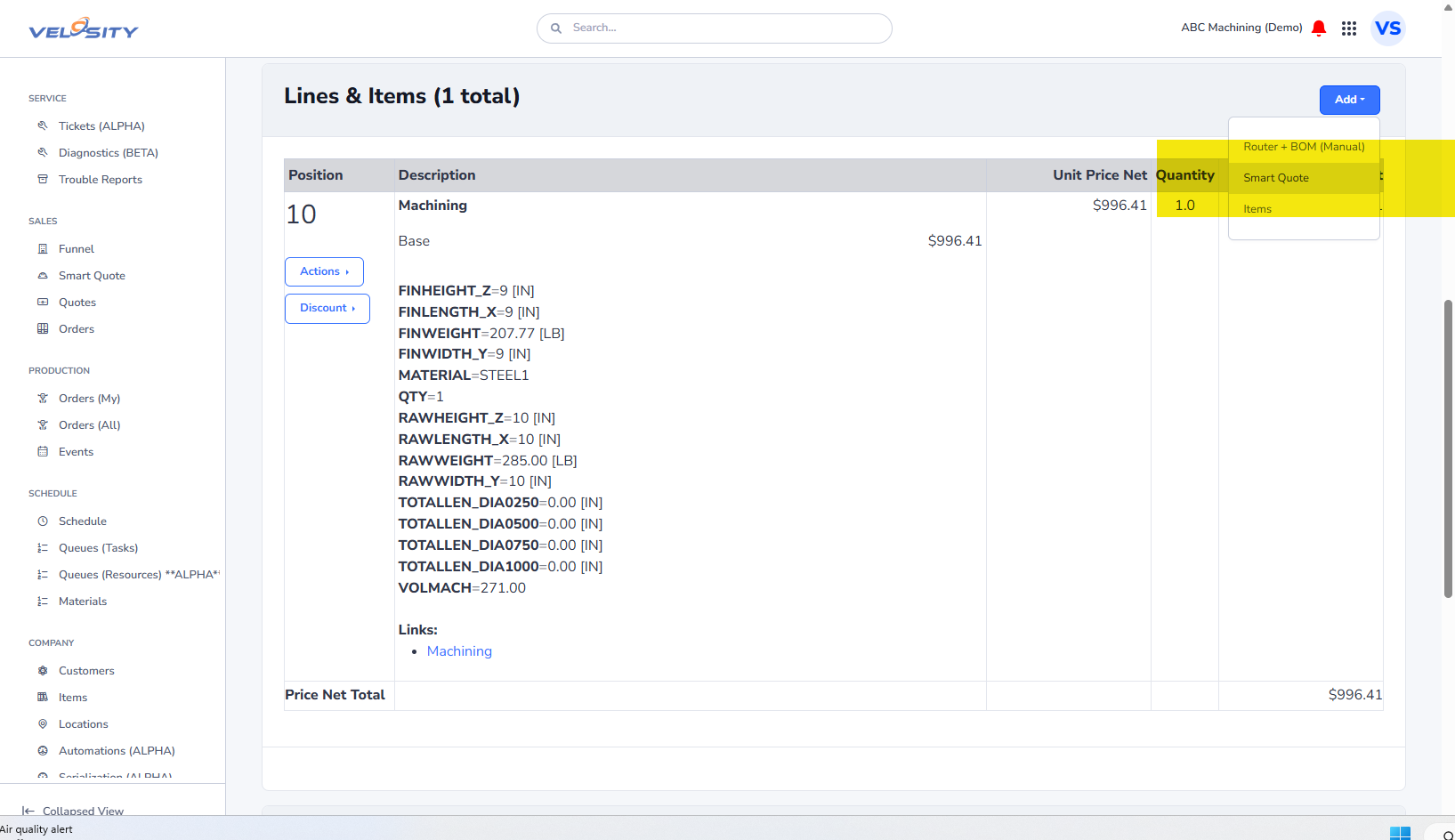
Line Items (Smart Quote)
Line Item - Add
Using Smart Quote you can add configured line items to Sales Quote. Smart Quote products are managed by your Velosity Administrator(s).
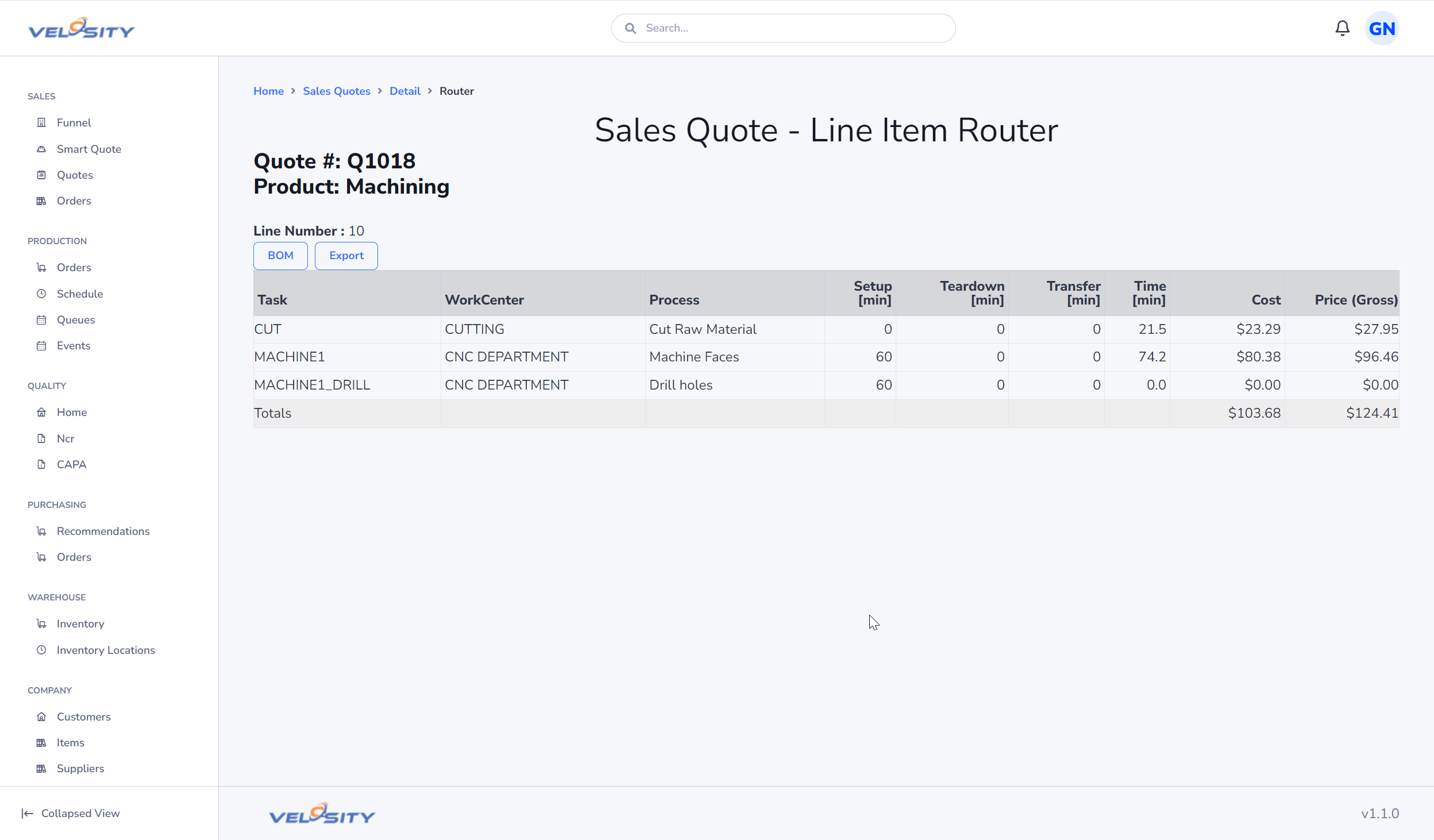
Line Item - View Router
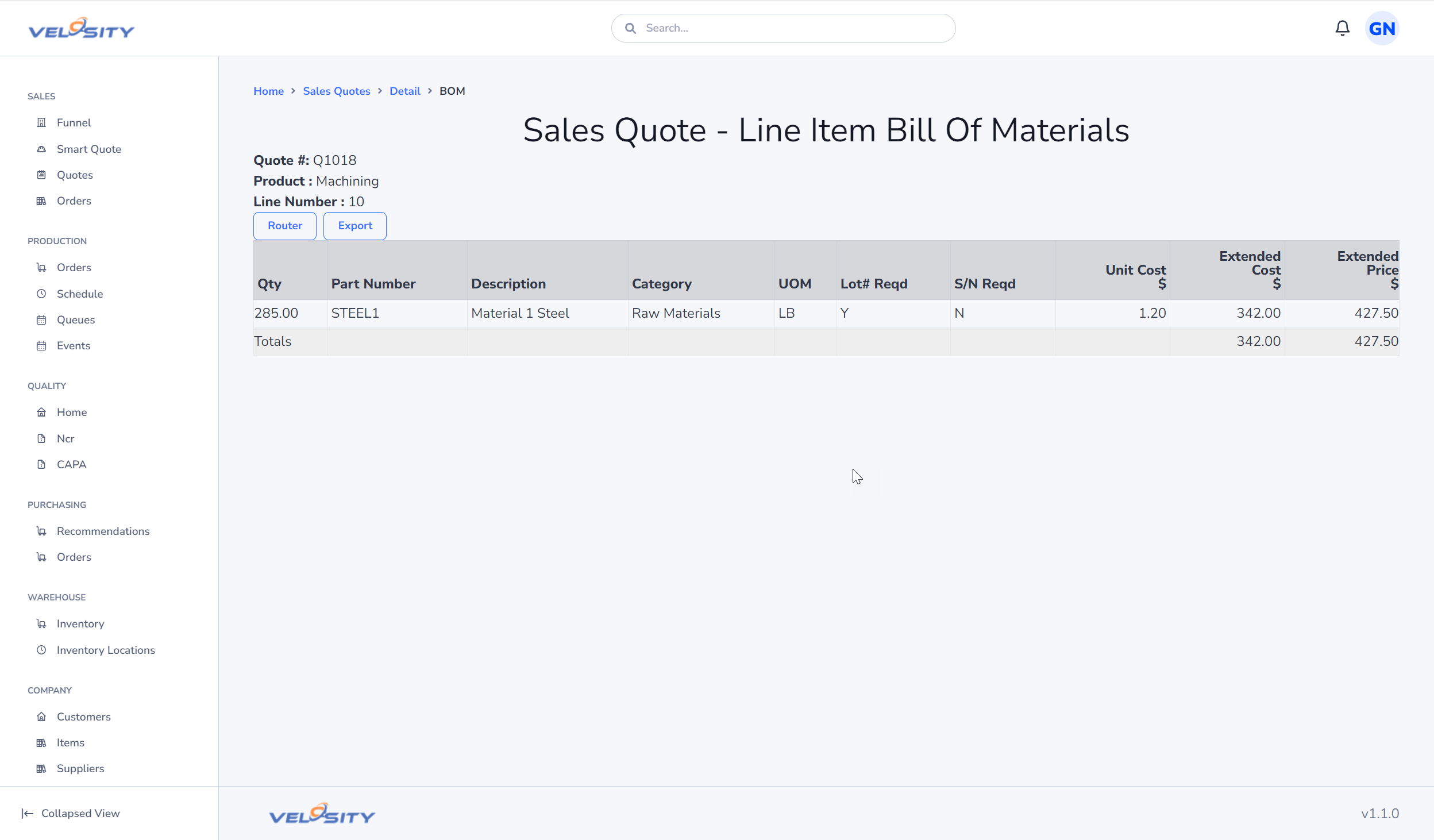
Line Item - View BOM
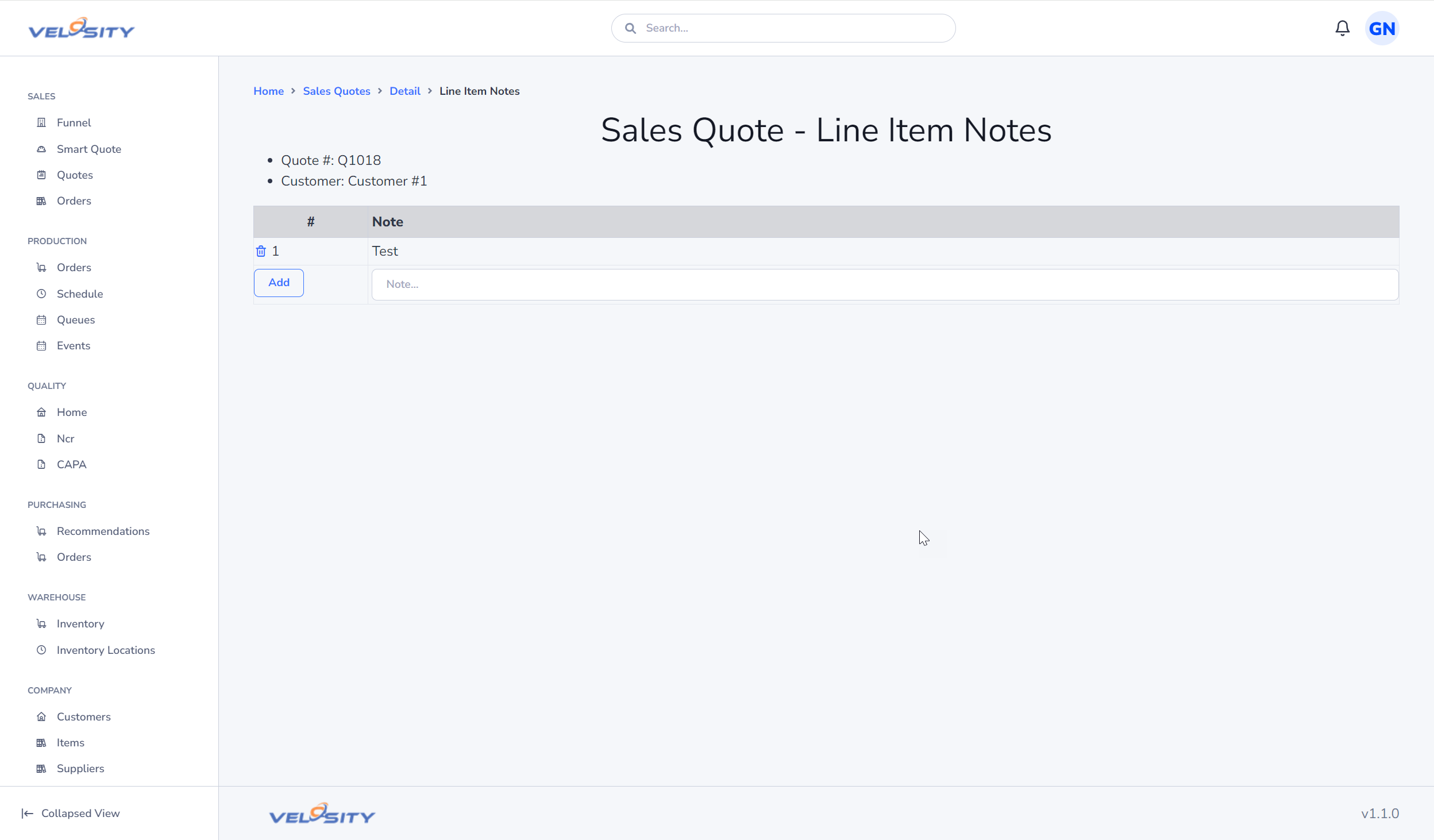
Line Item - Notes
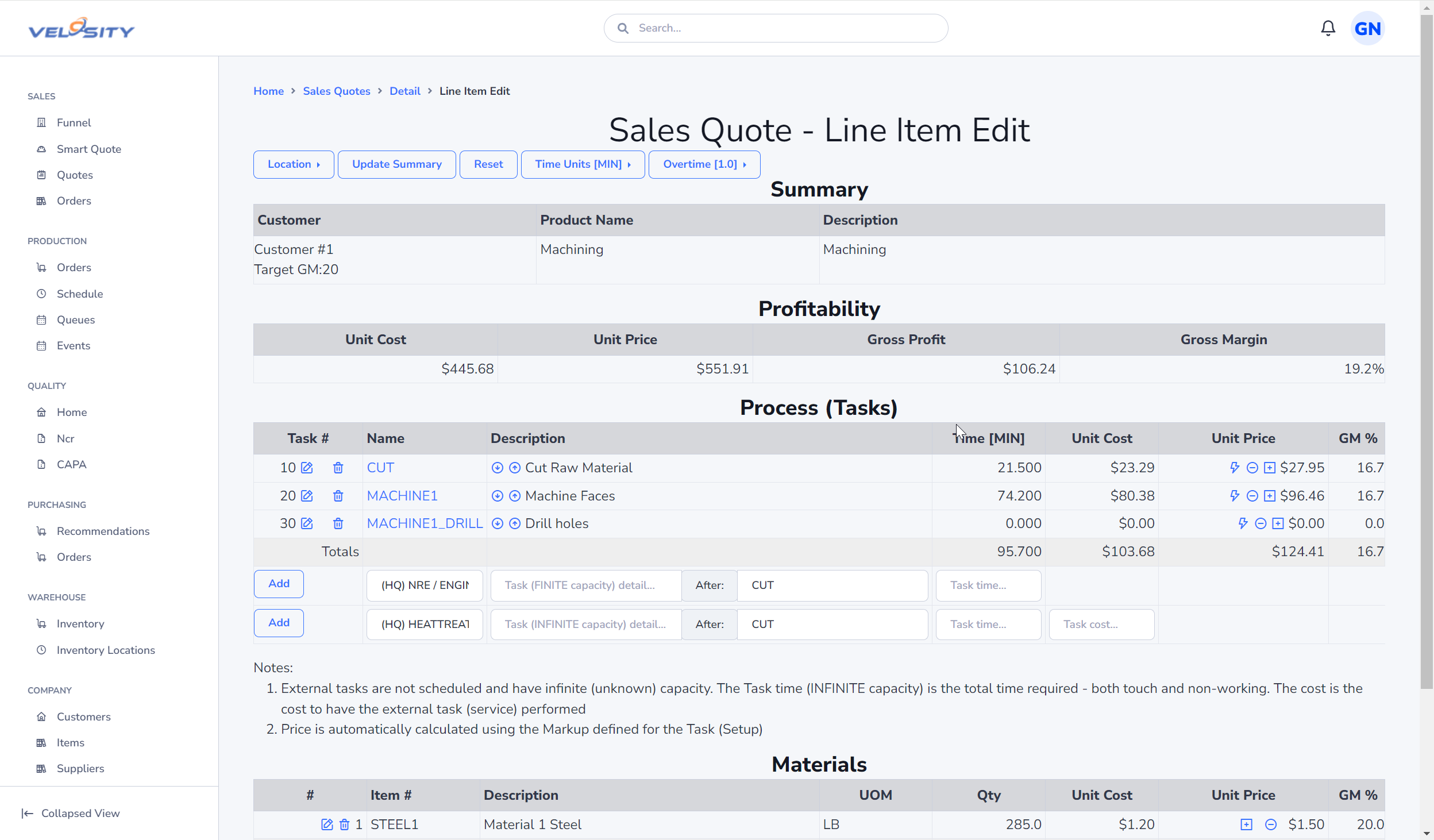
Line Item - Edit
Privacy Mode (Lock Icon)
The lock icon in the top navigation bar (and within the Smart Quote /Configure view) toggles Privacy Mode.
- Private Mode (Lock Icon - Green): Displays sensitive cost information, including unit costs and process costs. This is the default mode for internal use.
- Public Mode (Unlock Icon - Red): Hides all cost information. Use this mode when sharing your screen or reviewing a configuration with a customer to ensure they only see pricing and not your internal costs.
Line Item - Reorder (Drag and Drop)
Line items can be reordered by clicking and dragging the item to its new position. This allows you to control the sequence in which items appear on the quote and in the generated PDF.
Line Item - Renumber
After reordering line items, you can use the Renumber button to automatically re-assign sequence numbers (10, 20, 30, etc.) to all items in the new order.
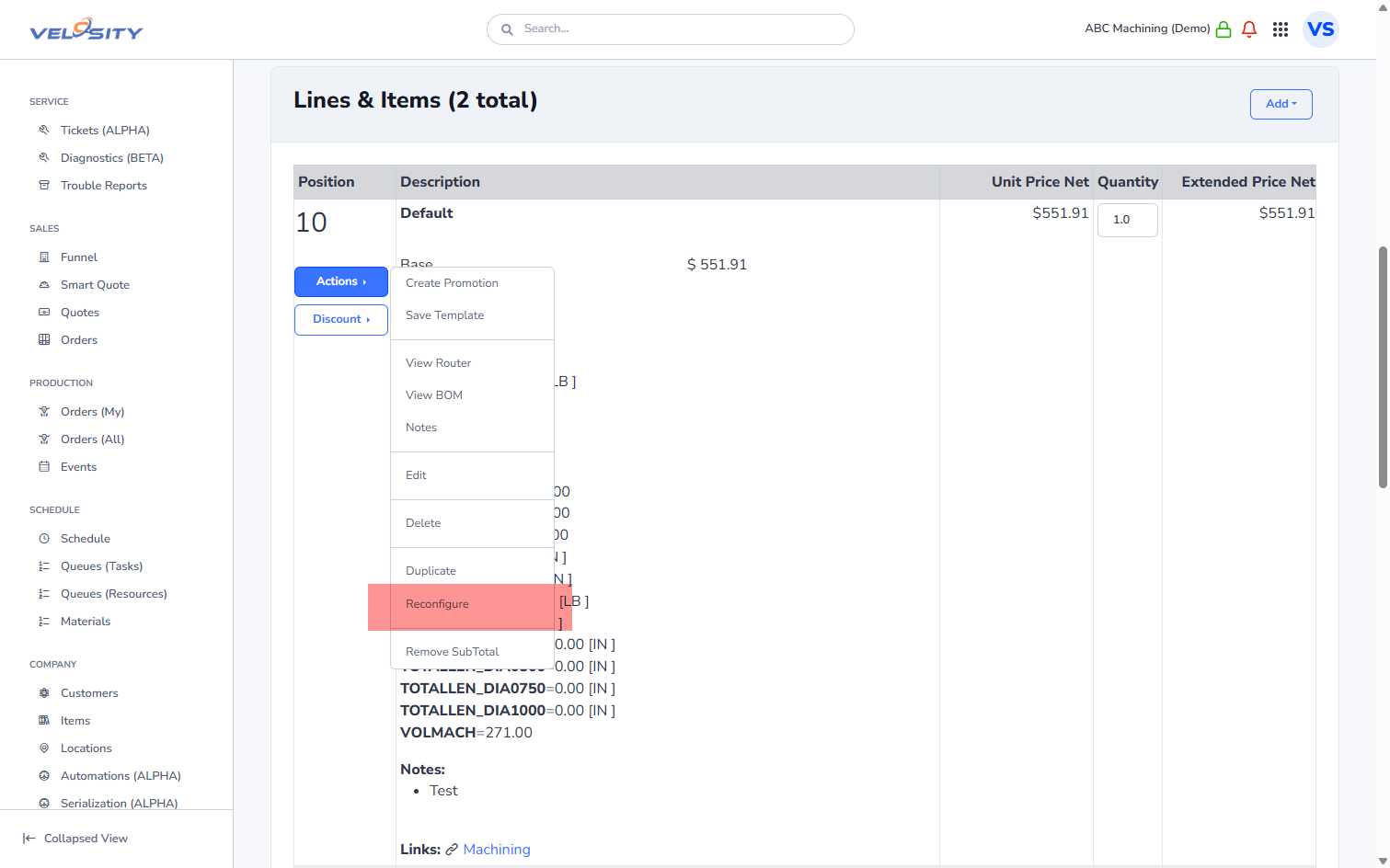
Line Item - Reconfigure
Click here to learn more
Line Item - Price Breaks (Configured Items)
Price breaks for configured (Smart Quote) items are defined at the customer level.
Click here to learn more
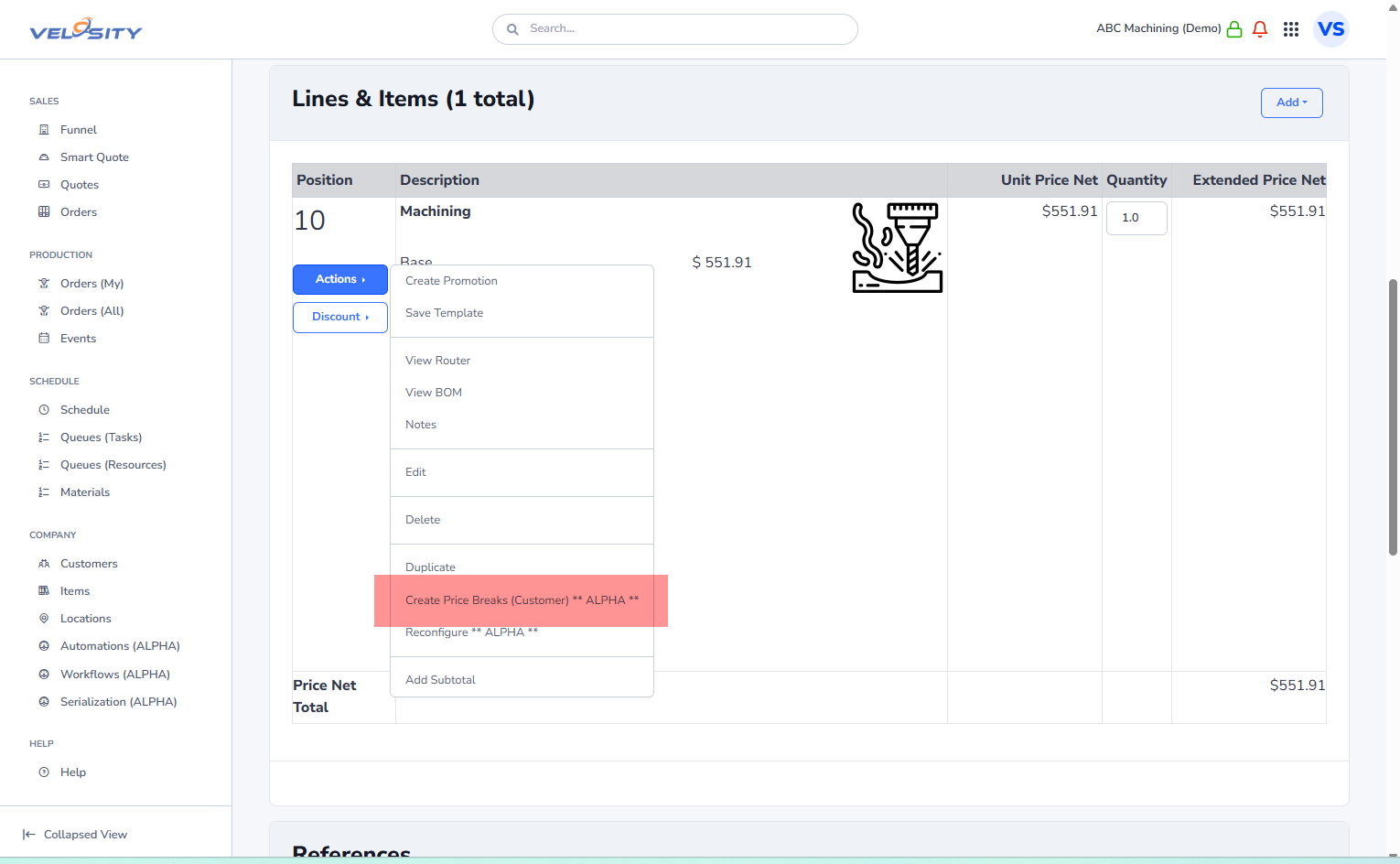
Item - Price Breaks (SKU Items)
For standard catalog items, price breaks are defined on the Item record and can be viewed alongside supplier costs.
Click here to learn more
Line Item - Add Subtotal
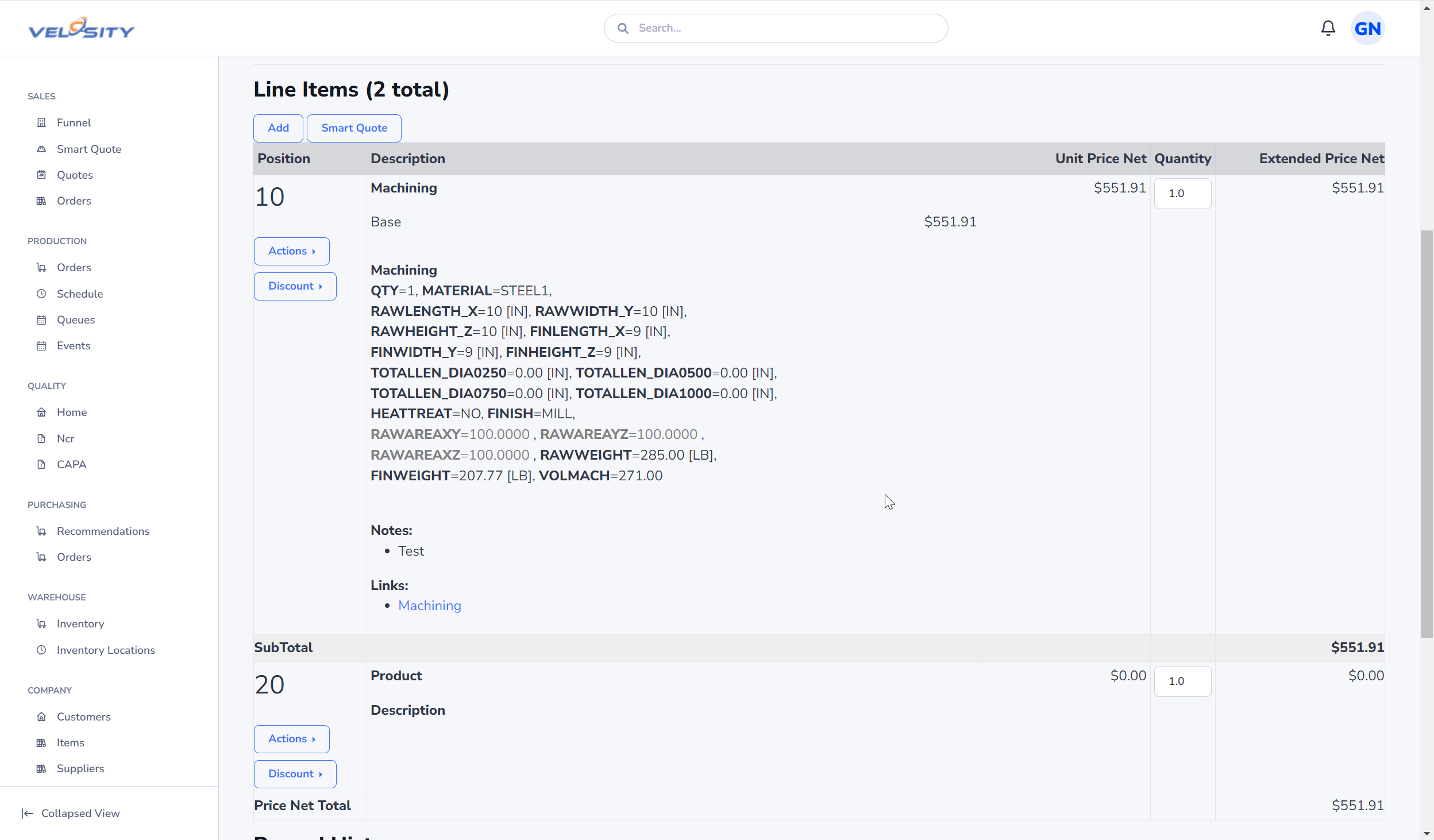
Items (Loose)
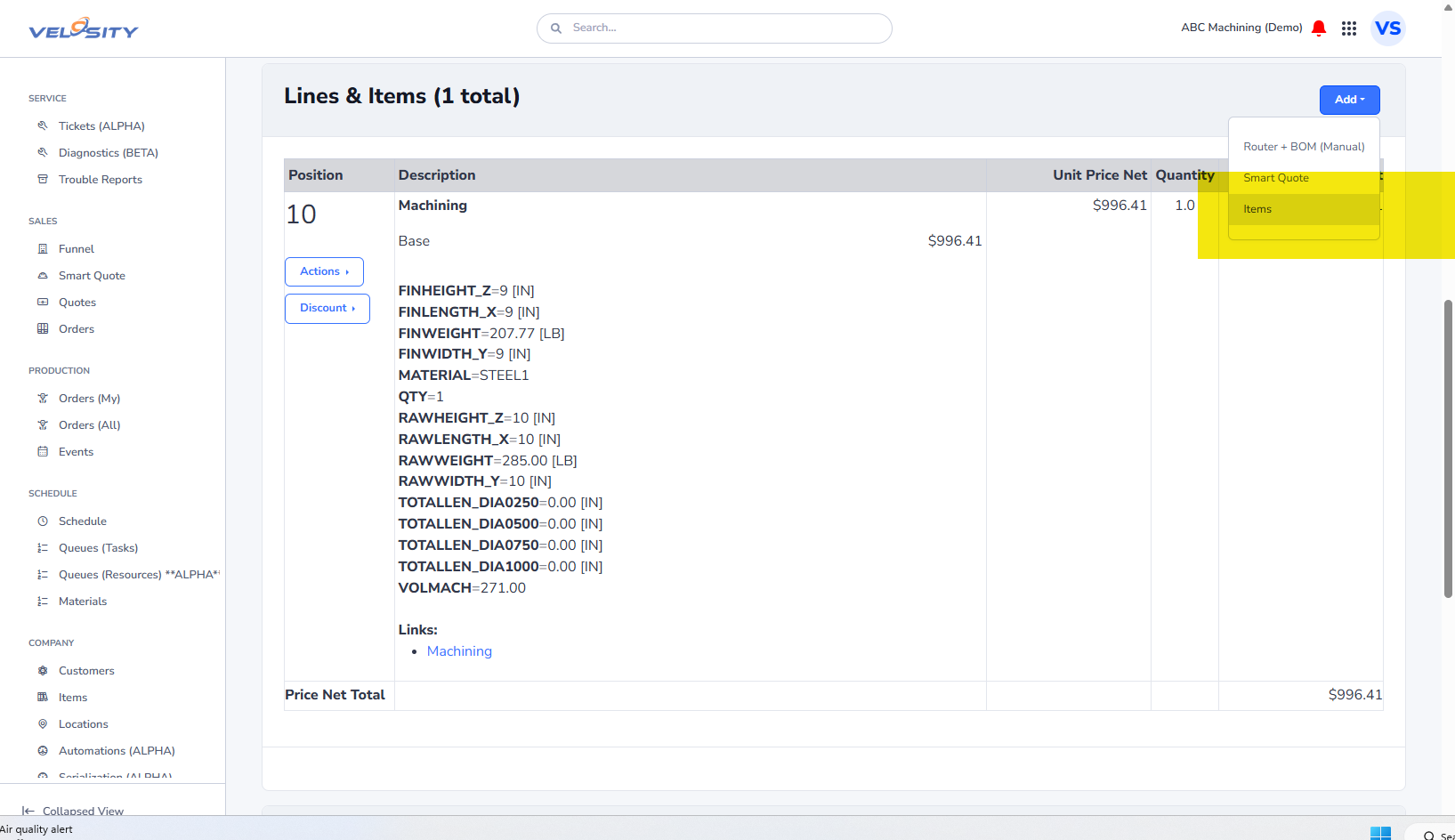
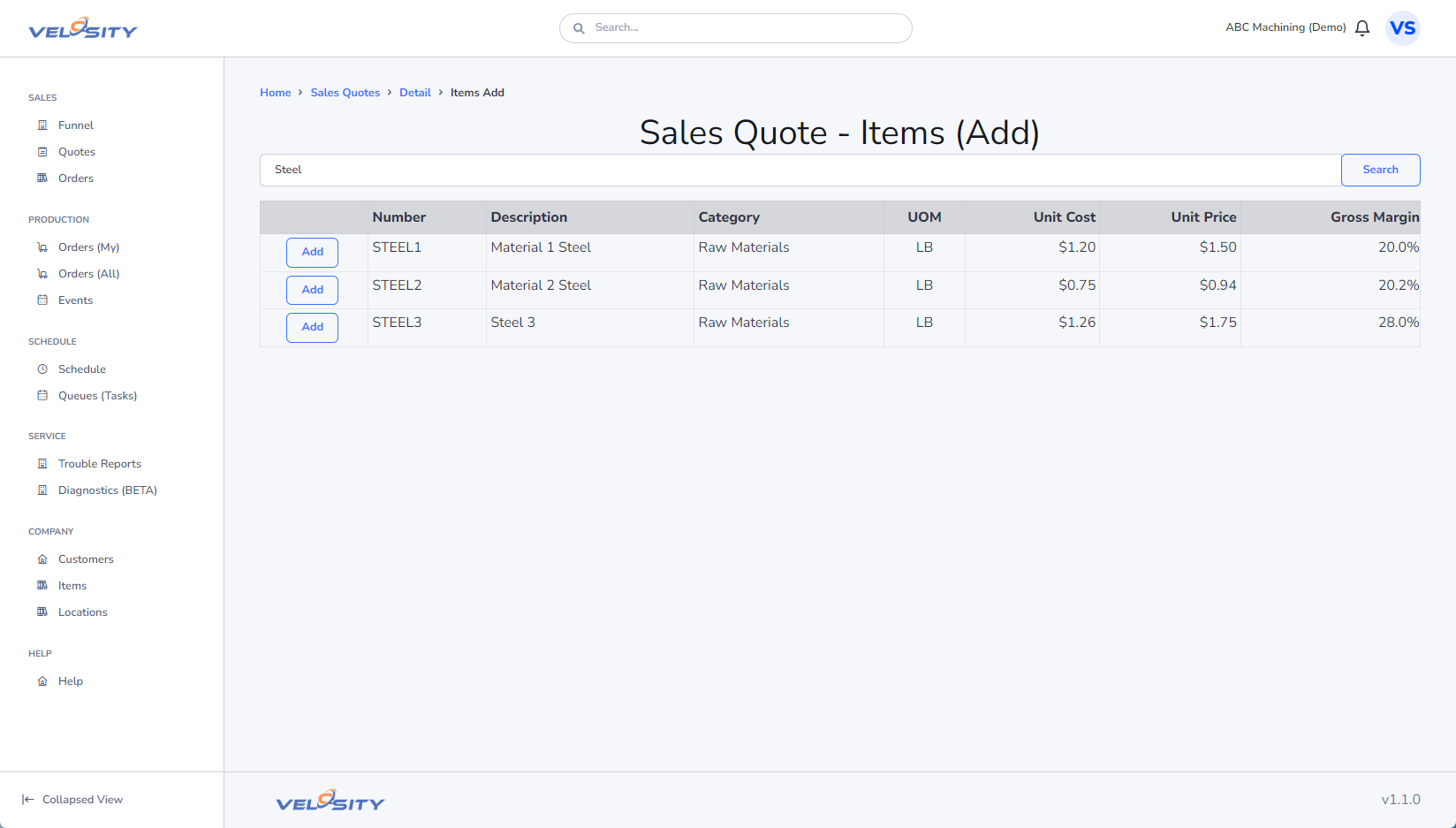
Item - Add
You can add any item from the Item catalog.
Item - Edit Price
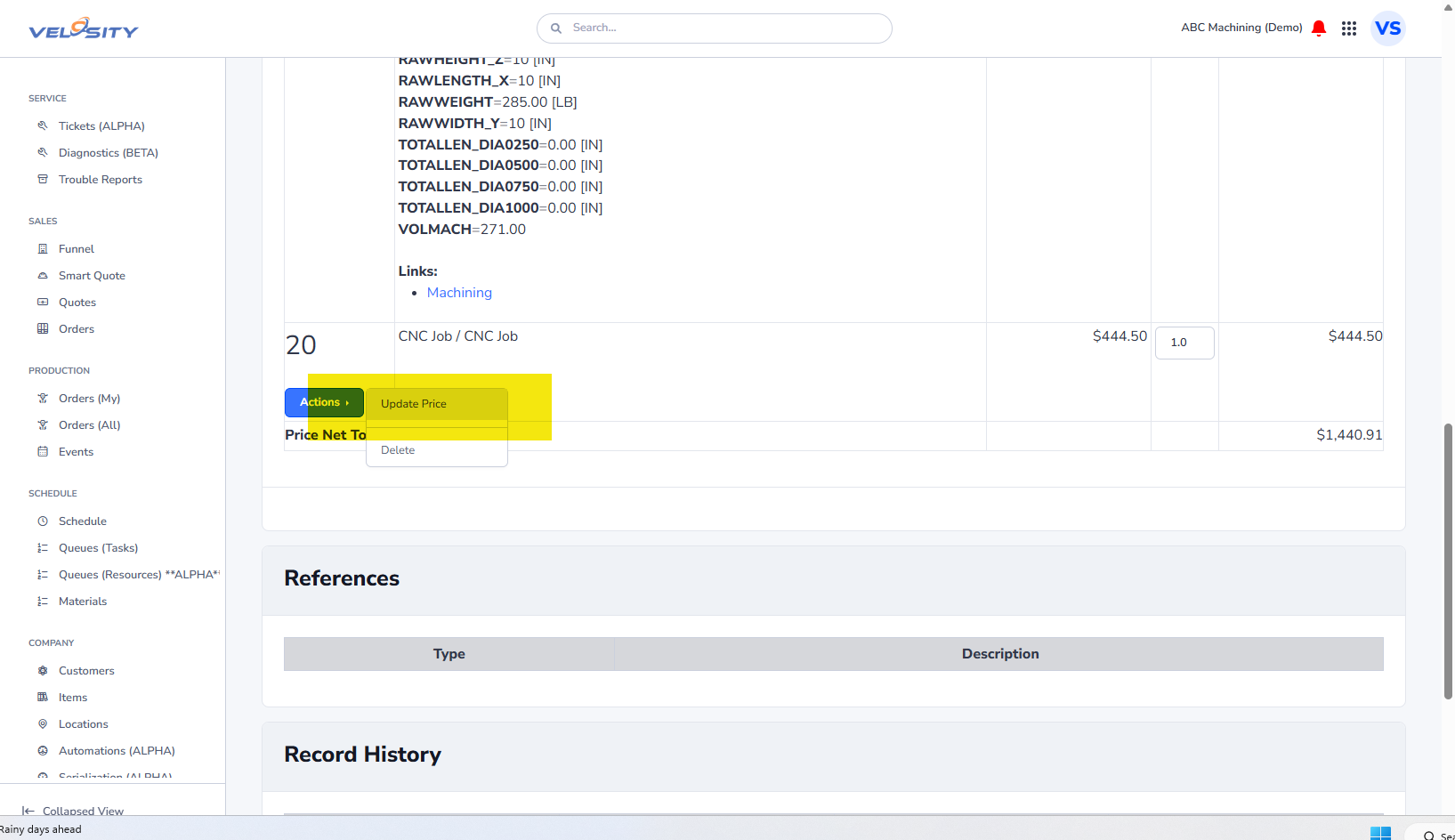
You can edit the price of an Item on the sales quote (when in DRAFT status)
Item - Reorder (Drag and Drop)
Items can be reordered by clicking and dragging the item to its new position.
Item - Renumber
Similar to line items, loose items can be renumbered after reordering to maintain a clean sequence.
List and Filtering
The Sales Quotes list view allows you to manage and filter your quotes.
- Filter by User: You can filter the list to show only quotes created by a specific user.
- Search: Use the search bar to find quotes by number, customer, or description.
Delete Permissions
The ability to delete a Sales Quote is restricted to:
- ADMIN: Full control over all quotes.
- POWERUSER: Can delete quotes they have permission to manage.
A Sales Quote can only be deleted if it is in DRAFT status and has no associated Sales Order or Production Orders.
Search
You can search for a Sales Quote record using the search bar at the top of the Velosity window. Using just a text string will return search results across all entities. You can restrict the search to just Sales Quotes by using this syntax (case insensitive):
- sq:searchtext
- SQ:searchtext
Tutorials
The following tutorials walk you through common Sales Quote and Sales Order workflows in Velosity.
How to Create Your First Quote
Learn how to create a new Sales Quote using Smart Quote configuration.
How to Convert a Sales Quote to a Sales Order
Step‑by‑step instructions for releasing a Sales Quote and generating its Sales Order.